

Video Editor · Article 11 of 18
Adding and Editing Scales
Overview
This walkthrough demonstrates how to add and adjust a scale animation on a video strip in the Slide Editor at Superdegree. While zoom enlarges the content within the frame, scale resizes the outer frame itself. You will learn how to insert a scale effect from the timeline context menu, adjust its duration, configure scale properties, and align it with existing zoom animations.
Step 1 — Add a scale effect from the context menu
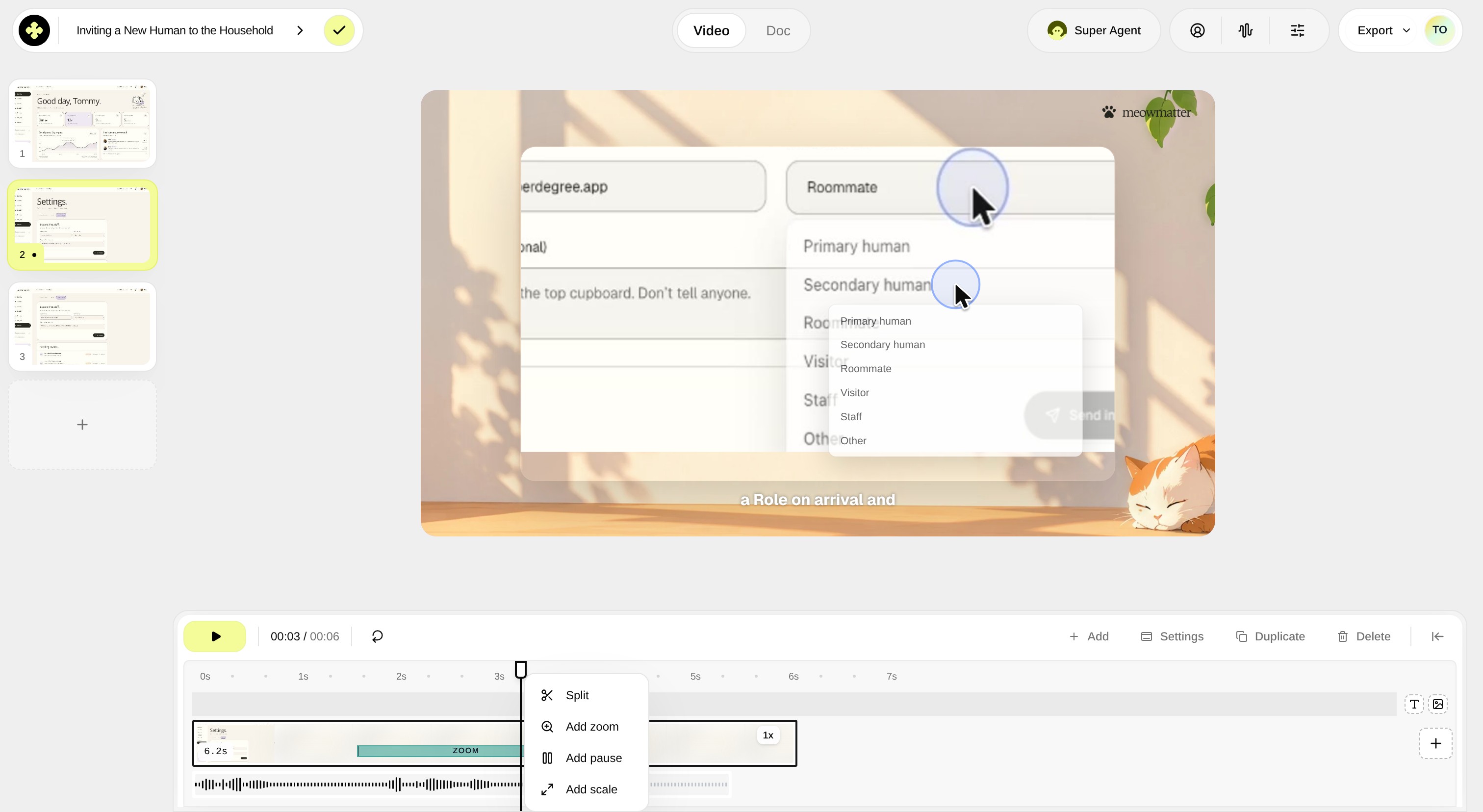
Right-click the video strip on the timeline track and select Add scale from the context menu to insert a scale animation strip.
Step 2 — Adjust the scale duration on the timeline
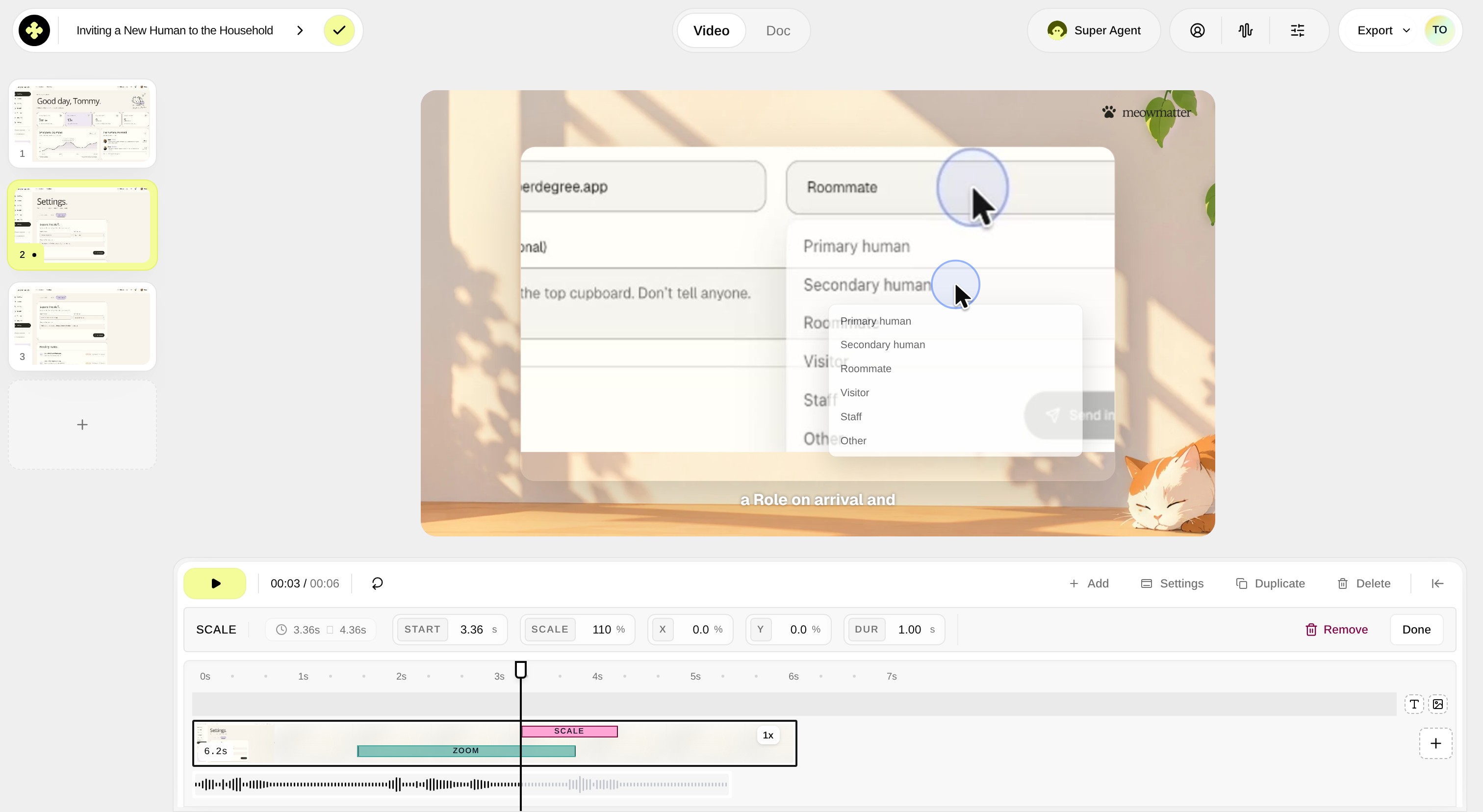
Drag the right edge handle (Resize scale end) of the scale strip to extend or shorten how long the scale effect lasts.
Step 3 — Select the scale strip to open its properties
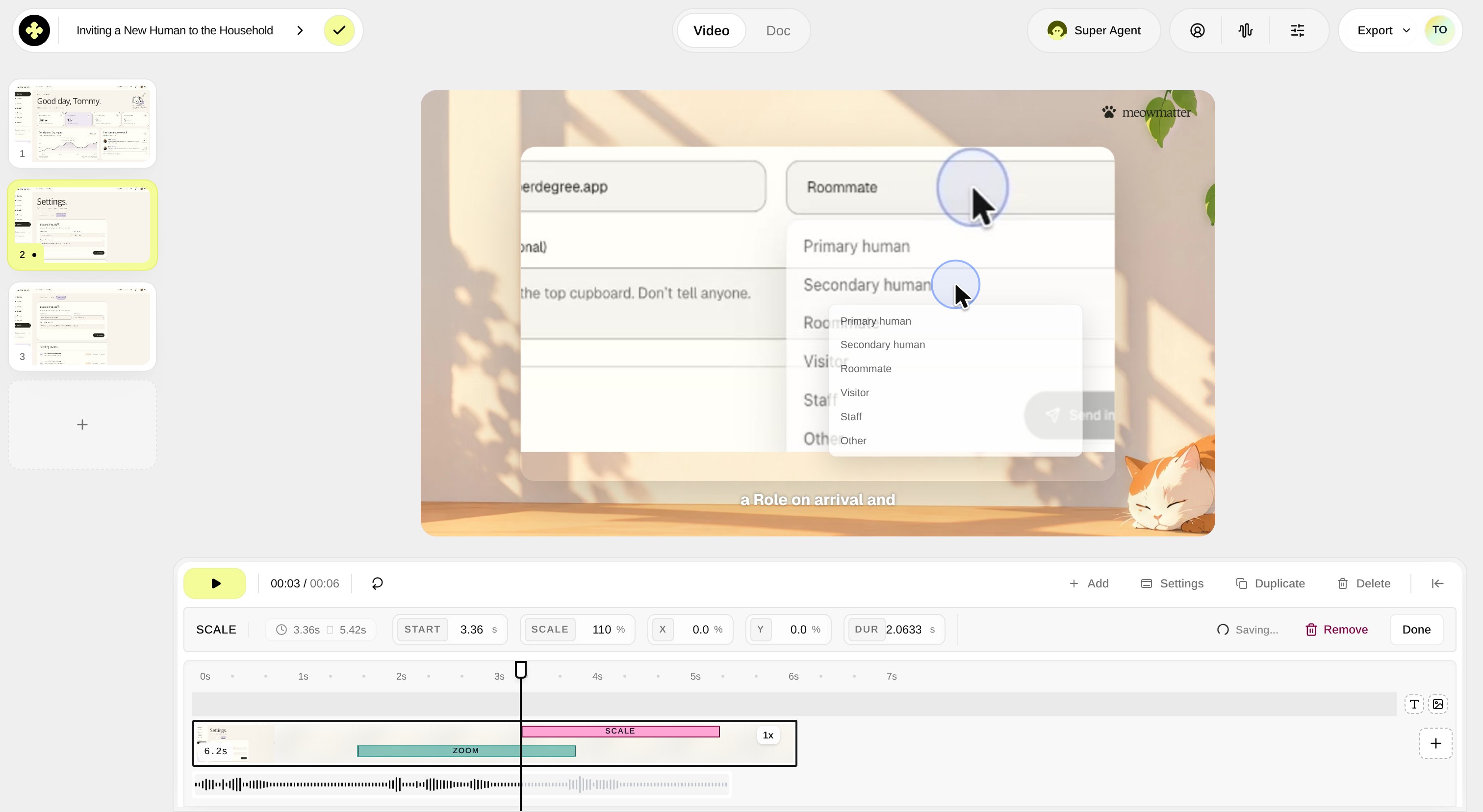
Click on the Scale strip on the timeline to open the scale adjustment controls in the editor side panel.
Step 4 — Adjust the scale percentage and timing
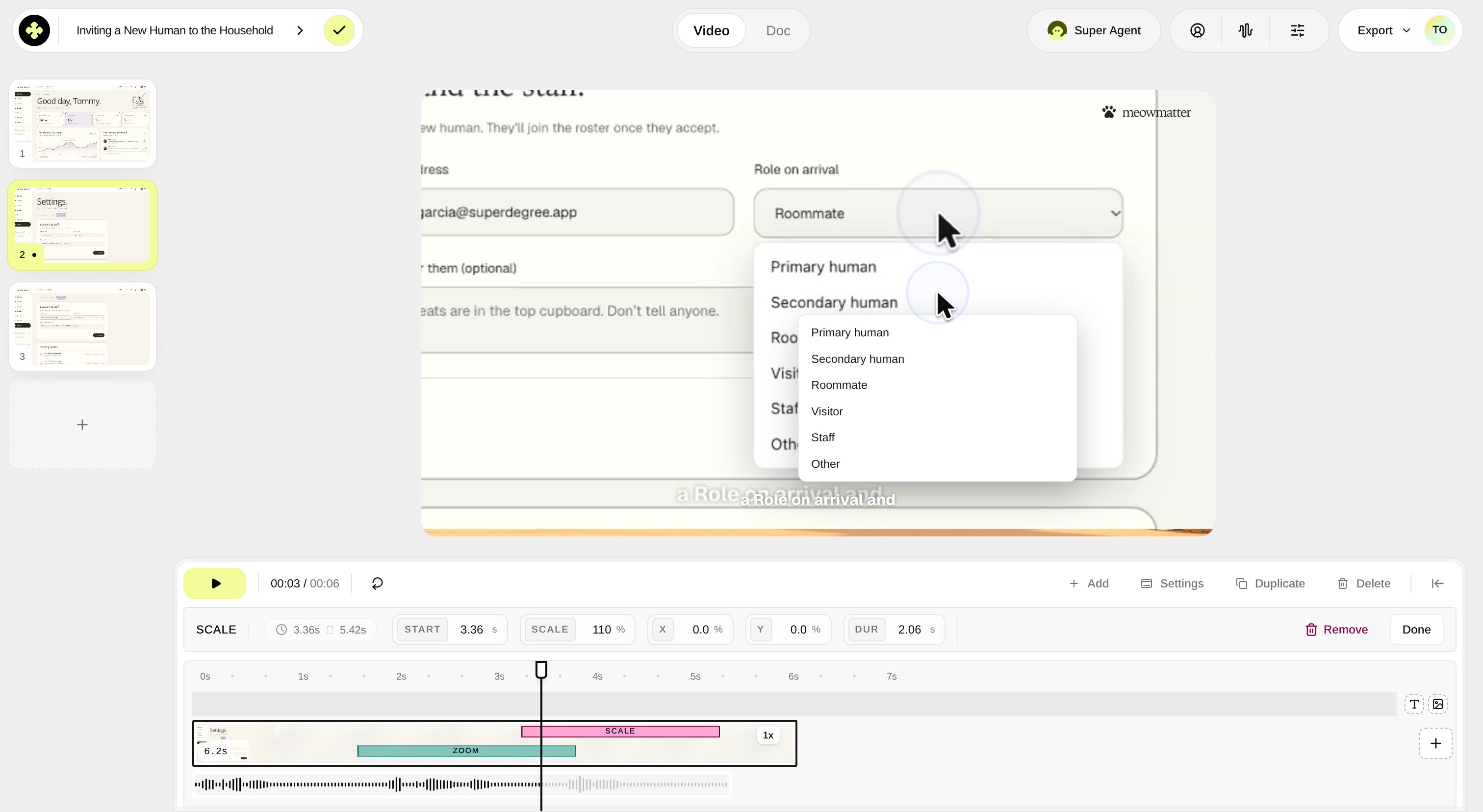
In the side panel, adjust the SCALE slider to configure the desired scaling value, or adjust the START and end timing values.
Result
Both the zoom and scale tracks are positioned and configured on the video timeline. When played, the video animates both its internal content zoom and its outer container scale smoothly in tandem.