

Video Editor · Article 6 of 18
Editing Narration and Regenerating
This walkthrough explains how to customize and regenerate voiceover narration for video slides in Superdegree. From the Slide Editor interface, you can inspect script text across pages, directly modify narration scripts, and regenerate new audio using the selected voice profile.
Step 1 — Select the audio narration strip
In the timeline at the bottom of the Slide Editor, click the audio narration strip to display available narration display modes.
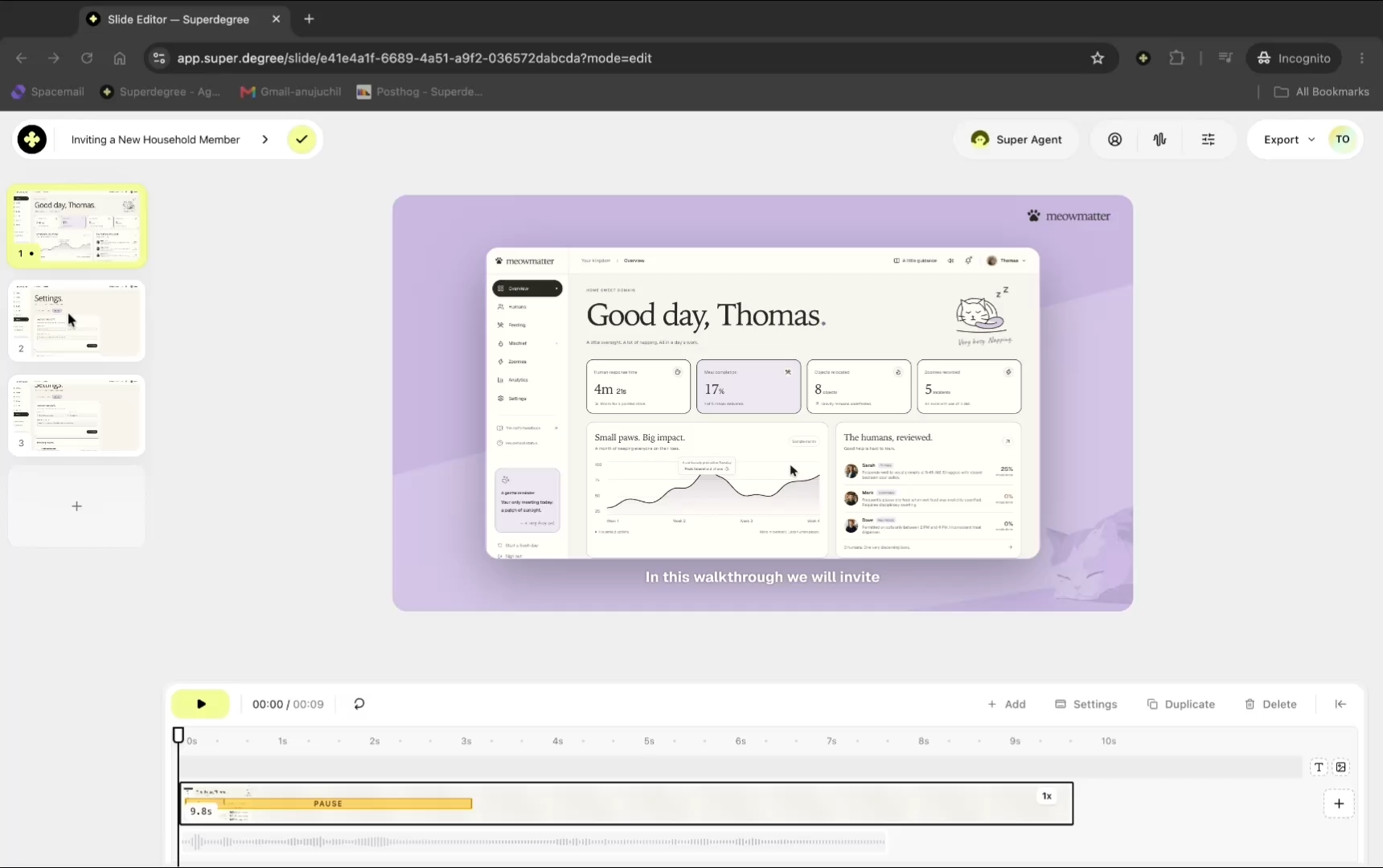
Step 2 — Switch to explainer mode
Click Explainer in the options above the timeline to display the narration script text directly on the timeline track.
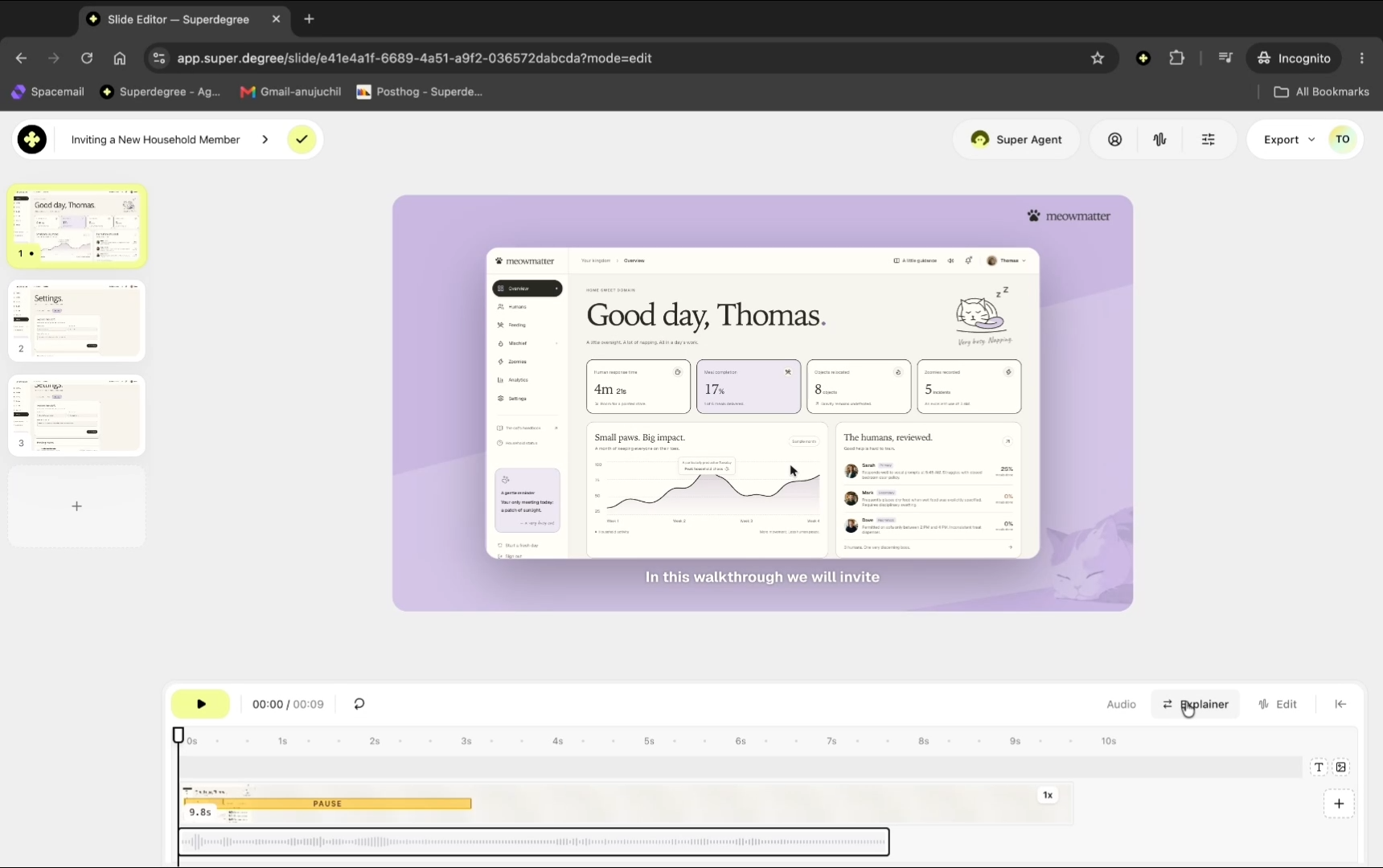
Step 3 — Open the edit voiceover panel
Double-click the explainer audio strip on the timeline (or click the edit button) to open the side panel containing your voiceover script.
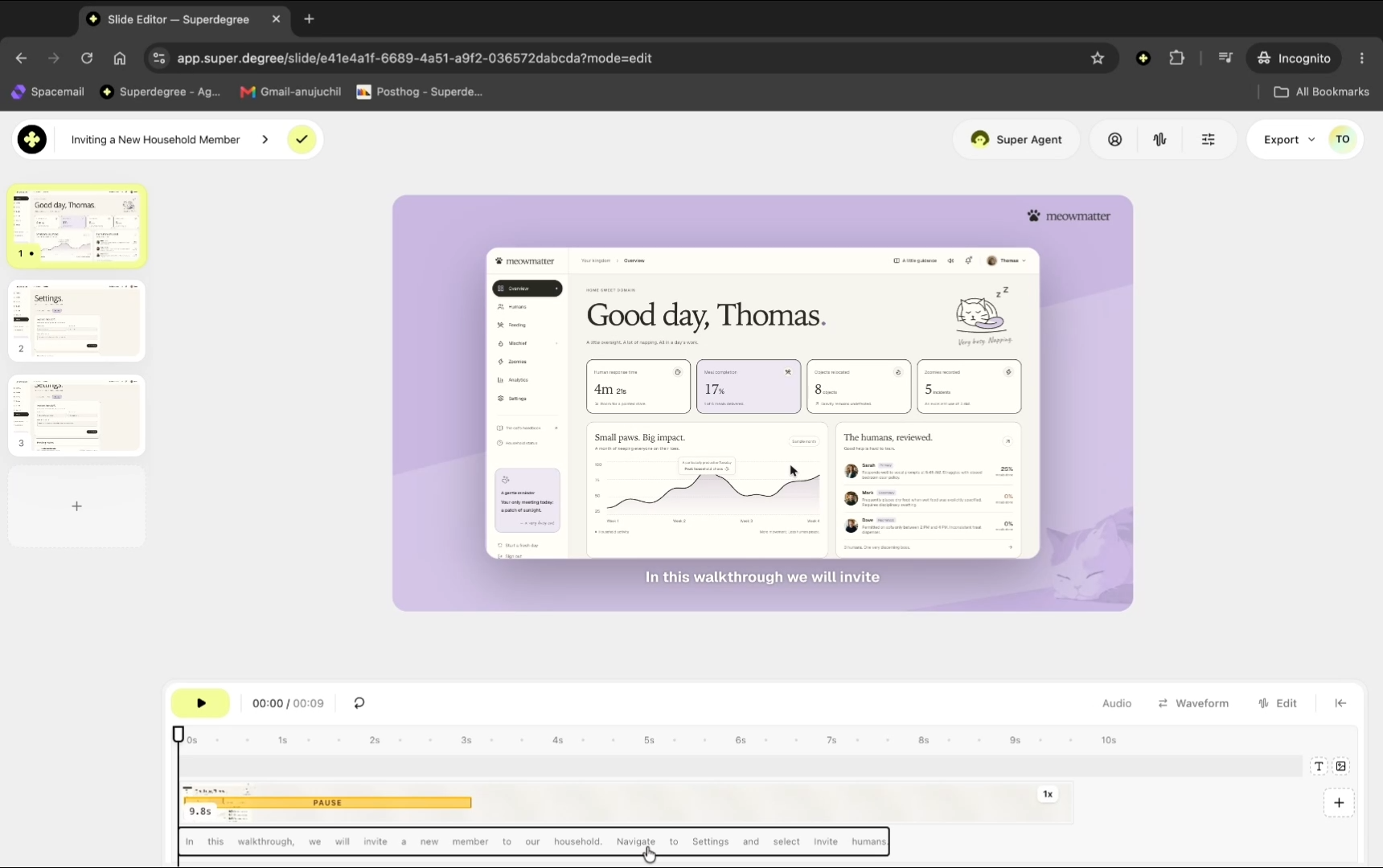
Step 4 — View all slide scripts
In the edit voiceover panel, click All pages to view and edit scripts for every page in one continuous list instead of paging through them individually.
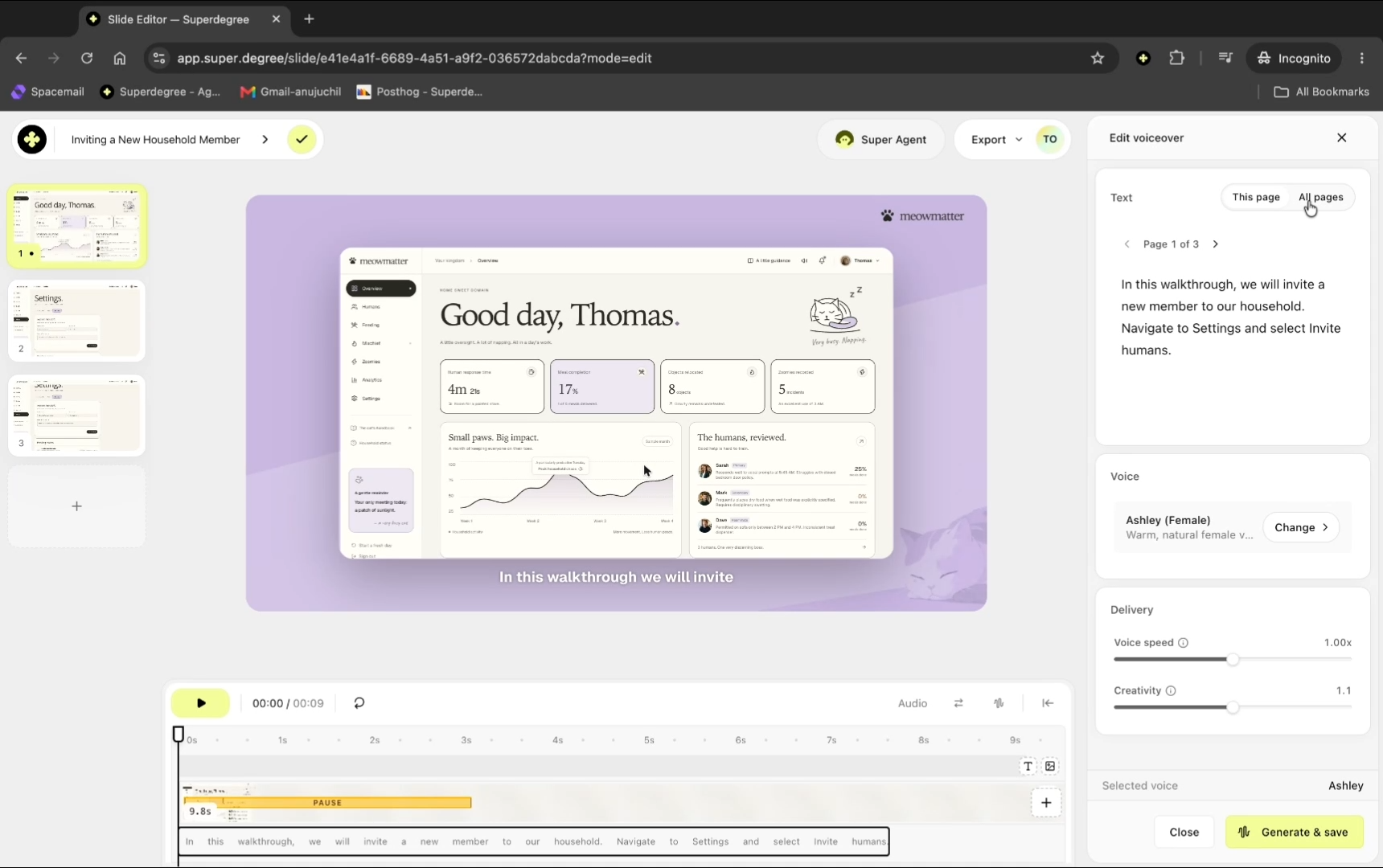
Step 5 — Edit the narration text
Click into the script text box for the page you want to update and enter your revised narration. For this walkthrough, the text entered was: In this walkthrough, we will invite a new member to our household. We'll start by navigate to Settings and select Invite humans.
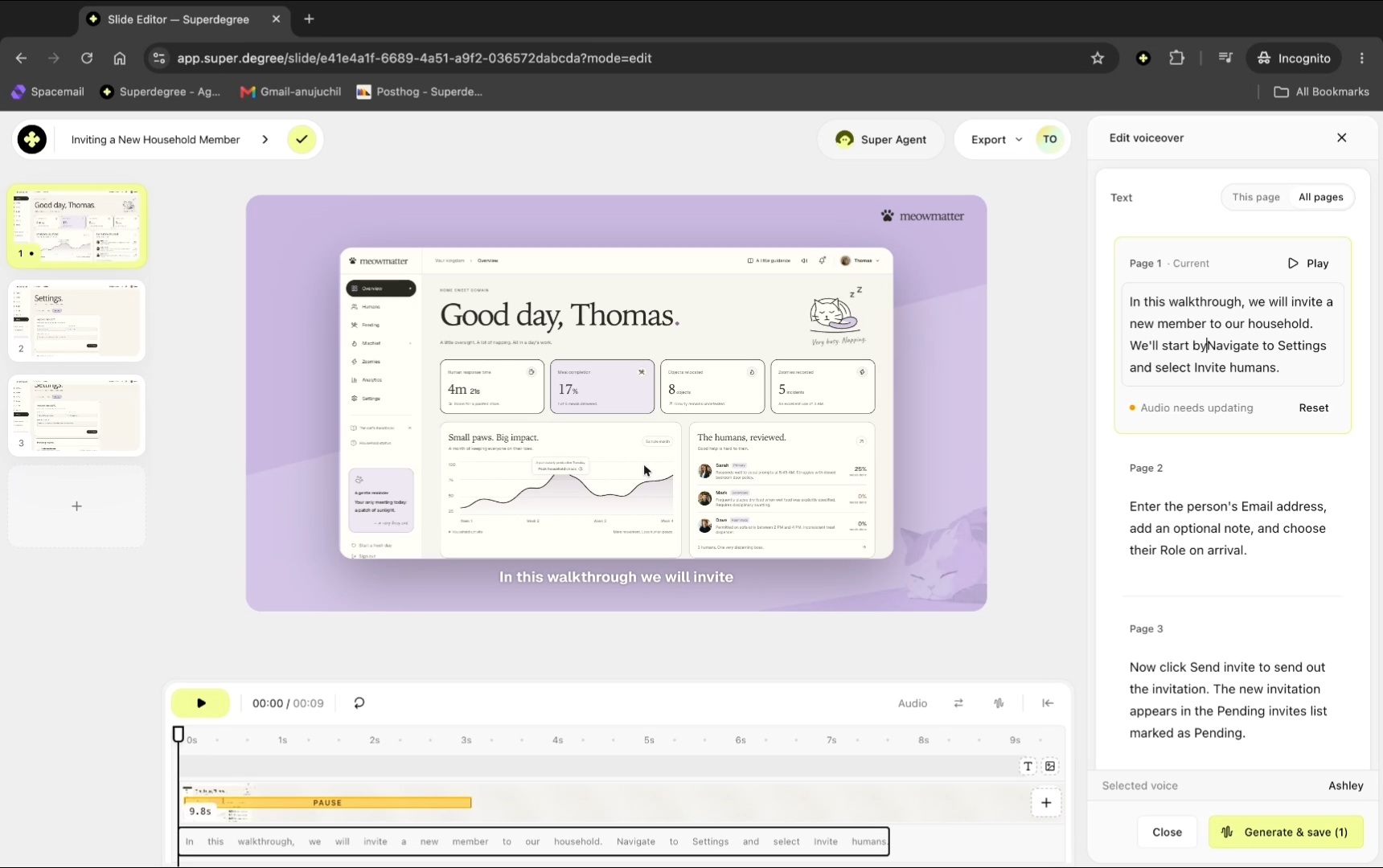
Review the selected voice underneath the script text box (shown here as Selected voice Ashley) and adjust voice options if needed before generating.
Step 6 — Generate and save the updated voiceover
Click Generate & save (1) to synthesize new speech audio matching your updated text.
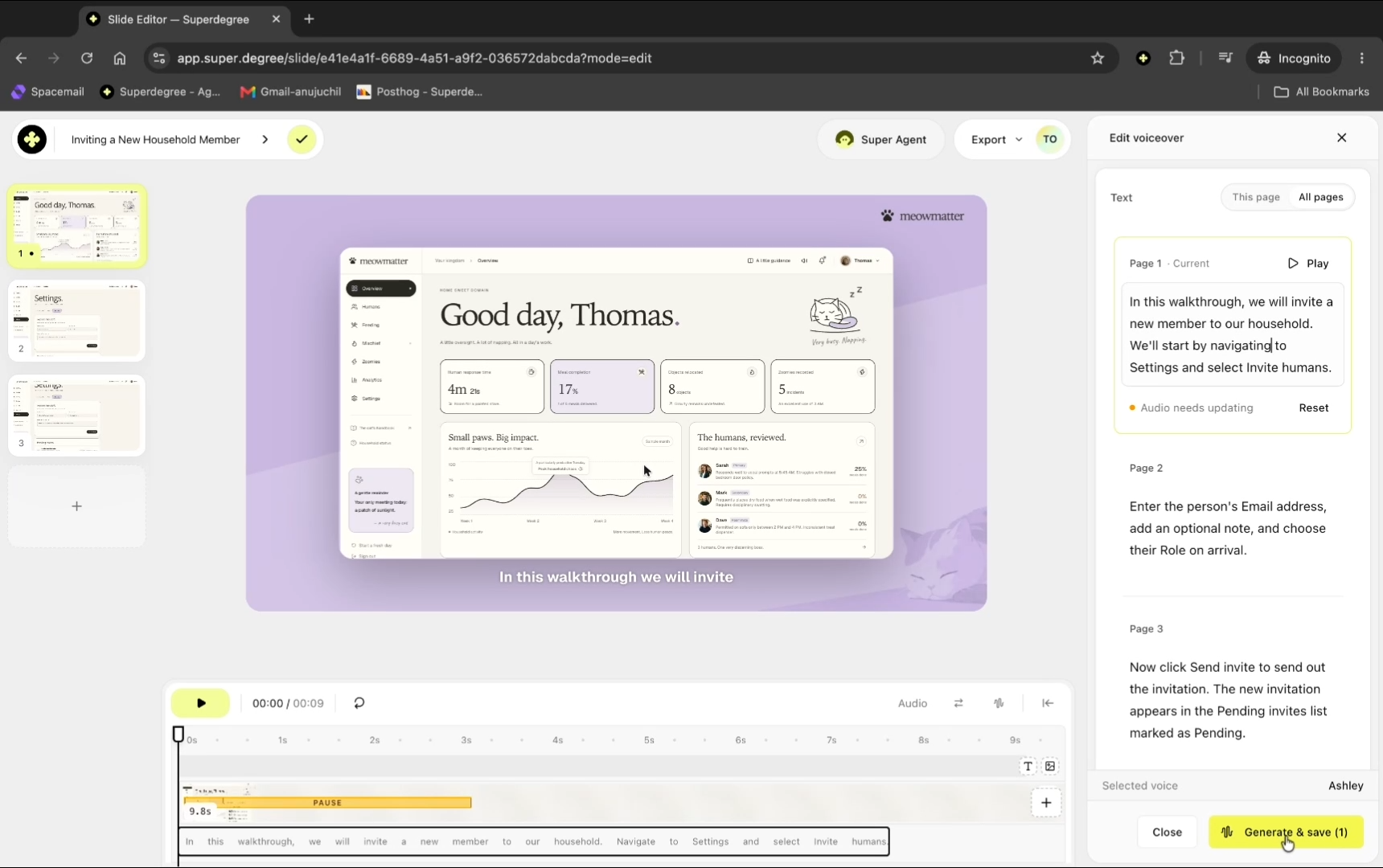
Result
The Slide Editor updates the timeline with the newly synthesized audio track, and the voiceover panel reflects that the audio has been generated and saved.