

Video Editor · Article 3 of 18
Overview of the Video Editor
Editing product education videos often requires balancing slide-based narration with fine-grained timeline controls. Superdegree approaches this with a slide-oriented video editor structured similarly to presentation software, allowing creators to seamlessly modify slide layouts, audio elements, and pacing.
Accessing the Editor from Product Content
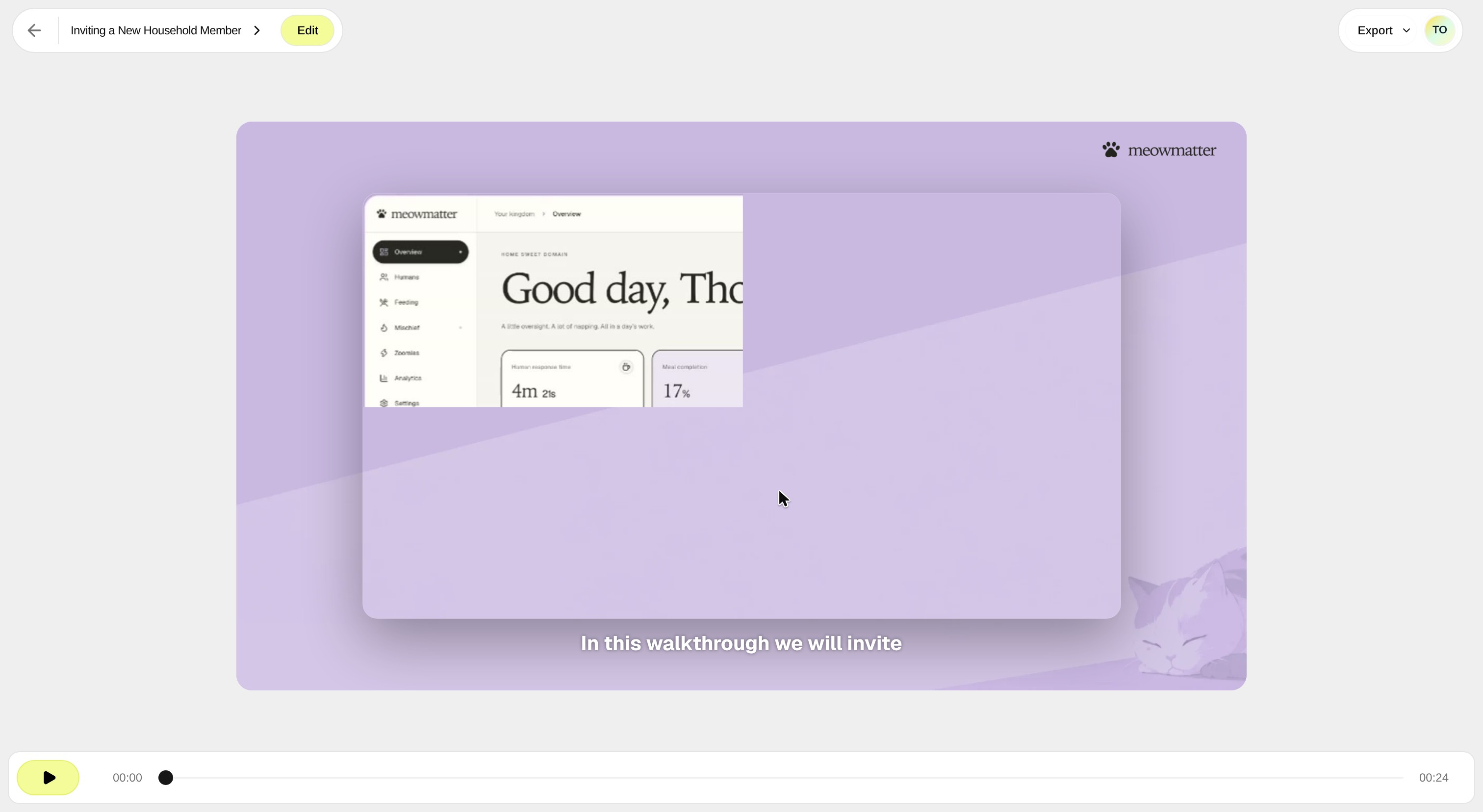
The video editor is integrated directly into existing workspace articles that feature video content. Opening an article—such as Inviting a New Household Member—loads a preview in the main player where playback can be reviewed immediately. From there, users can double-click the player or select Edit at the top to launch the dedicated slide video editing interface.
A Slide-First Layout with Granular Controls
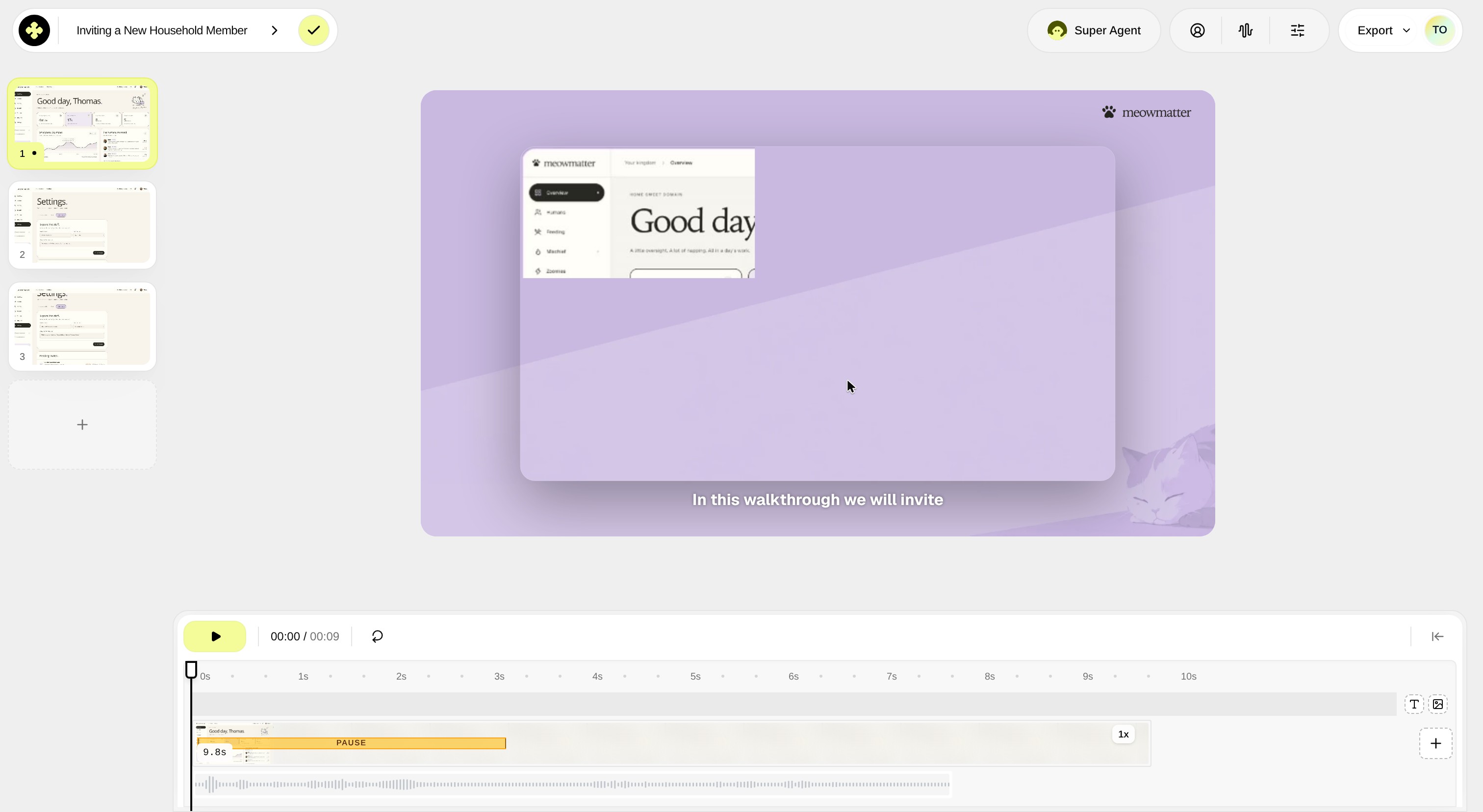
The editing environment mirrors presentation design tools to keep visual arrangement straightforward:
• Header panel: Allows title adjustments at the top and provides a back arrow on hover. • Slide pages panel: Arranged along the left to let creators insert new blank pages or place them between existing slides. • Central preview: Offers a real-time monitor to inspect visual changes and playback. • Timeline panel: Positions video strips, audio tracks, and applied effects—such as pauses—directly beneath the preview.
Timeline Adjustments and Workspace Customization
Timing across slides can be fine-tuned directly on the timeline track. Each strip displays its respective duration alongside guide markers indicating page length. Editors can hover over strip boundaries to drag and resize durations, introduce additional timelines for an individual page, or layer in dedicated text and image strips.
To accommodate complex timing sequences, the timeline interface can be expanded across the full width of the screen, shrinking the slide preview temporarily to give complete focus to track alignment.
Previewing, Configuring, and Finalizing
Along the top toolbar, creators have access to the Super Agent feature, configuration options, and an export button positioned on the far right. Once visual elements and pacing have been finalized, selecting the Finish editing checkmark exits the editor and returns to the larger preview player to review the completed result.
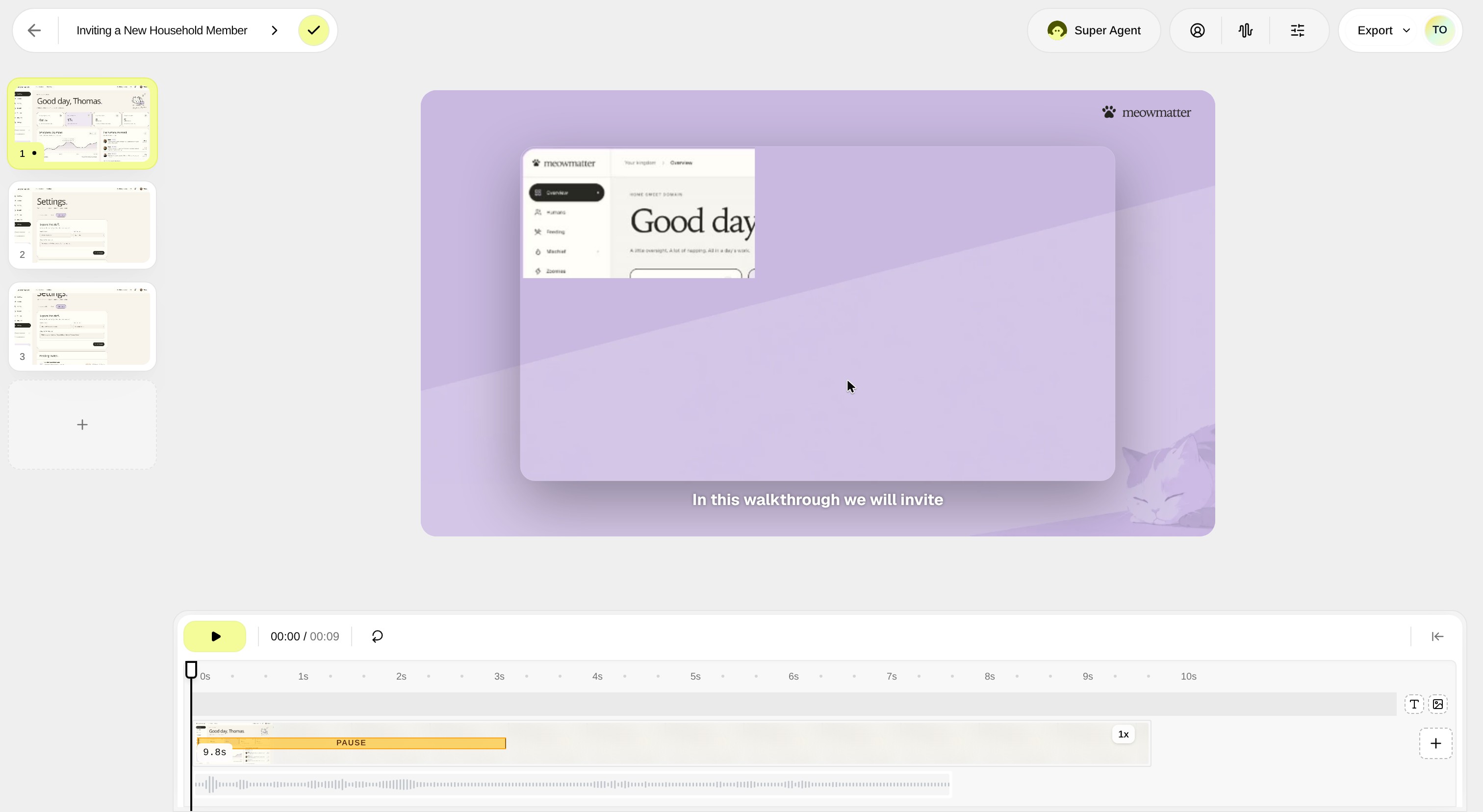
By uniting slide management with drag-and-drop timeline tracks, Superdegree makes adjusting educational video sequences as straightforward as editing a presentation slide deck.