

Video Editor · Article 8 of 18
Editing Voice Across Pages
This walkthrough demonstrates how to globally update the narration voice and delivery style across all slides in a project. Starting in the Superdegree Slide Editor, you will open the voice narration settings, choose a new voice profile, provide optional custom instructions, and regenerate the narration audio and captions.
Step 1 — Open the voice narration settings
In the toolbar of the Slide Editor, click on the voice narration configuration icon to open the narration settings panel.
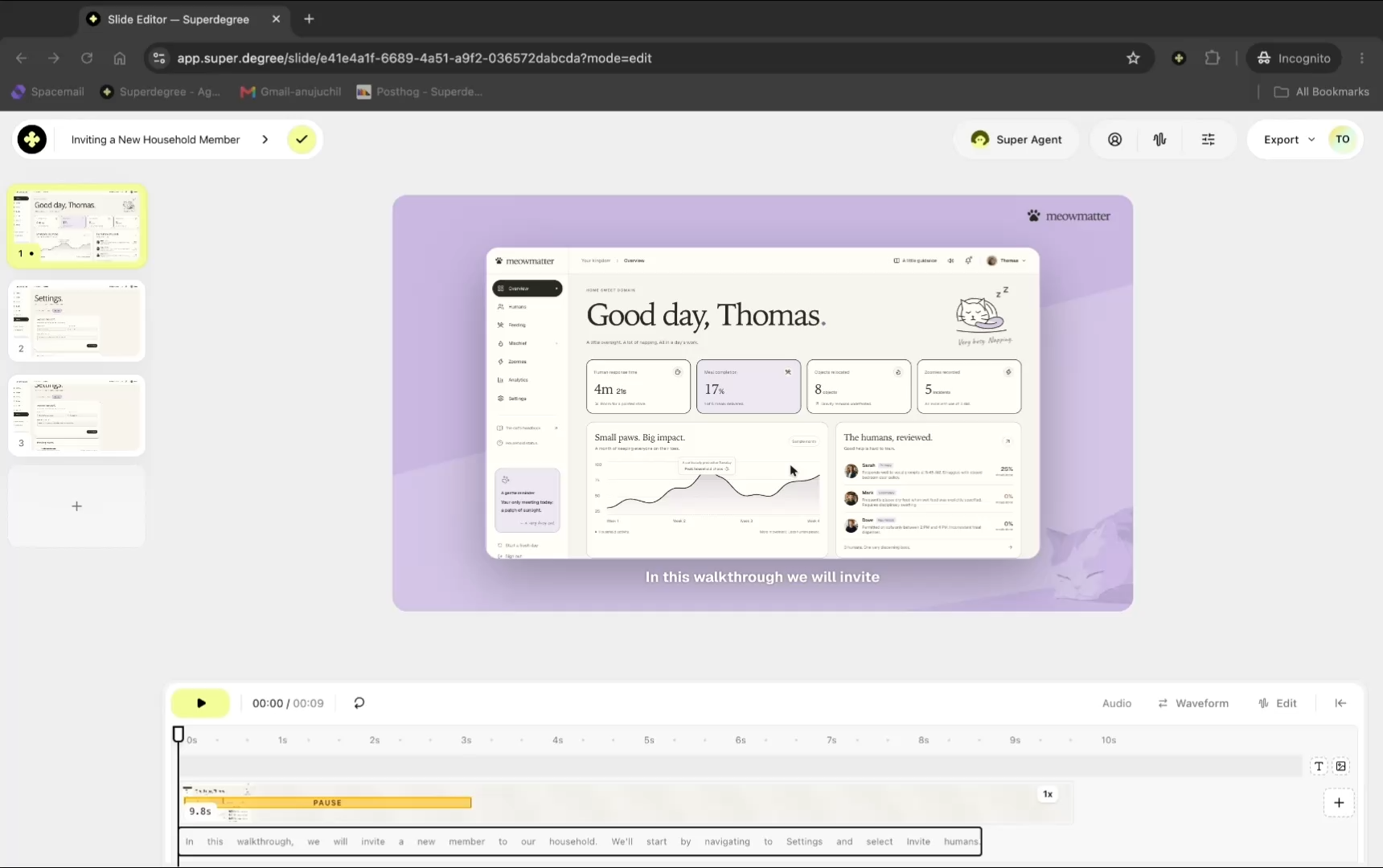
Step 2 — Open the voice selector
Click the current voice field (set by default to Ashley (Female)) to expand the list of available voice profiles.
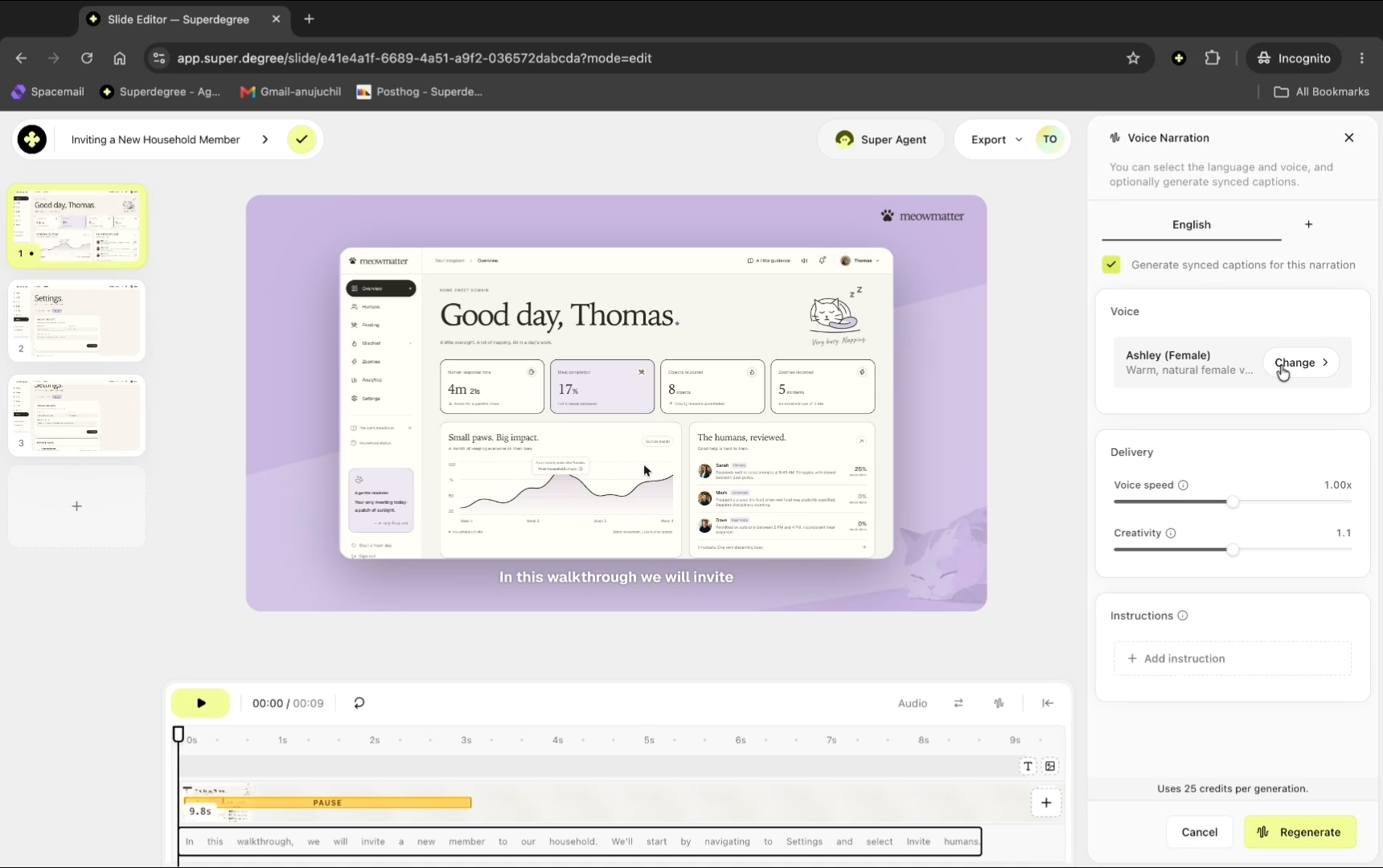
Step 3 — Choose a new voice
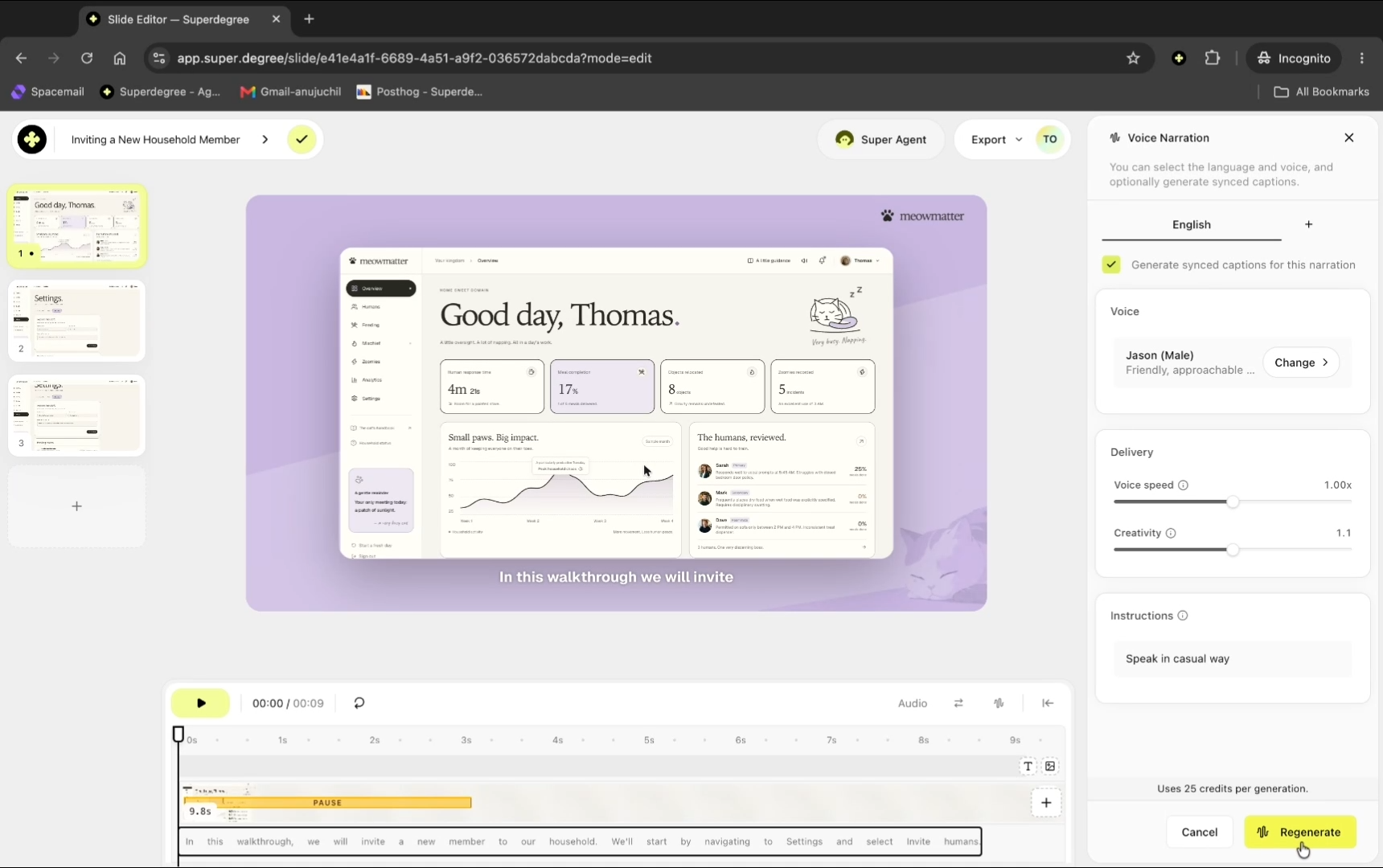
From the list of available voices, select your desired profile. This walkthrough selects Jason (Male).
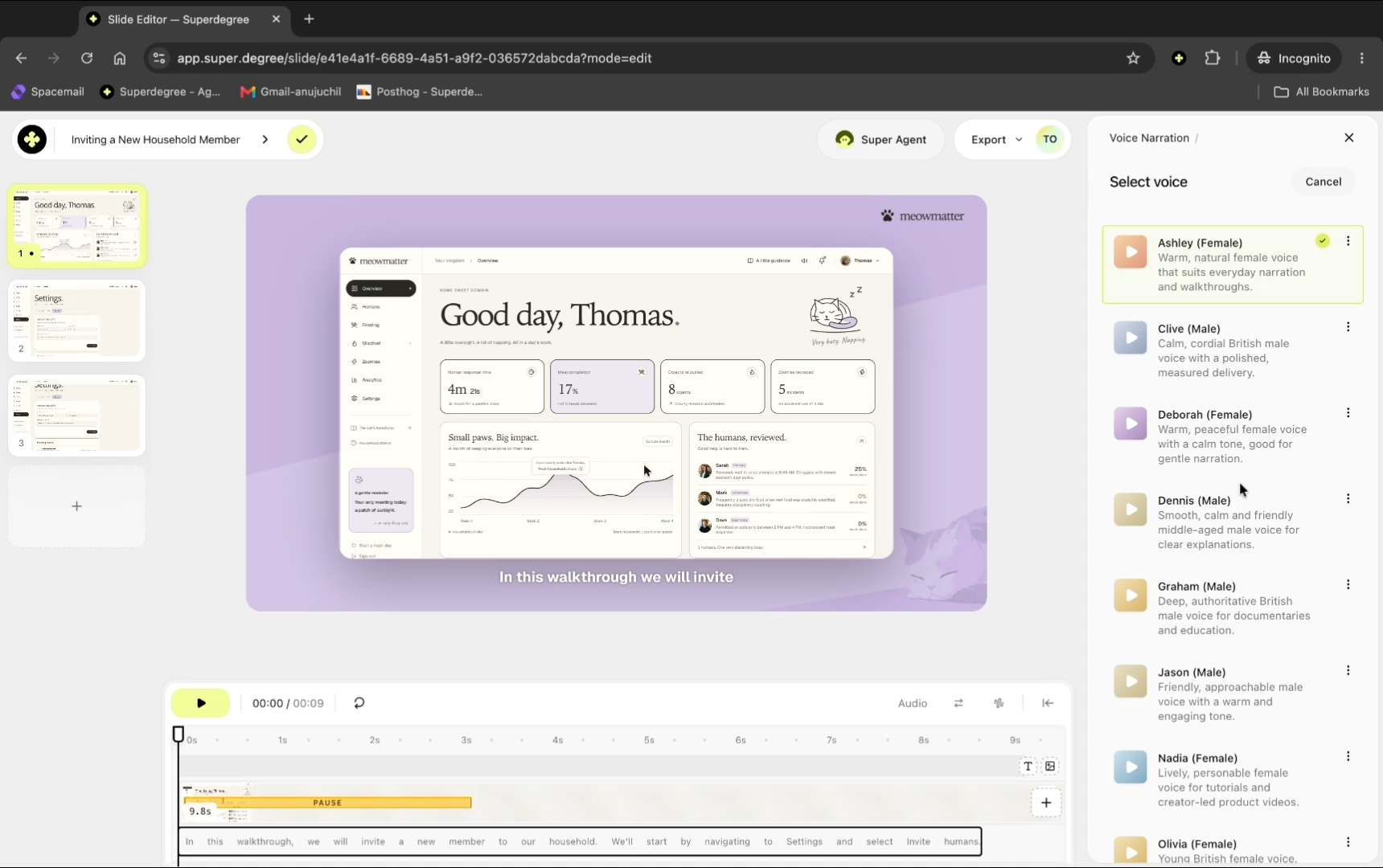
Step 4 — Add delivery instructions
Click Add instruction to open the custom voice instruction text field.
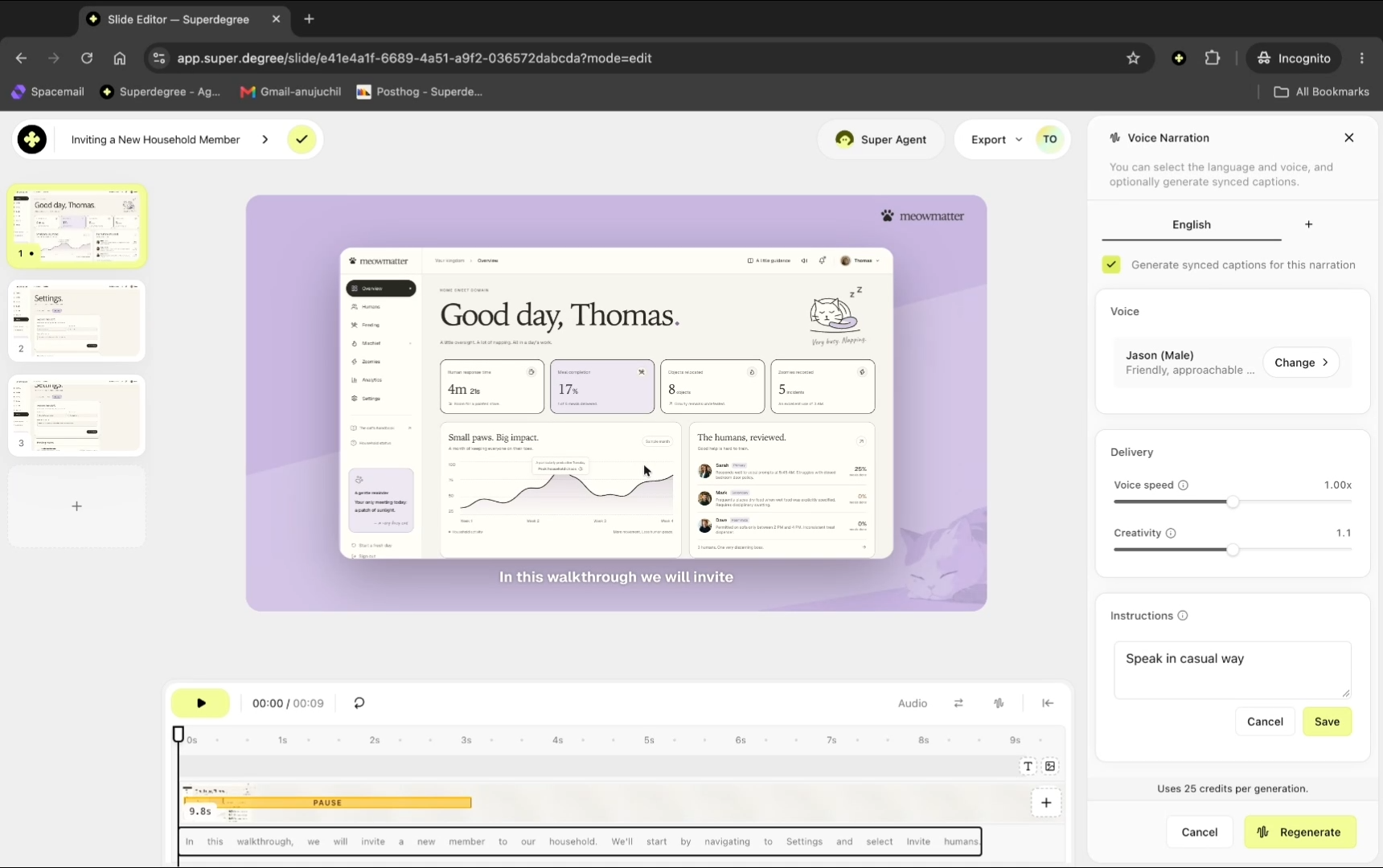
Type your desired guidance into the prompt box to direct how the voice should sound — this example uses Speak in casual way.
Click Save to apply the updated voice selection and narration instructions to your project settings.
Step 5 — Regenerate voice narration
Click Regenerate to recreate the voiceover across all slides using the newly selected voice and style settings.
Step 6 — Preview the regenerated audio
Click Play on the slide preview to listen to the regenerated voice narration, then click Pause when finished reviewing.
Result
The Slide Editor displays the updated video presentation with the newly regenerated voiceover applied across the slides. The video player reflects the new narration and corresponding captions ready for playback.