

Video Editor · Article 9 of 18
Adjusting Frame Settings
This walkthrough explains how to customize video frame properties—including corner radius, scale, and shadow—in Superdegree. You will learn how to apply global frame settings that affect all slides in a project, as well as how to override those settings for an individual slide using custom controls.
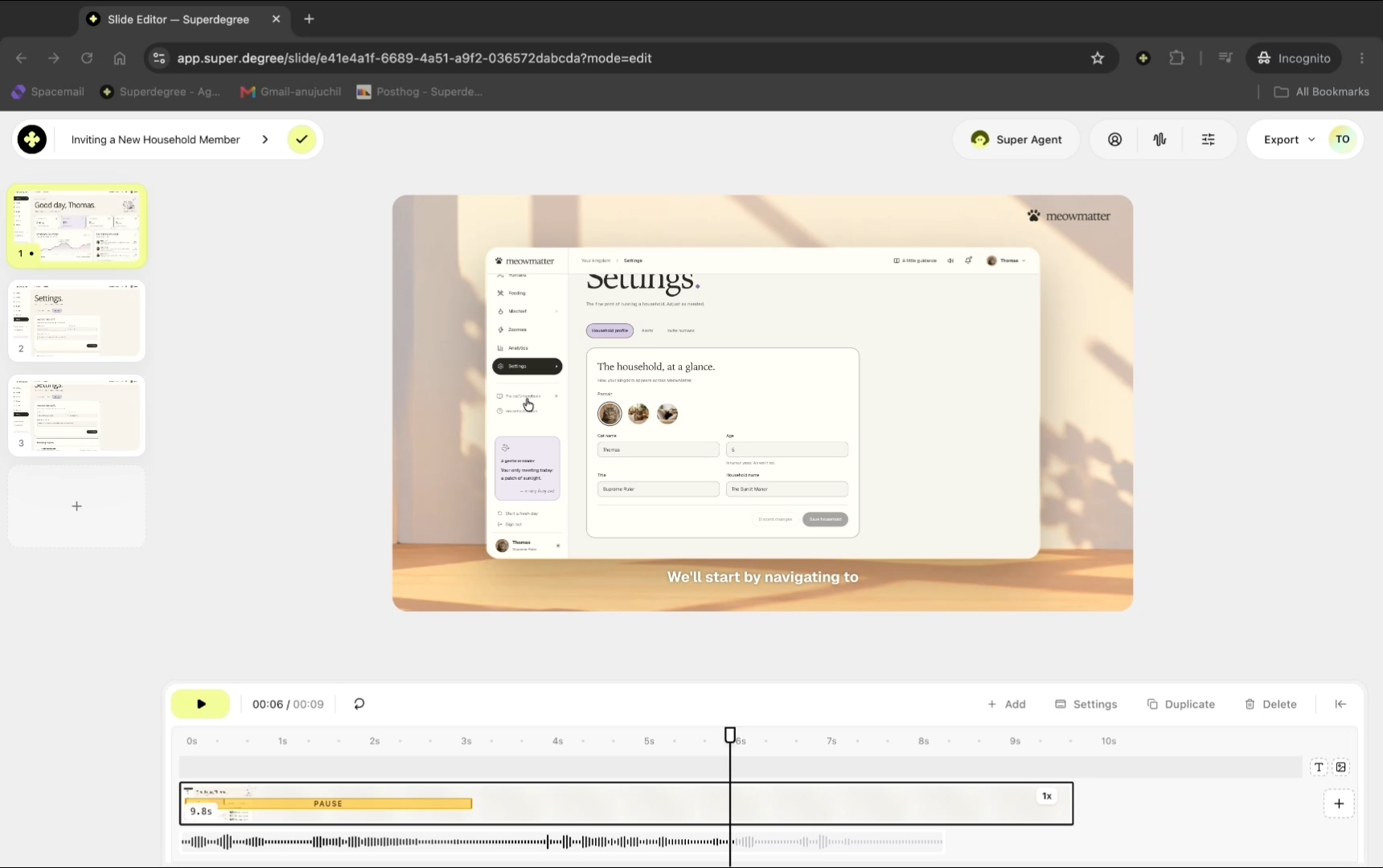
Open the global settings panel
In the Slide Editor, click the settings option in the sidebar to access project-wide controls, including the global frame settings.
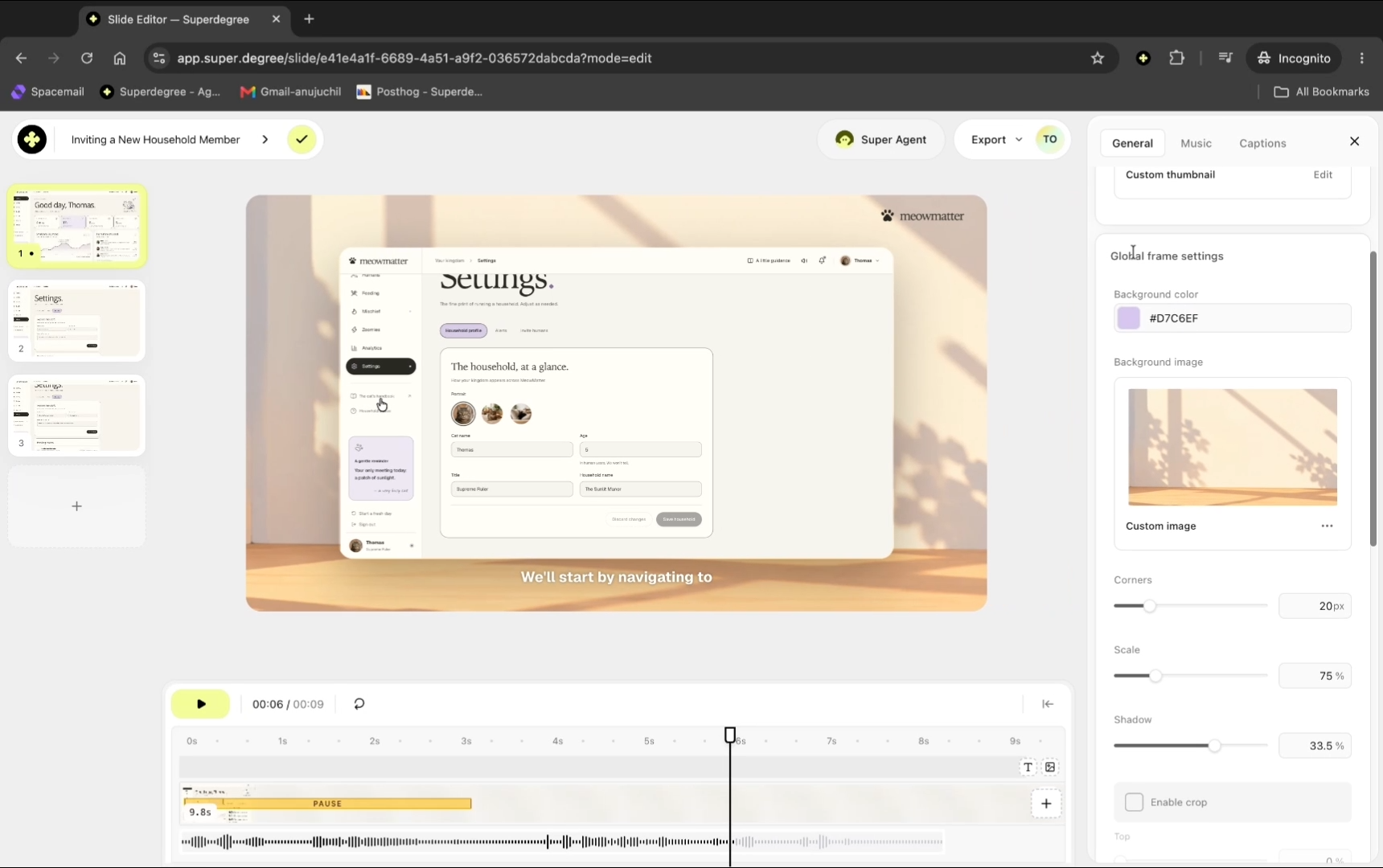
Adjust global frame properties
Under the global frame settings section, drag the sliders for corner radius, scale, and shadow to define the default appearance for all slide video frames across your presentation.
To Adjust Individual pages
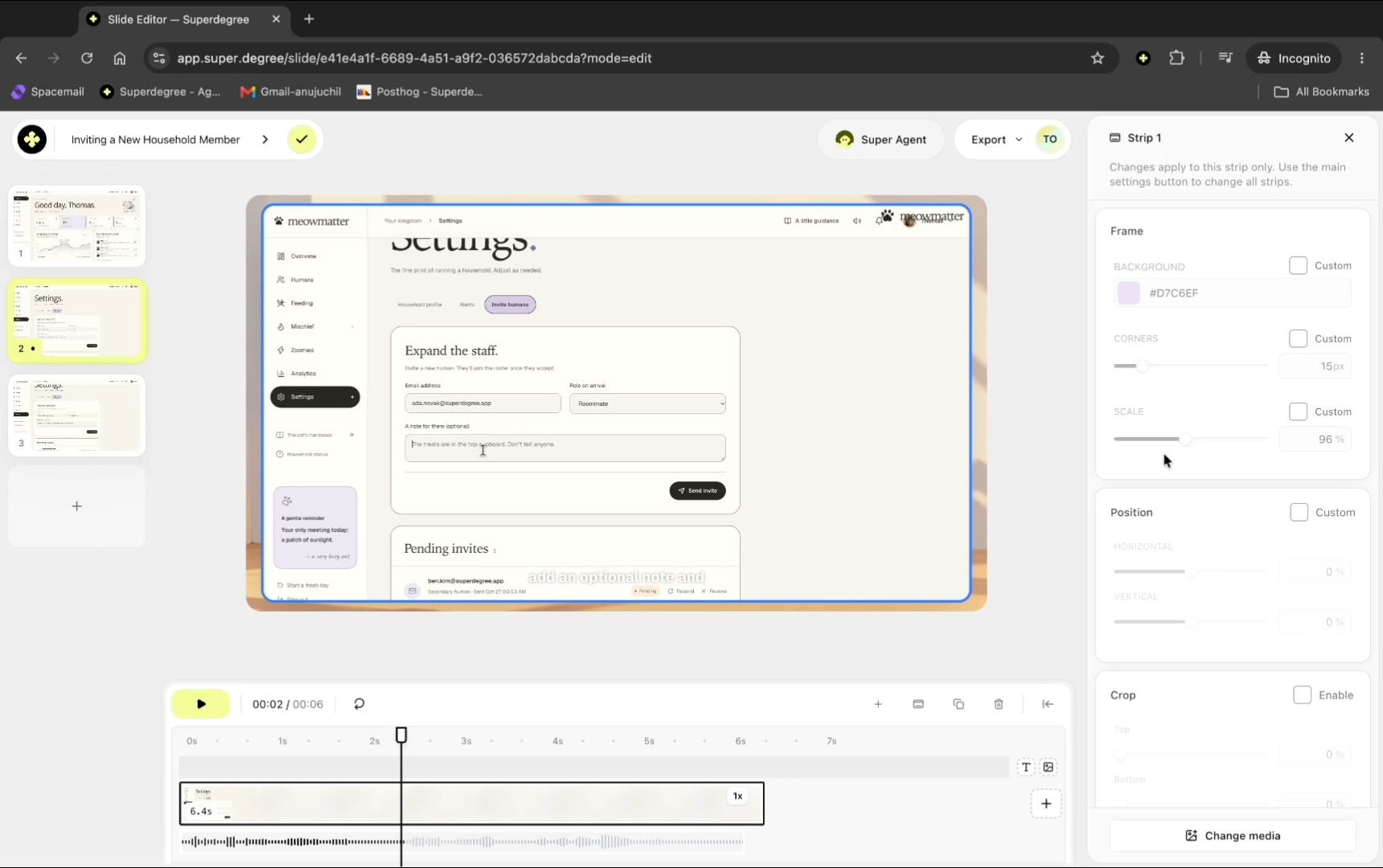
Select a specific slide strip on the timeline
Click the timeline strip corresponding to the slide you want to customize and click Edit video frame or select the highlighted frame directly on the canvas to open the frame settings panel for the active slide.
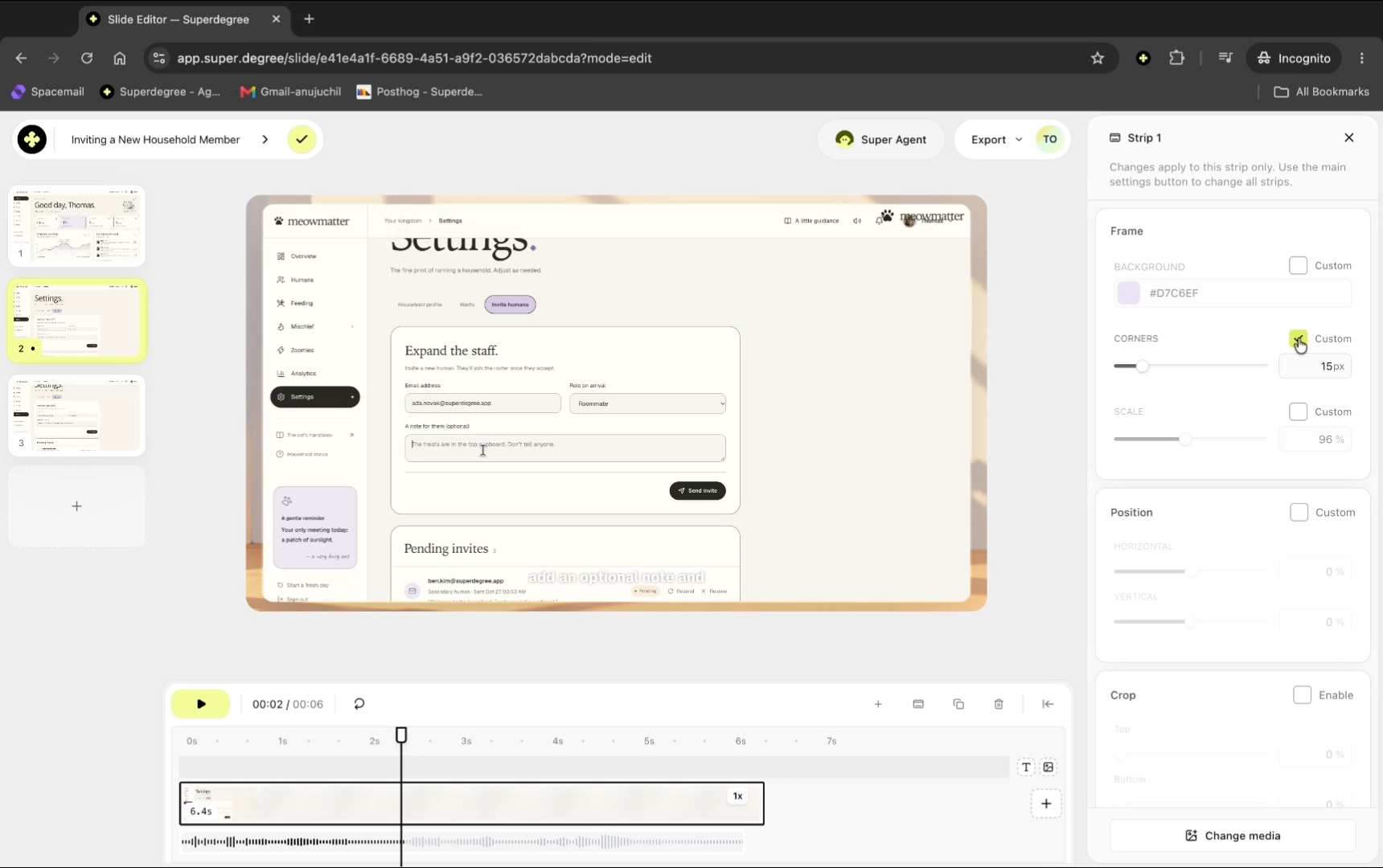
Switch to custom settings to override the global defaults
Click Custom to override the default global inheritance, enabling independent controls for this frame.
Customize the frame scale and radius
Adjust the sliders to set unique dimensions for this frame—for instance, decrease the scale or increase the corner radius—without altering the remaining slides.
Result
The custom slide now displays its distinct scale and styling, while the other slides across the presentation maintain the global frame settings.