

Video Editor · Article 14 of 18
Managing Captions
This guide demonstrates how to configure and style video captions in the Superdegree Slide Editor. Captions are mapped directly to your voiceover narration, and you can customize their visibility, preset themes, animation effects, typography, and container styling. All adjustments take place within the Slide Editor settings panel.
Toggle caption visibility
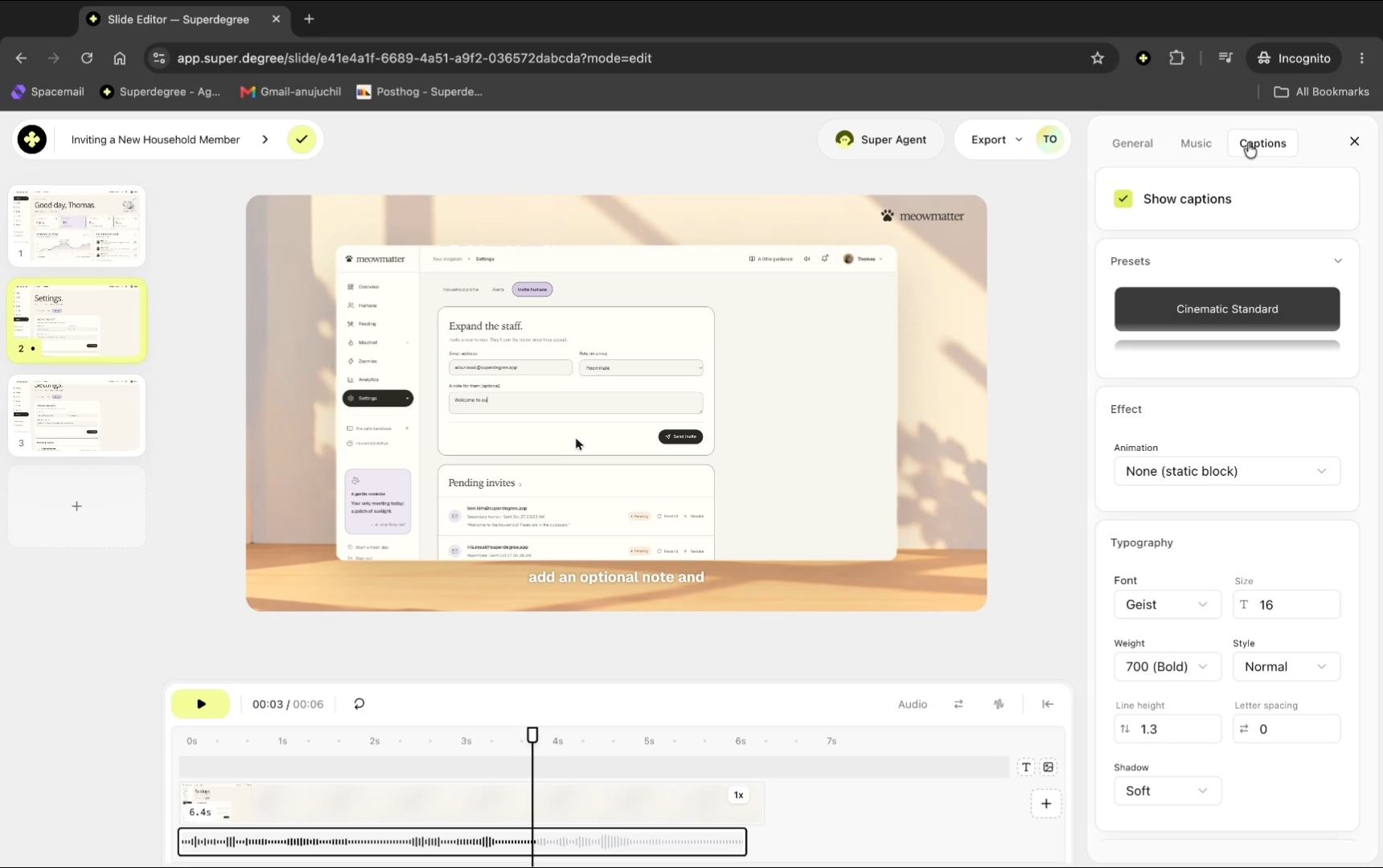
Open the settings panel and locate the Captions tab. Toggle Show captions off to hide captions from the video, or turn it back on to display them.
Select a caption preset style
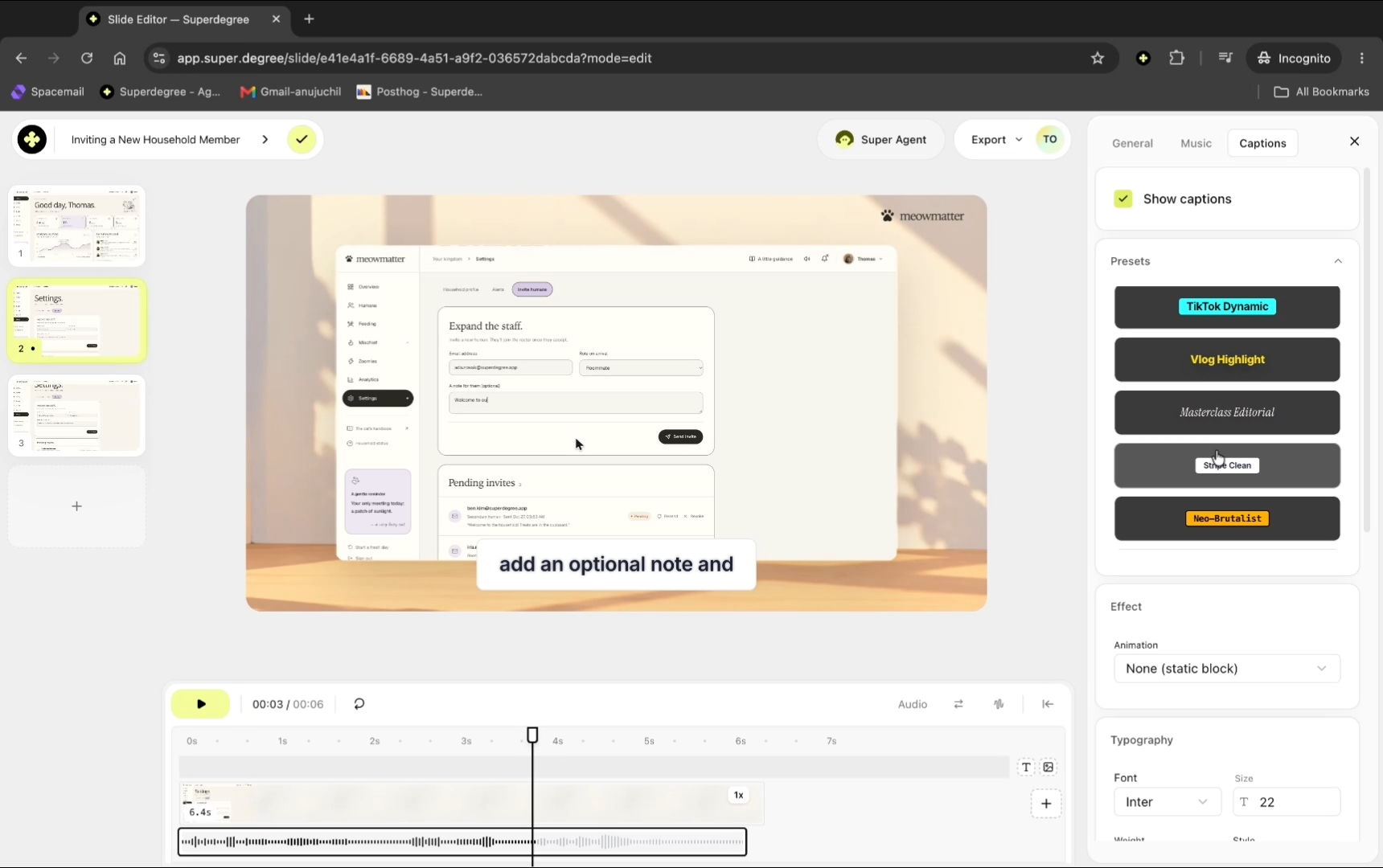
Under Presets, choose among the available styling presets—such as Apple Minimal, Creator High-Impact, TikTok Dynamic, Vlog Highlight, or Stripe Clean—to apply a pre-configured look.
Configure caption animation effects
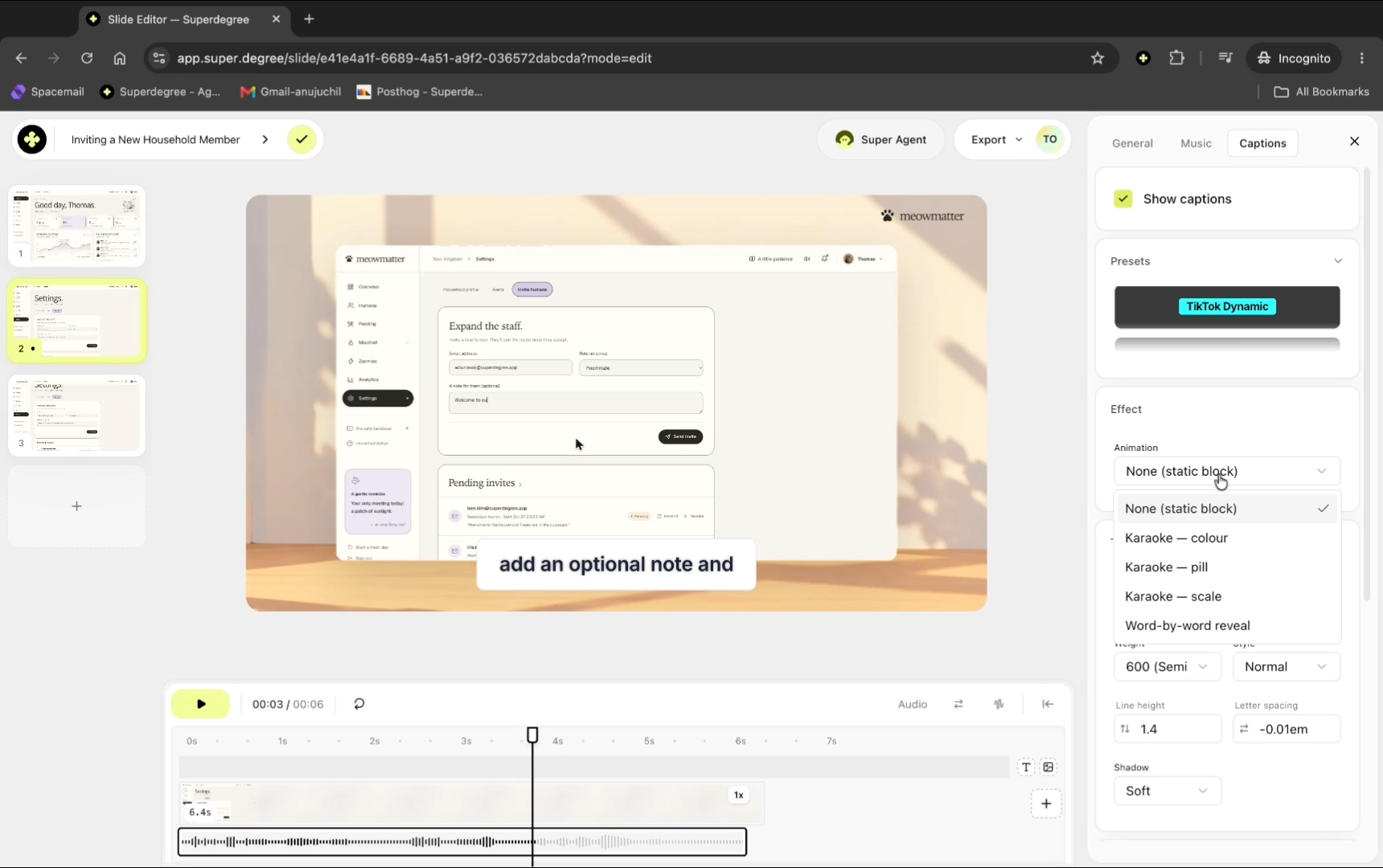
Scroll down to the animation effect options. You can leave the effect as None (static block), or choose dynamic styles such as Karaoke — colour, Karaoke — pill, Karaoke — scale, or Word-by-word reveal to animate text as speech progresses.
Adjust typography
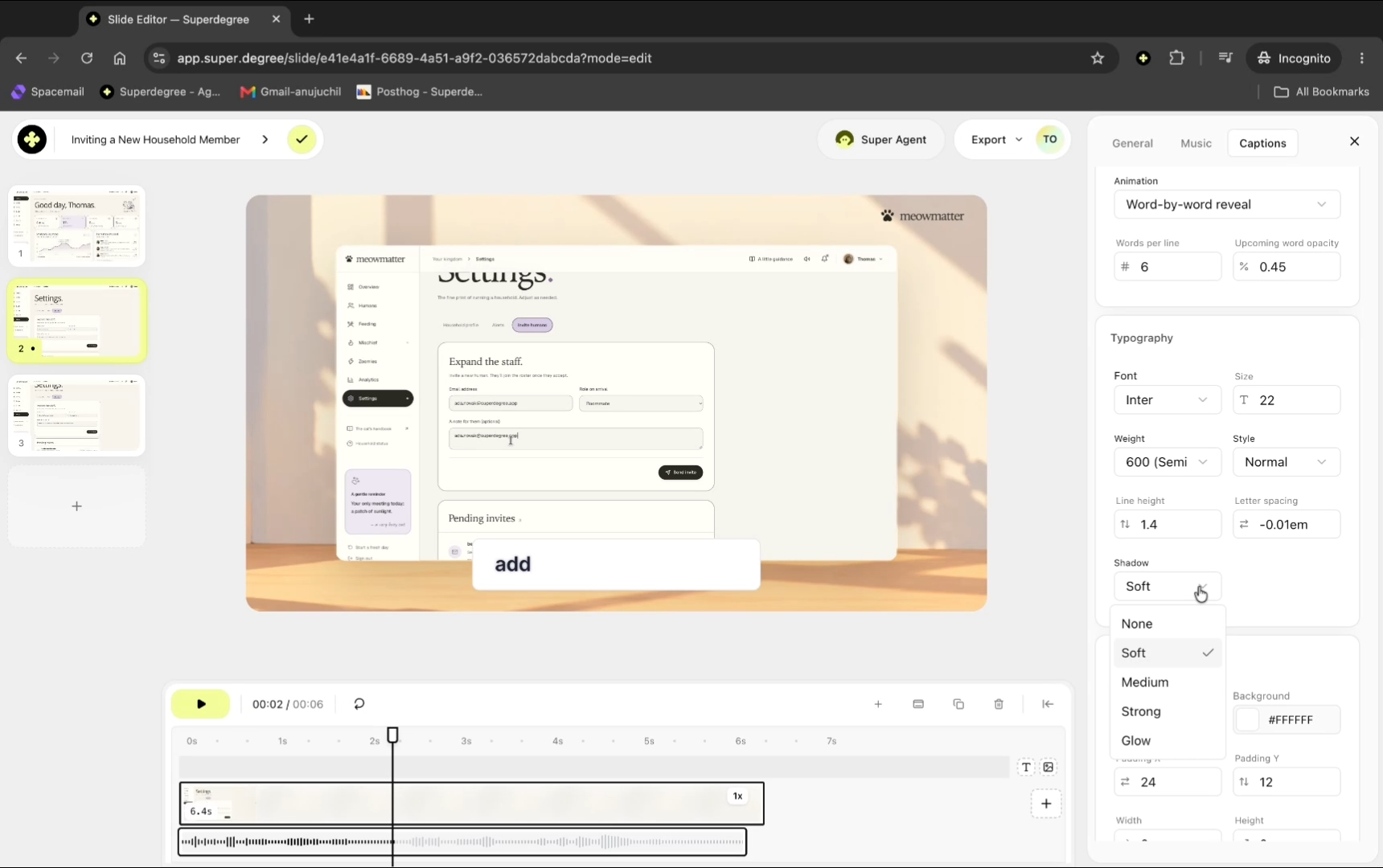
Under the typography controls, adjust font settings such as size, weight, line height, and spacing. Under the shadow options, select None or a preset such as Soft to control text drop shadow.
Customize container colors, dimensions, and borders
Use the Caption background color picker and Caption border color picker to change the background fill, opacity (Alpha), and border color. Drag the sliders for horizontal padding (padding x), vertical padding (padding y), and width to fine-tune the container size.
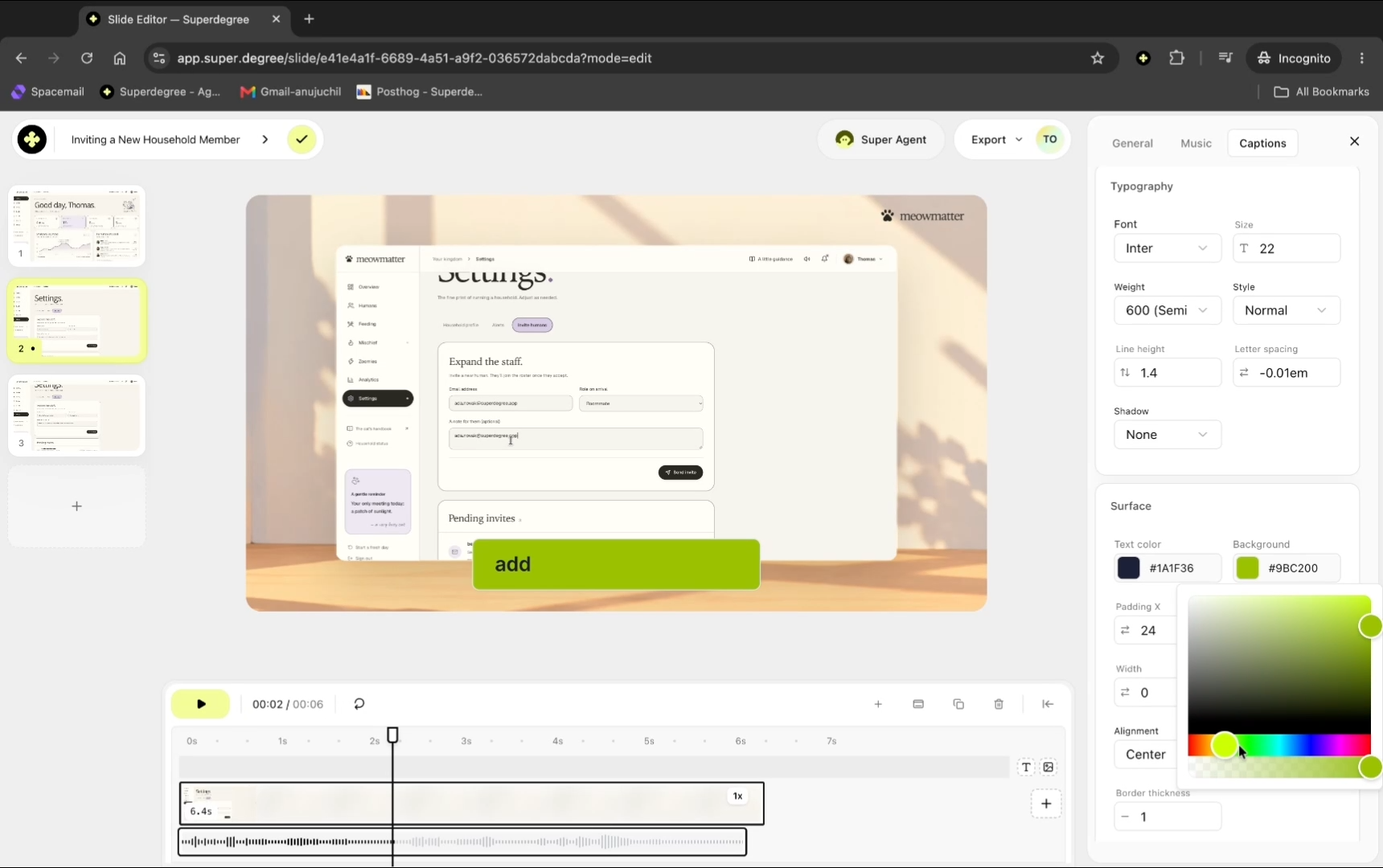
Result
The Slide Editor displays the updated captions rendered directly on the video canvas with the chosen preset, animations, typography, background colors, and padding.