

Formats · Article 17 of 18
Managing and Applying Formats
Formats in Superdegree allow you to maintain visual and stylistic consistency across all generated videos and documents. You can configure custom narration styles, branding, thumbnails, and intro/outro screens for videos, as well as brand colors and screenshot settings for documents. This guide walks through inspecting formats in Settings, setting defaults, creating new formats on the fly, and selecting formats when processing recordings.
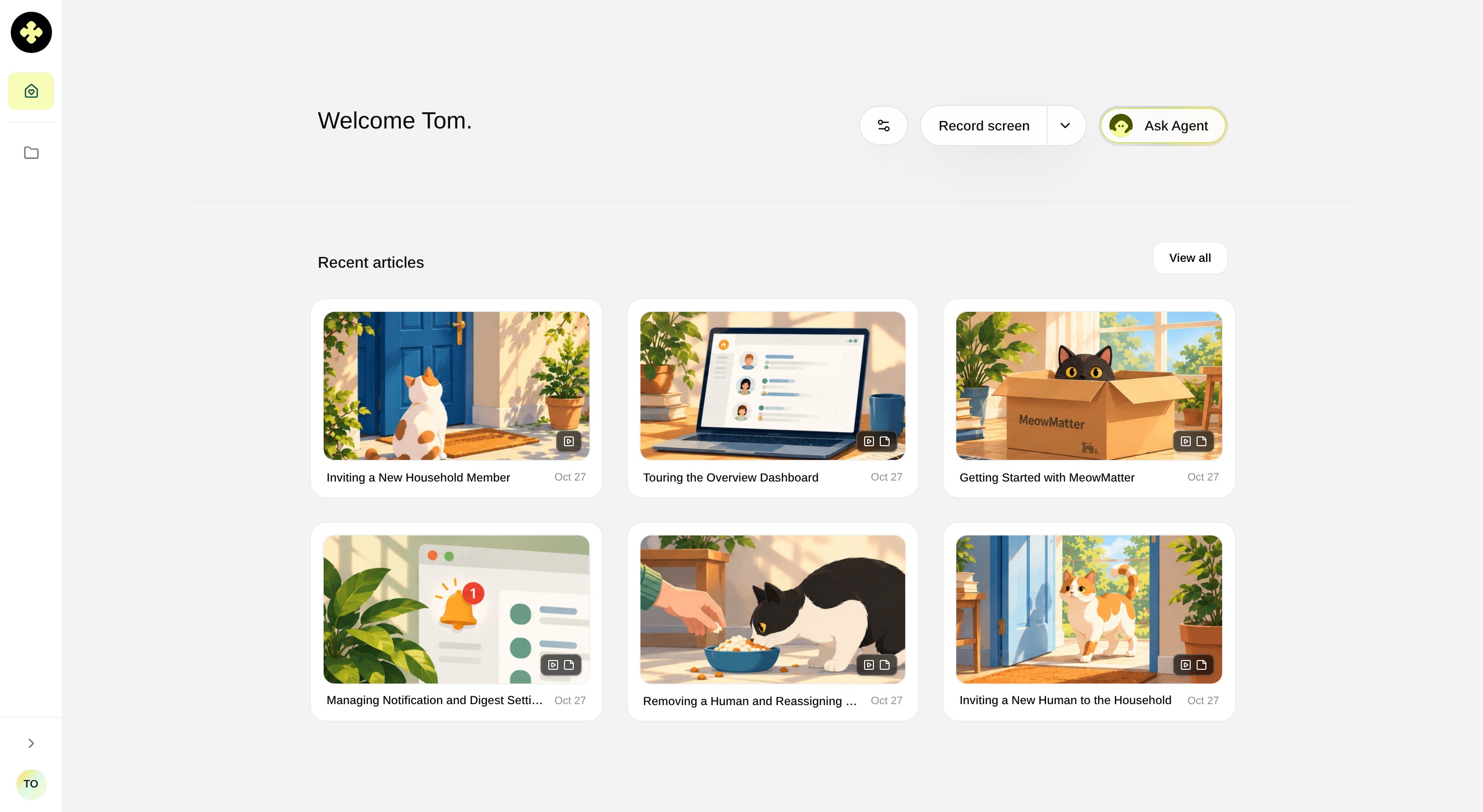
Step 1 — Open Settings
Click Settings in the left navigation sidebar to access your workspace configuration.
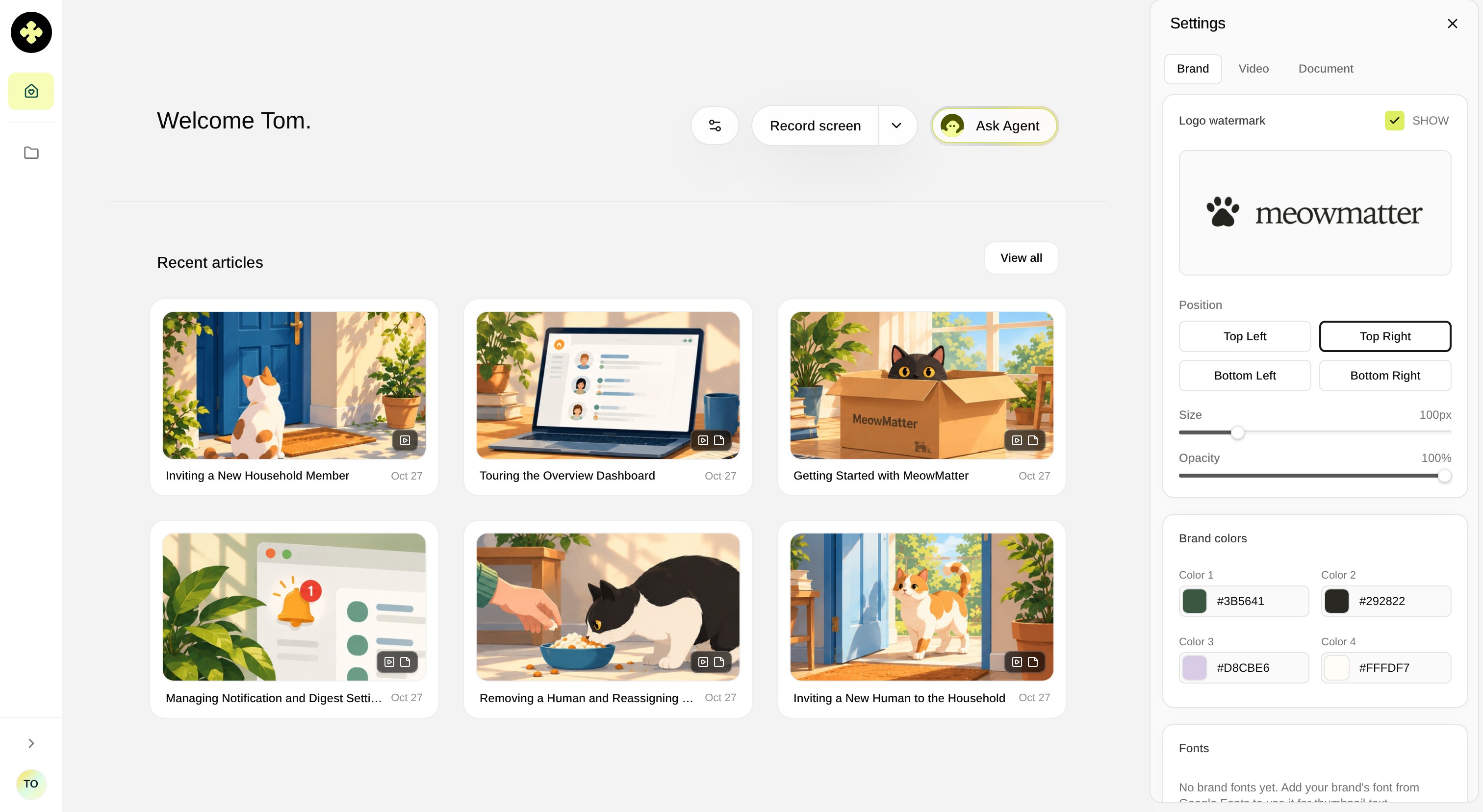
Step 2 — Switch Between Video and Document Formats
Under Formats in the Settings panel, click Video or Document to view the templates available for each type.
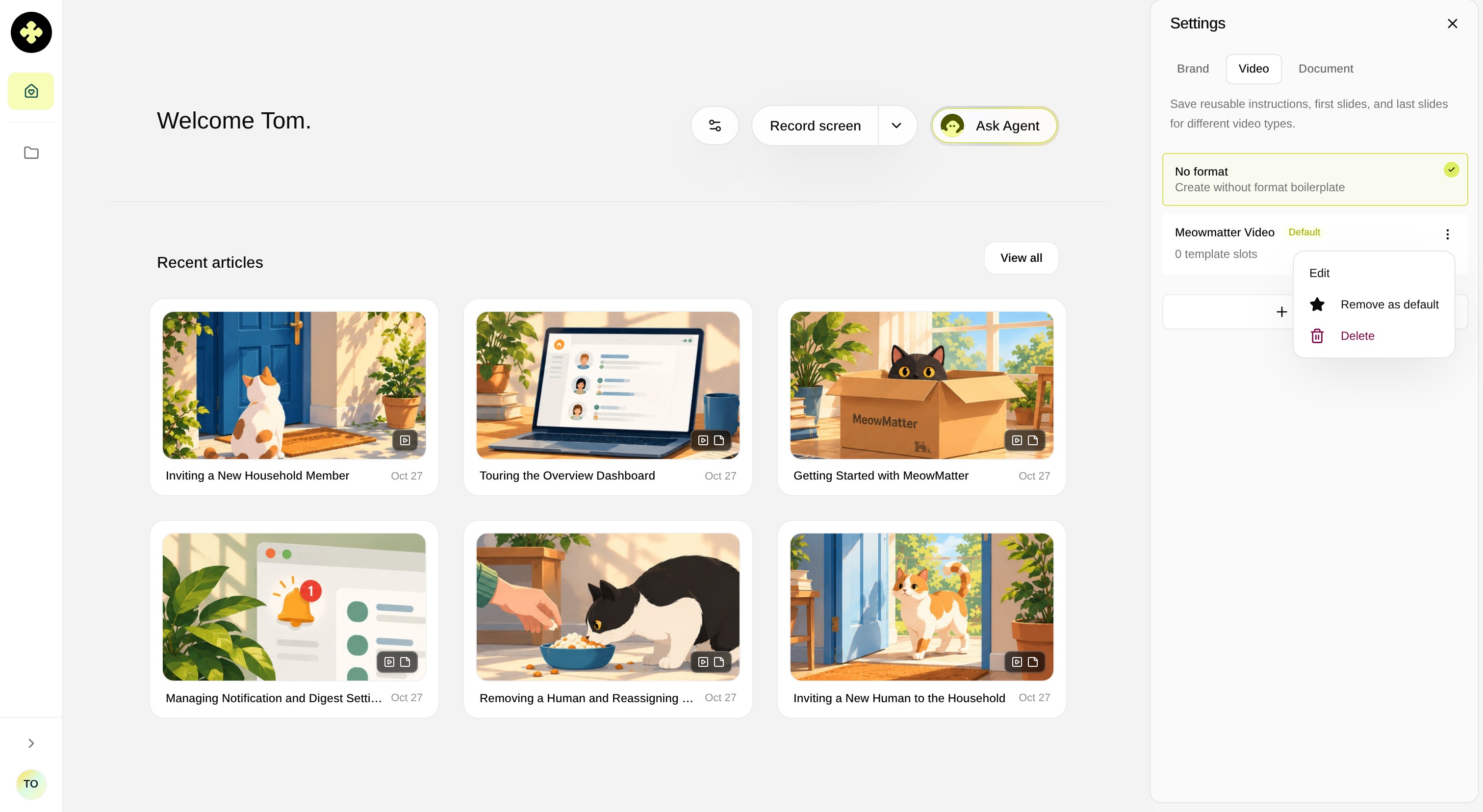
Step 3 — Inspect Video Format Settings
Click the three dots icon next to a video format and choose Edit to review narration instructions, brand settings, thumbnails, and intro or outro configurations. When finished, click Cancel.
Step 4 — Inspect Document Format Settings
Under Formats, click Document, click the three dots icon next to a document format, and select Edit to review formatting instructions, brand colors, and screenshot settings. Click Cancel when done.
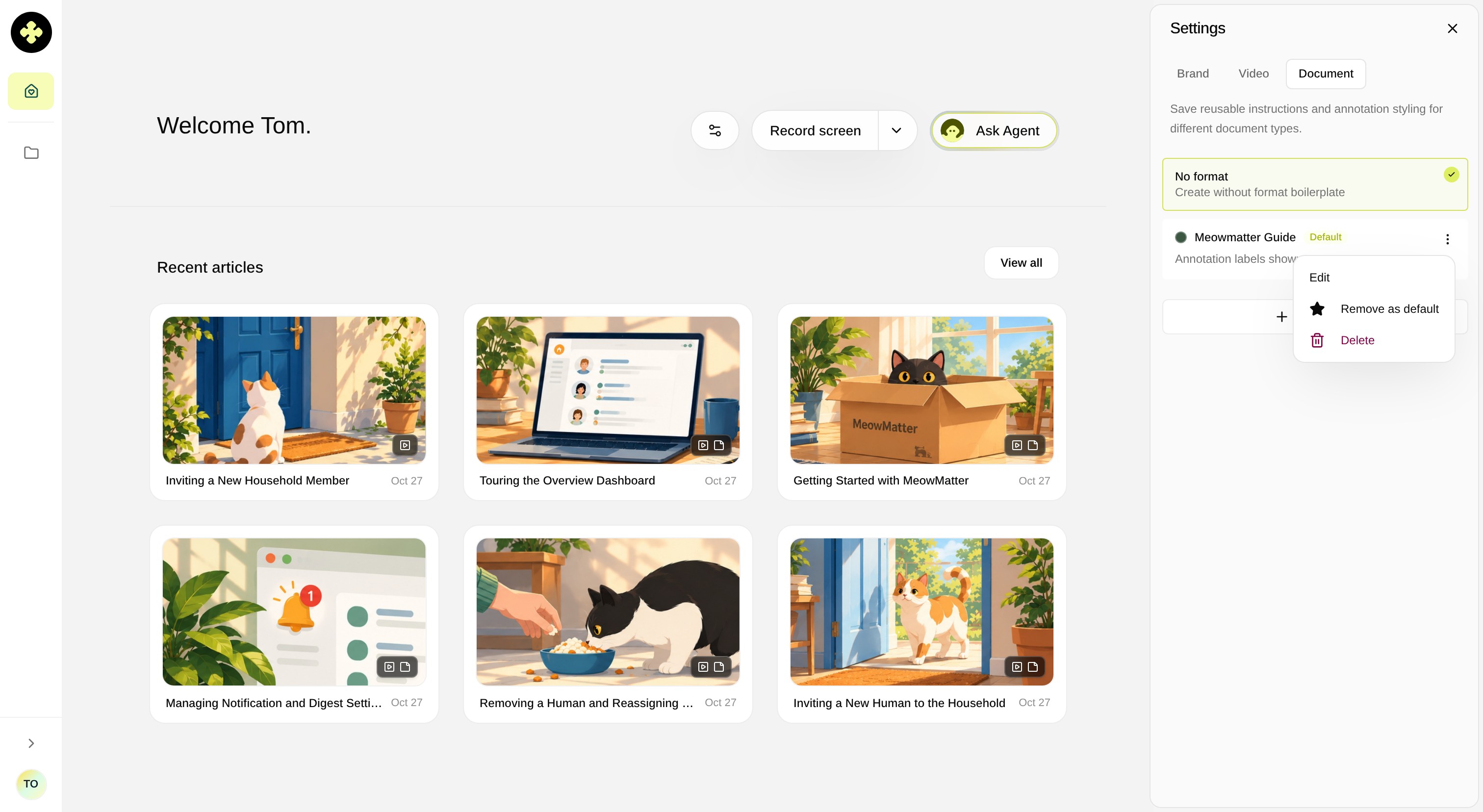
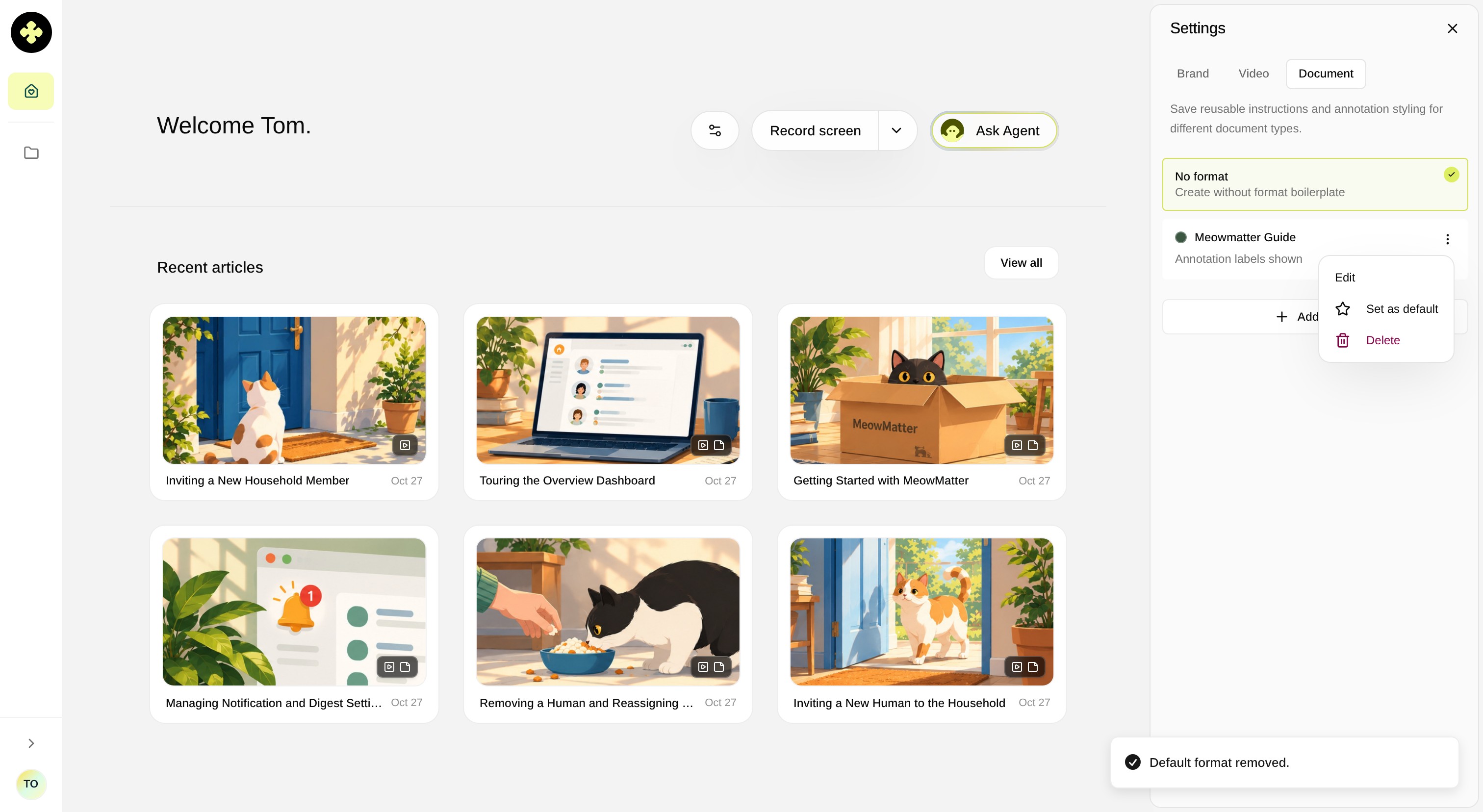
Step 5 — Set a Format as Default
Click the three dots icon next to any format and choose Set as default (or Remove as default). Default formats are automatically applied whenever new recordings are processed.
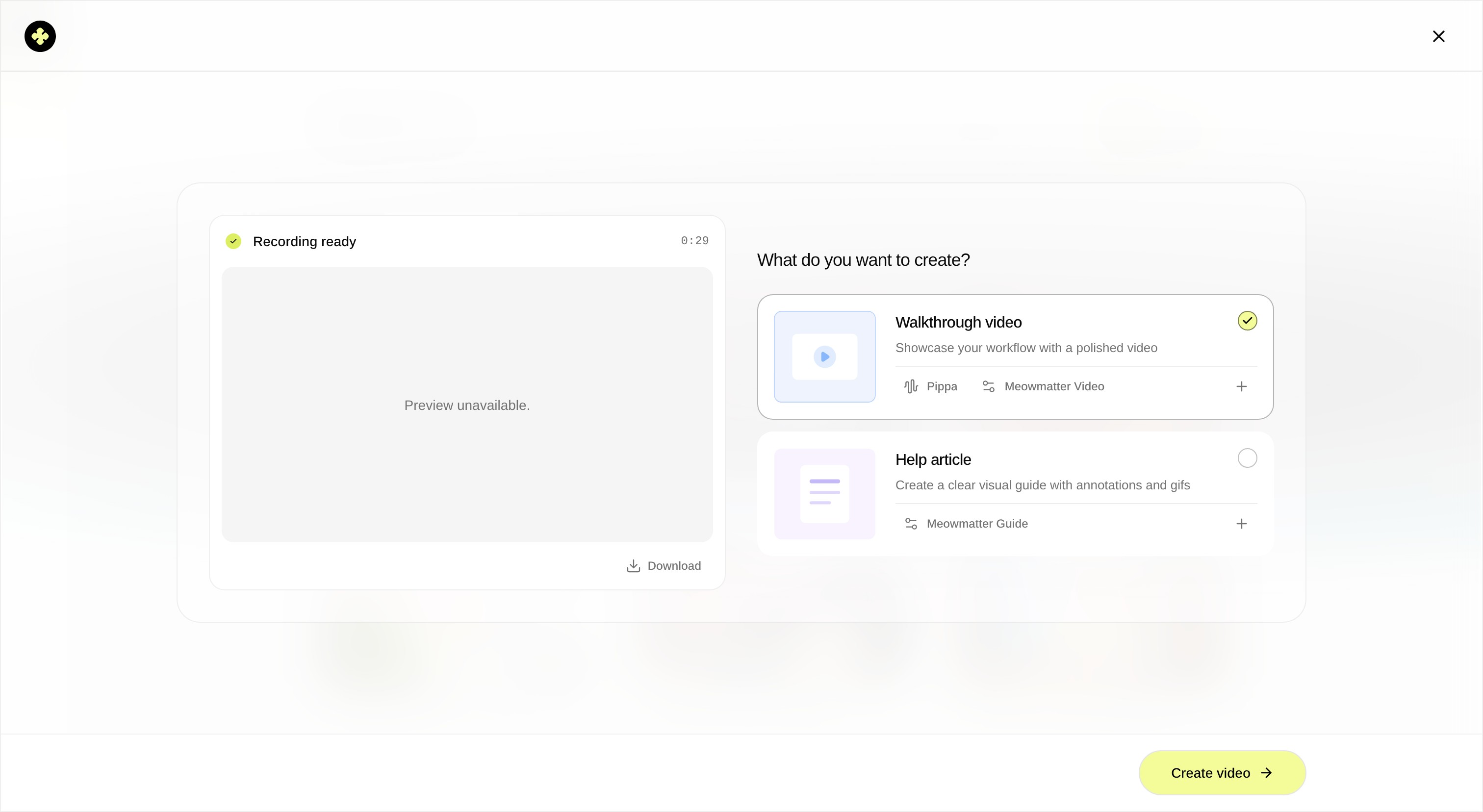
Step 6 — Choose a Format for Video or Guide
On the content creation screen, click the format dropdown under your video or document preset to browse available formats, or select No format to generate content without template rules.
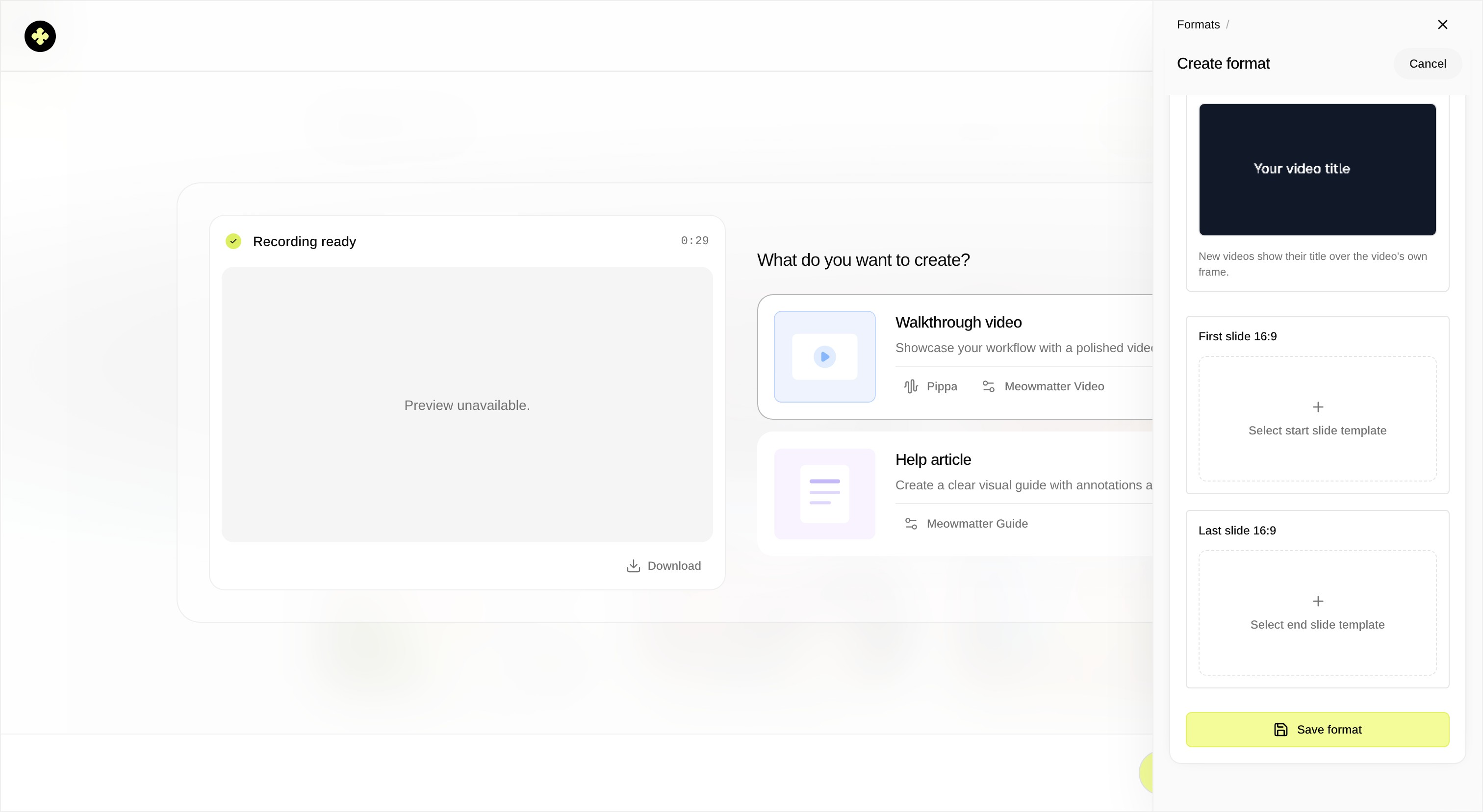
Step 7 — Add and Save a New Format
To create a format from the creation screen, open the format selector, click Add format, enter a name in the Name field (such as Internal Team Format), and click Save format.
Step 8 — Select the Desired Format and Close Panel
Click your desired format in the list and close the panel to apply it before generating your video or document.
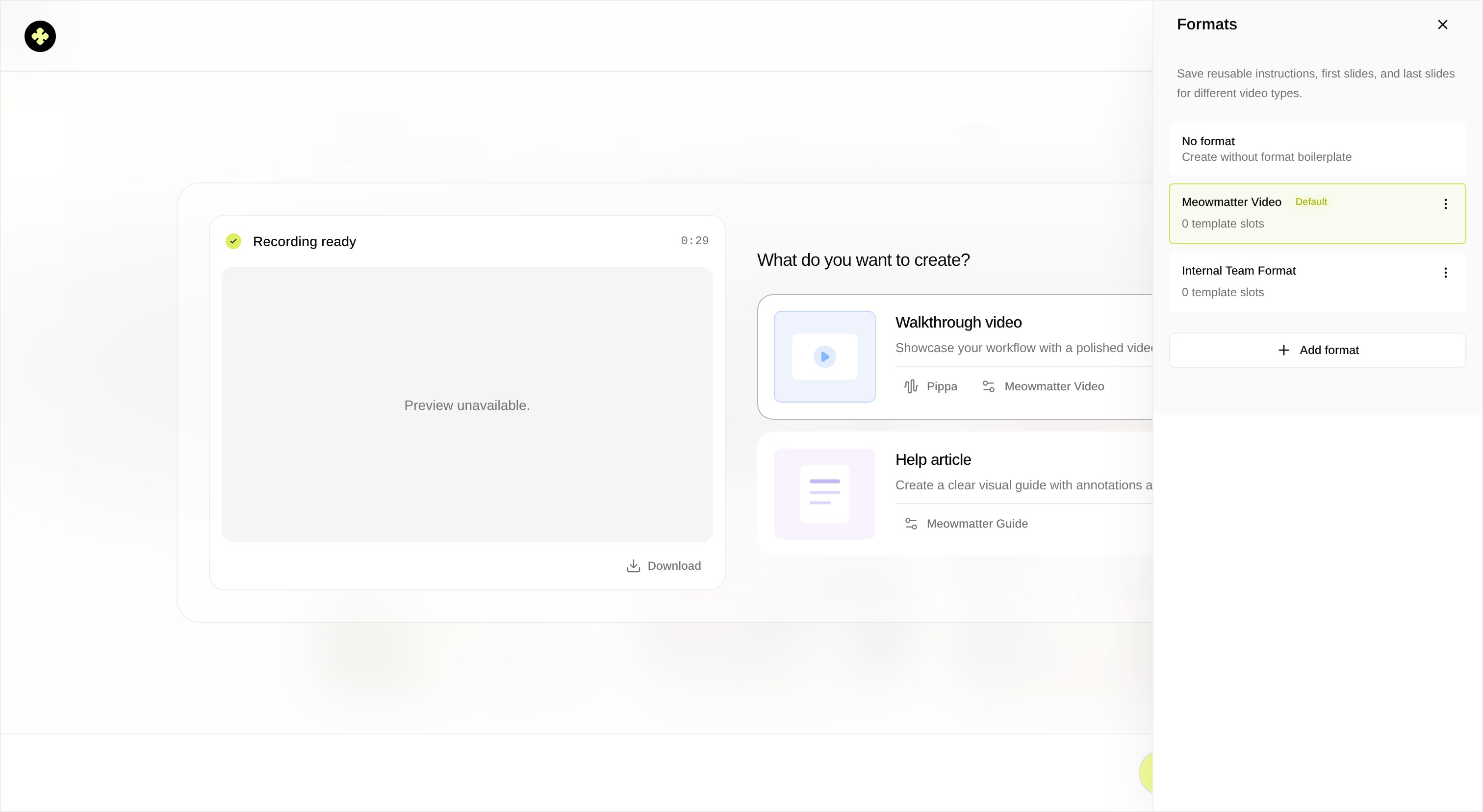
Result
The content creation screen reflects your selected formats for both video and document generation, ready to produce outputs consistent with your configured templates.
Notes
- You can create separate formats tailored for specific audiences, such as internal teams or distinct customer segments.
- If a default format is set, Superdegree applies it automatically to new recordings unless changed manually.