

Video Editor · Article 7 of 18
Change Background Image and Color
This walkthrough guides you through updating the background color or background image of a video in the Superdegree Slide Editor. You will learn how to access global frame settings, remove an existing background image to show the underlying background color, and choose a new image from the asset library. The flow takes place directly within an open video project in the Slide Editor.
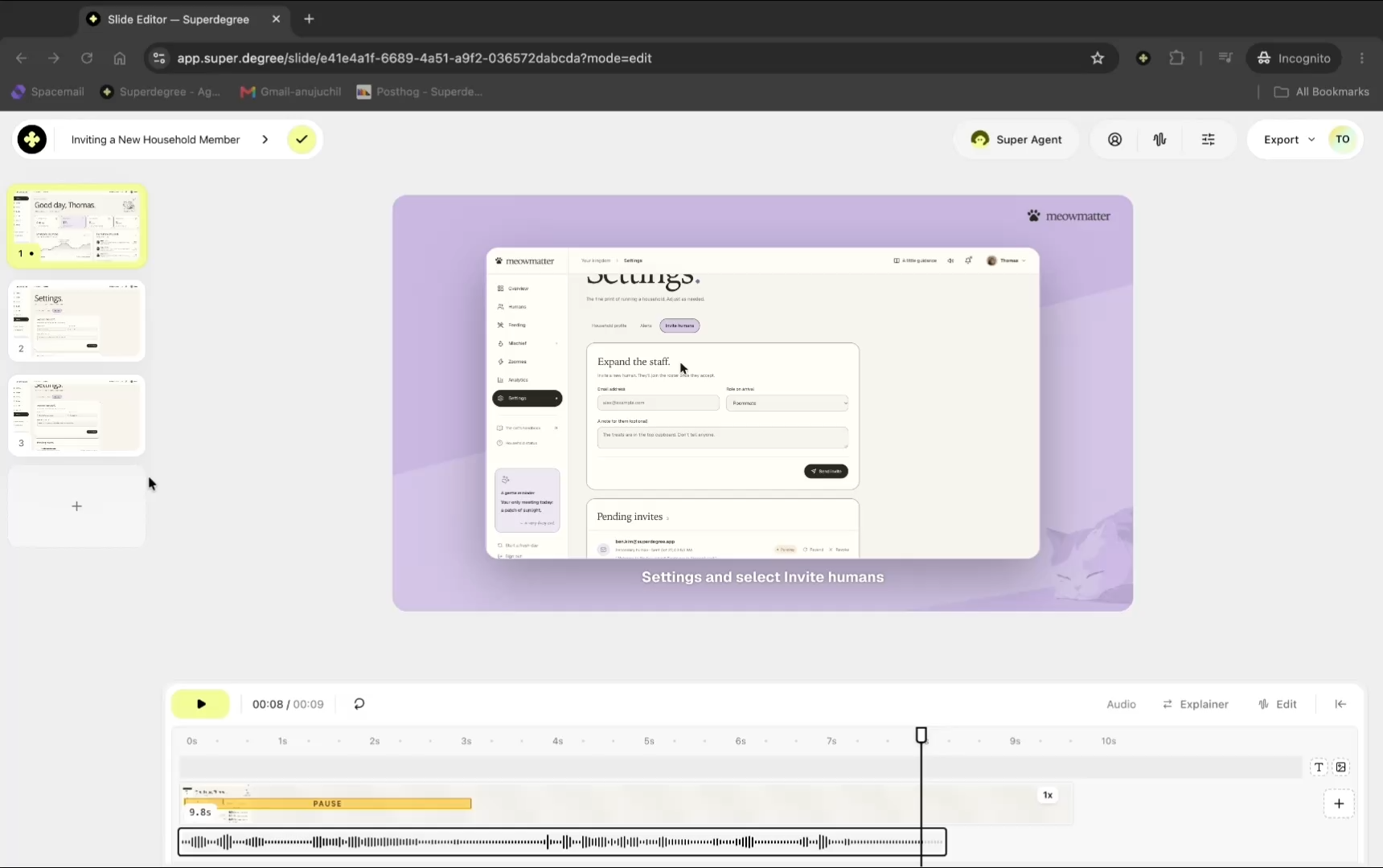
Open the settings menu
From the Slide Editor, click the settings option at the top to display the project configuration panels.
Access background image options
Scroll down in the settings panel to locate the global frame settings card, then click Background image options to manage the current background image.
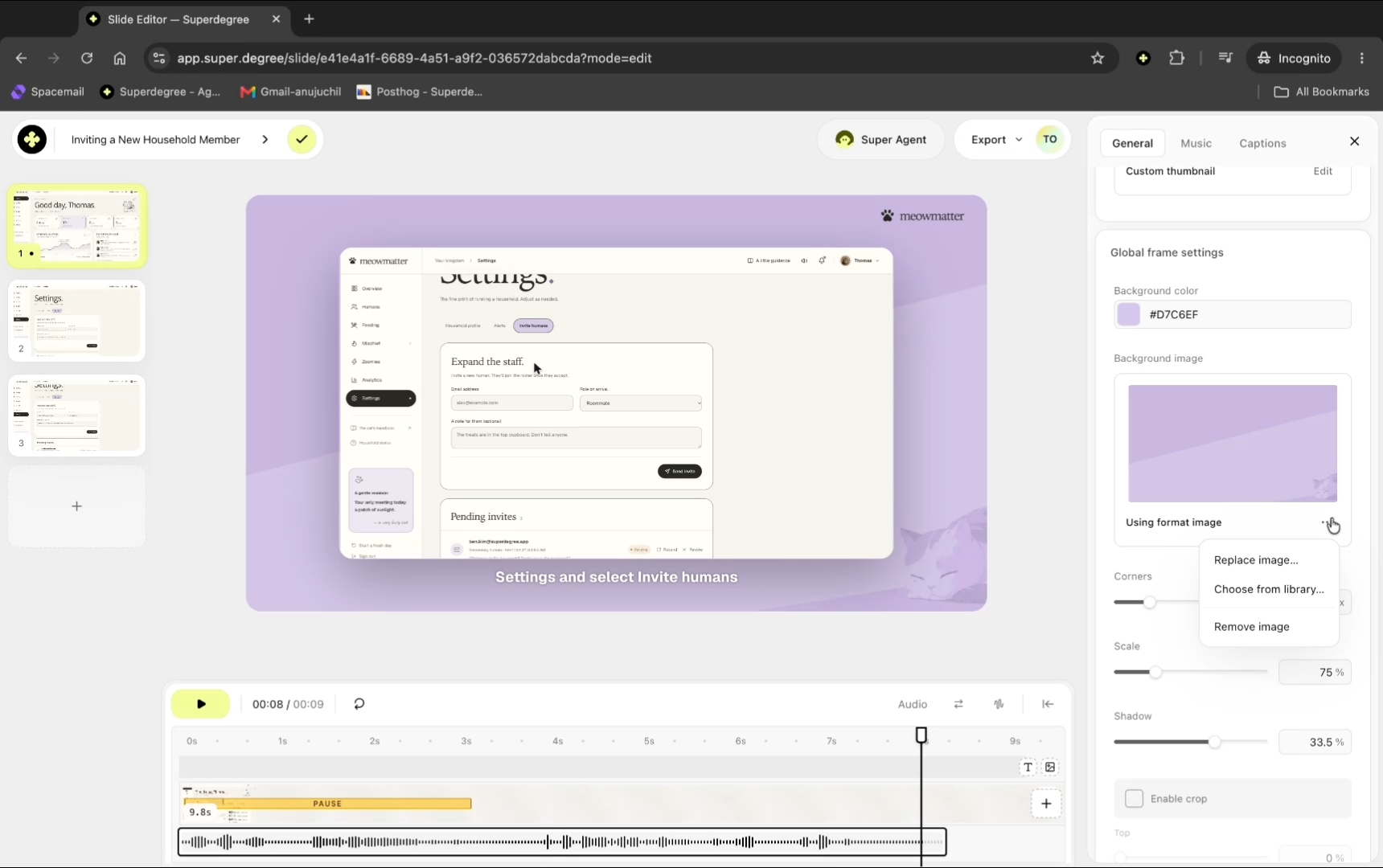
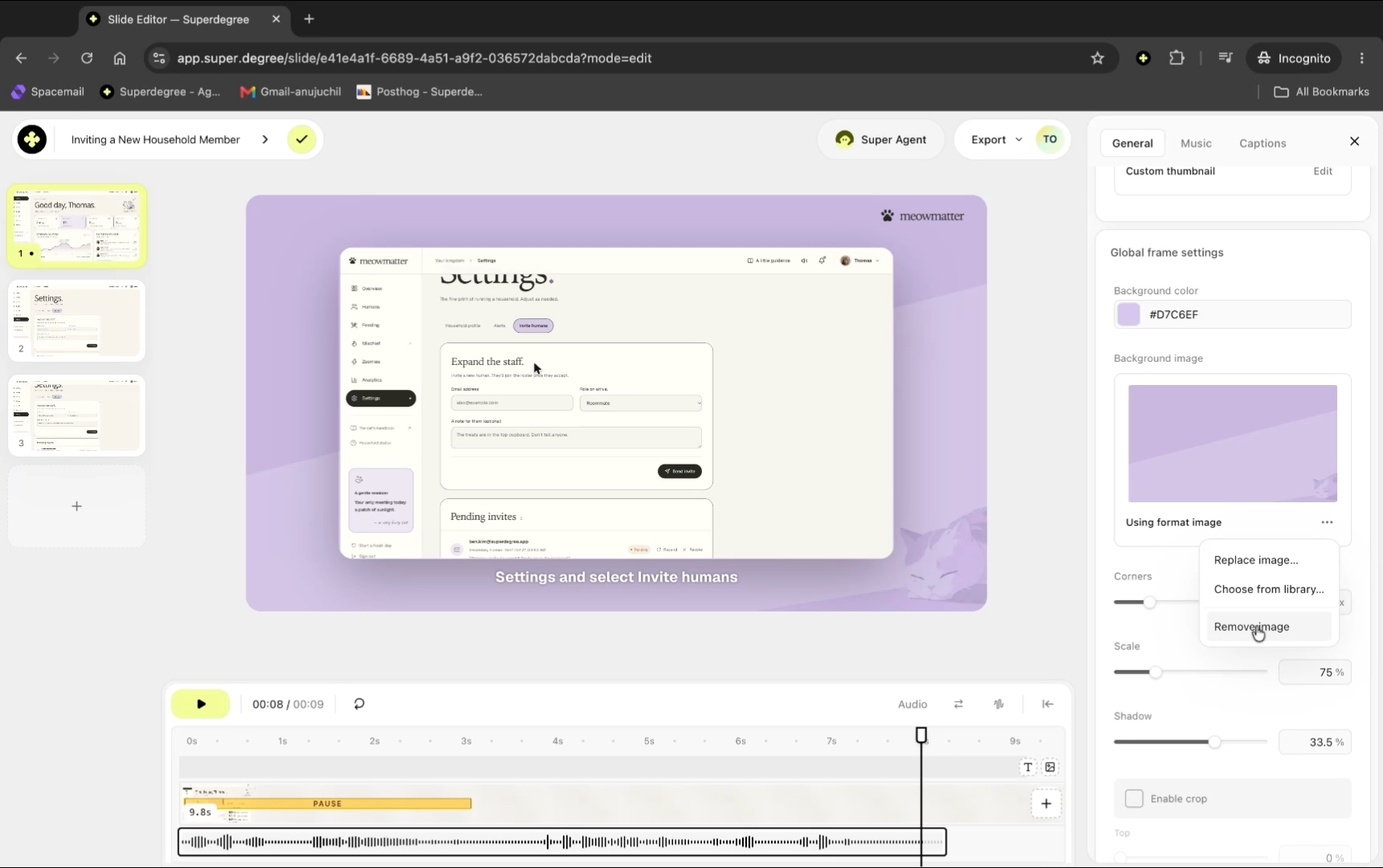
Here you can remove the existing background image
Click Remove image. Removing the image reveals the underlying background color, which is otherwise covered by any active background image.
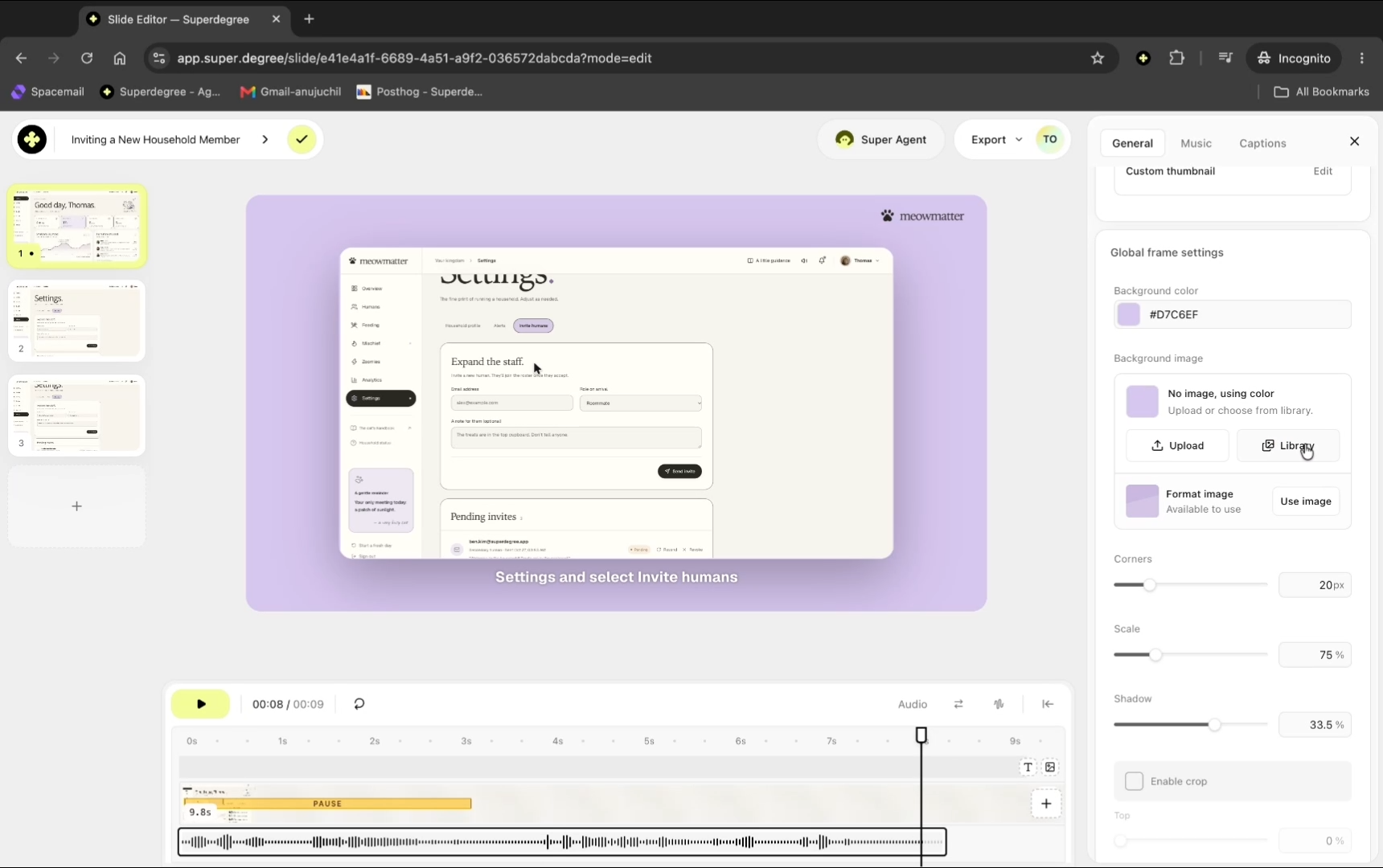
Open the image library
Click Library to browse available preset background images.
Select a new background image
Browse the available options and select an image. The slide canvas immediately updates to display the selected background.
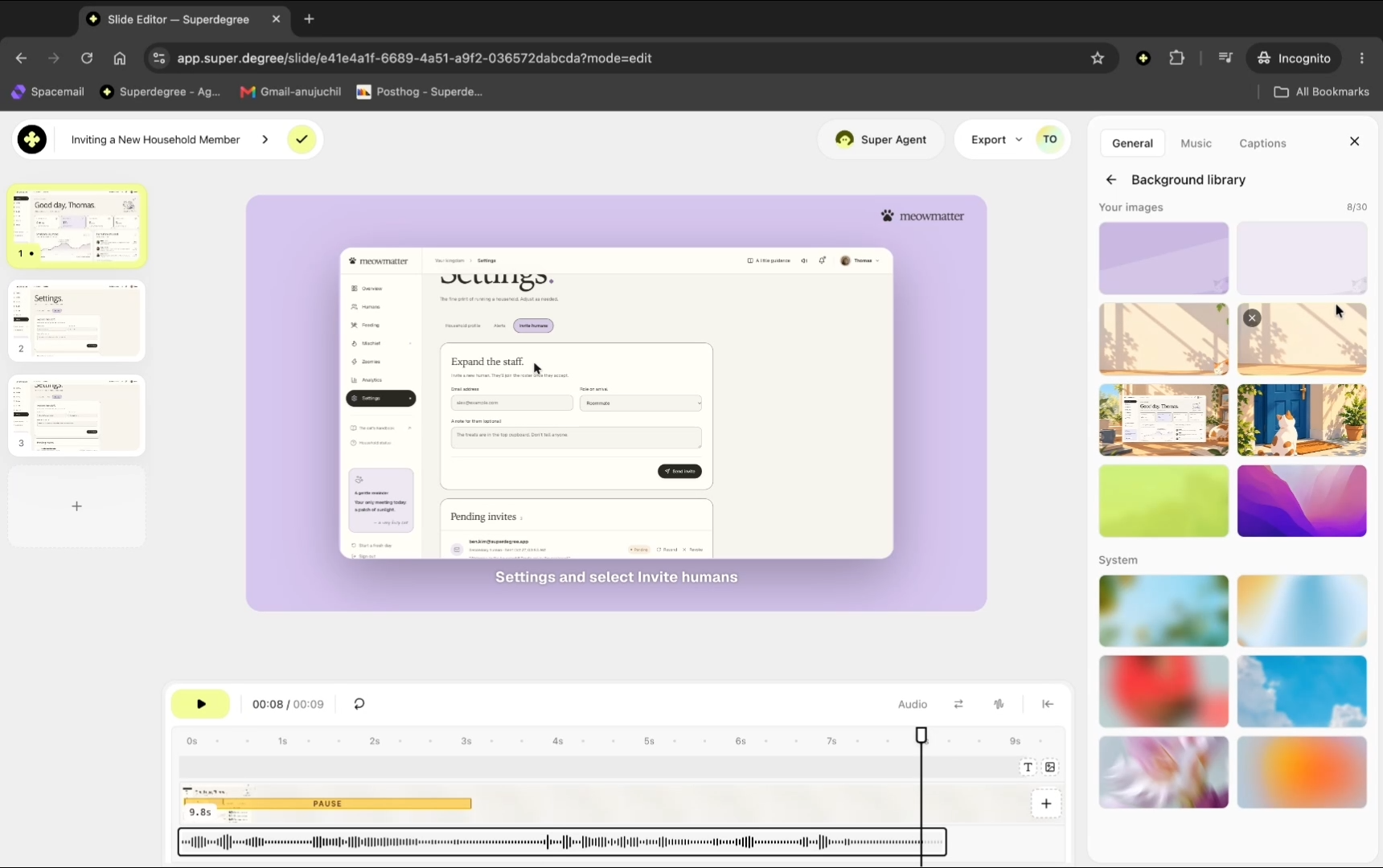
Result
The Slide Editor displays your video project with the newly selected background image applied across the slide canvas.