

Chrome Extension · Article 2 of 18
Configuring Voice Narration Options
This walkthrough explains how to configure narration settings after completing a recording using the Superdegree browser extension. From the editor screen, opening the voice selection menu allows you to choose your desired narration type to adjust how your recorded voiceover is processed.
Open the voice selection menu
Click on the voice selection control (labeled Select voice. Current voice: Jason) to view the available voice and narration options.
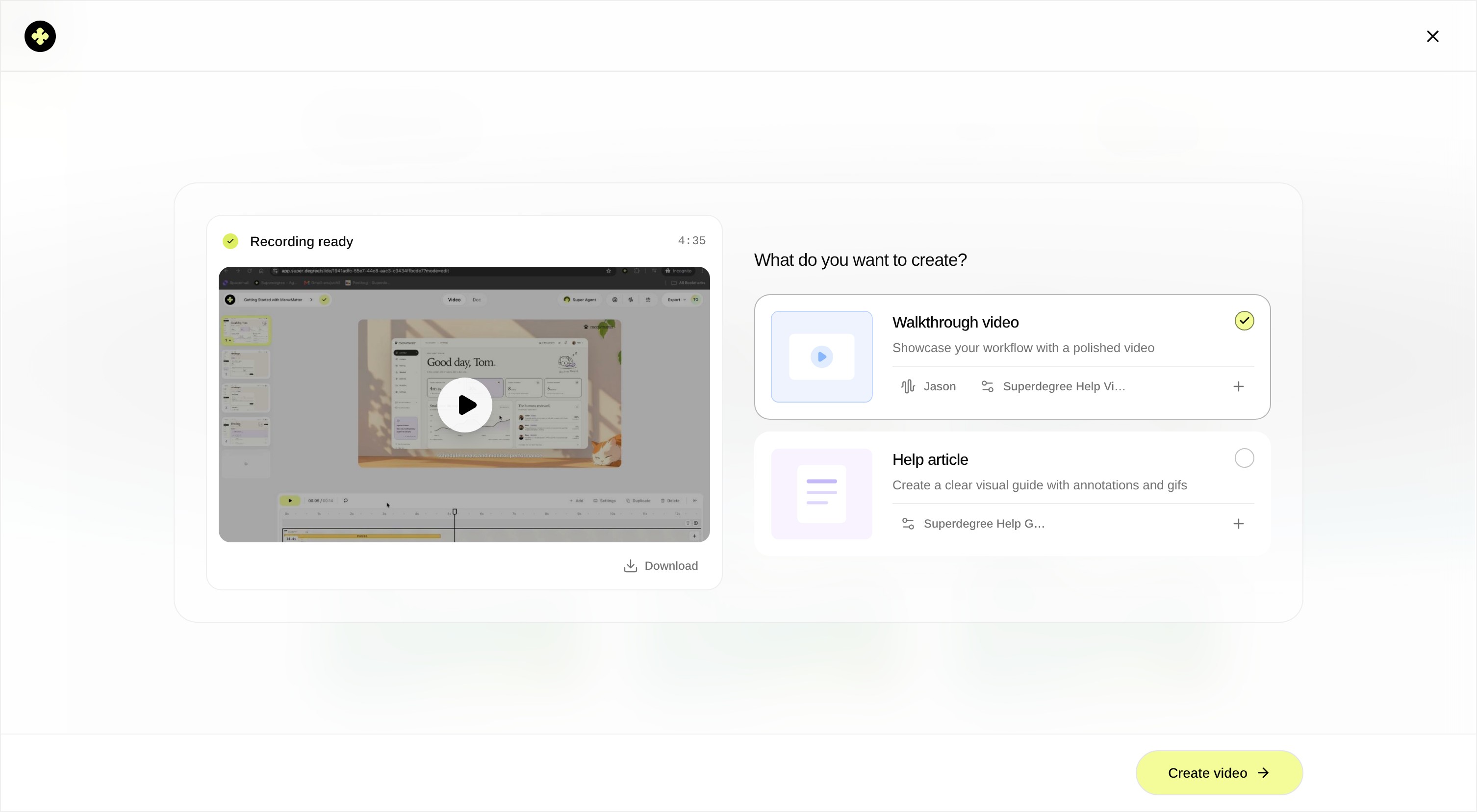
Review narration type options
Examine the narration type options available in the menu: Enhance, Polish, and Match. Choose the setting that best fits your preference: Match stays closest to your original voiceover, Polish keeps the sense of what was spoken with added refinement, and Enhance modifies the audio to sound clearer and different from the original.
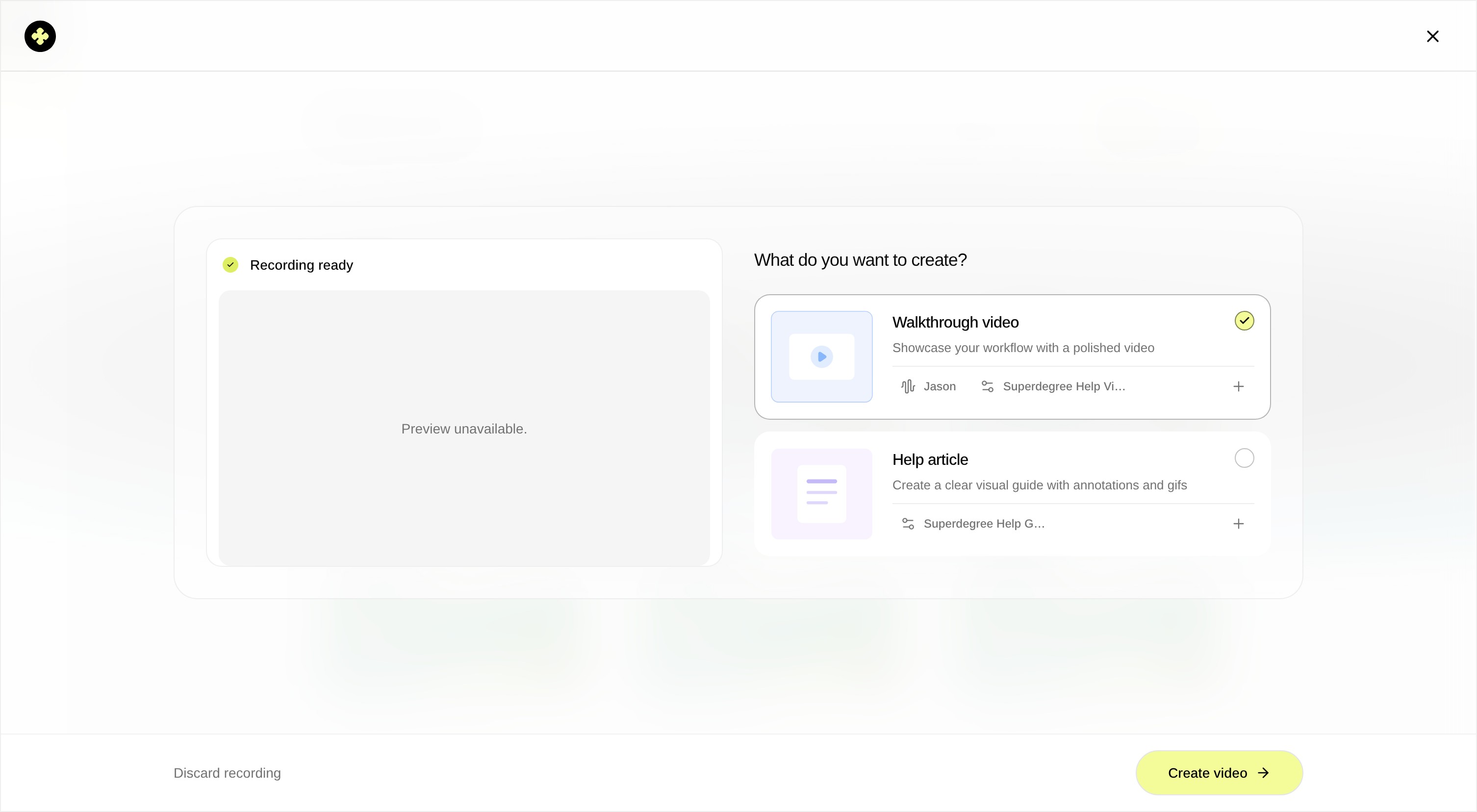
Result
The voice selection panel is open on the screen, showing the narration type choices (Enhance, Polish, and Match) ready for configuration.