

Video Editor · Article 16 of 18
Live Editing Screen Recordings
Superdegree allows you to edit recorded video slides after capture when videos are created via the Superdegree Chrome extension or SuperAgent. In the Slide Editor, you can modify on-screen text, blur sensitive information, remove elements, reposition cursors, and adjust screen scroll positions. This walkthrough demonstrates how to enter screen-editing mode, apply text and element changes, adjust timeline interactions, and save your modifications.
Step 1 — Open the video editor
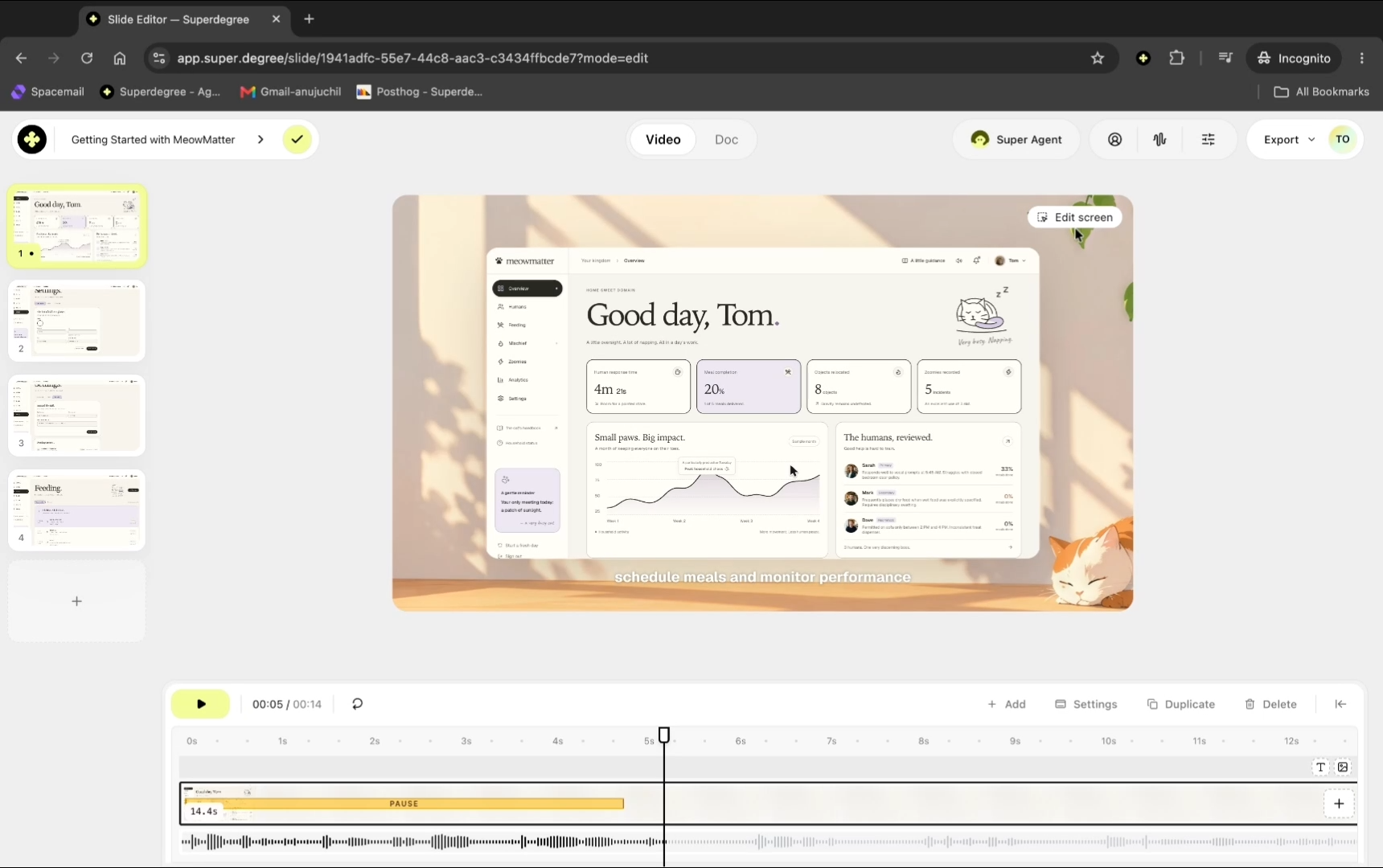
In the Slide Editor toolbar above the video preview, click Edit screen to make the current video slide editable.
Step 2 — Rename on-screen text
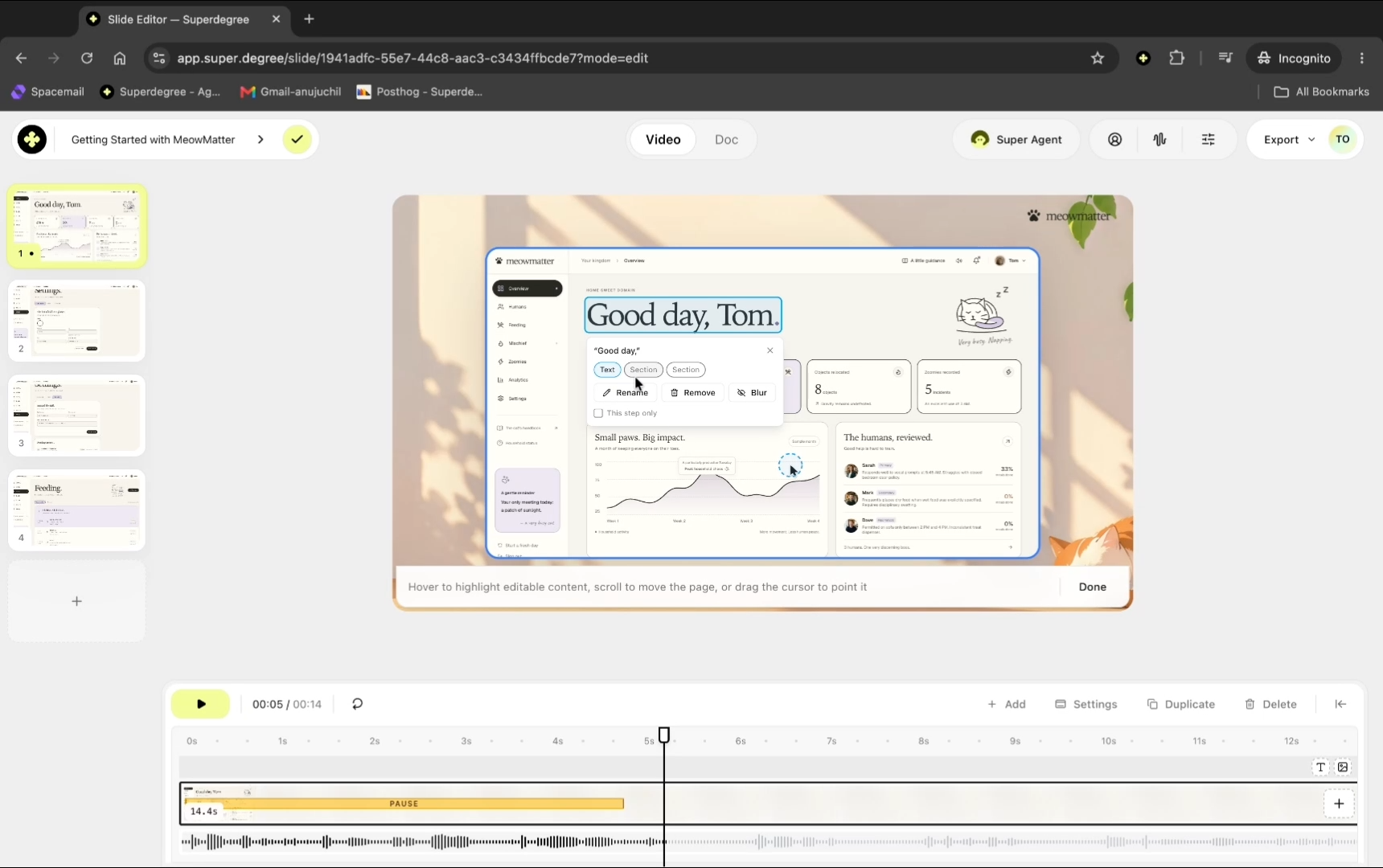
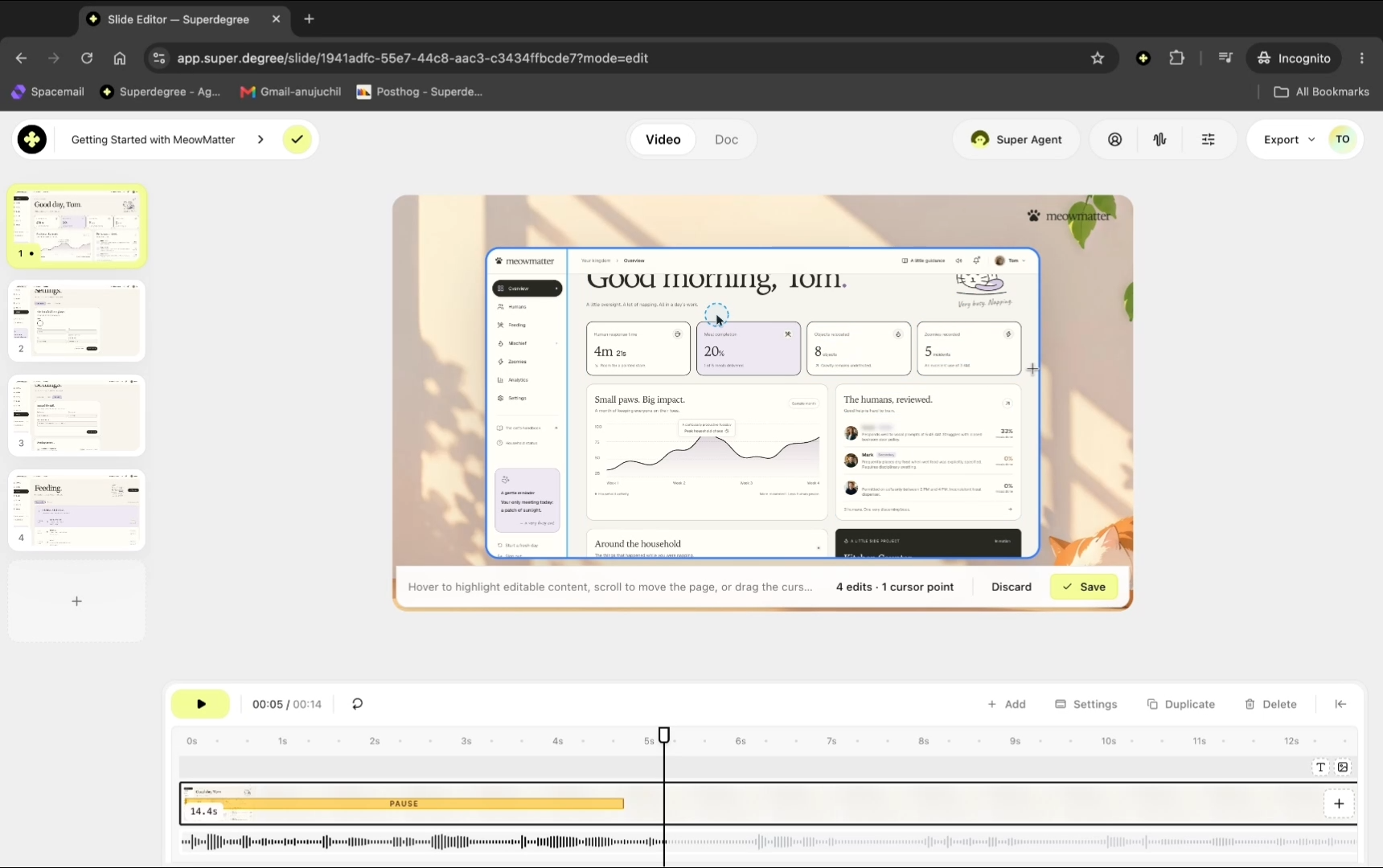
Click on any text element on the slide to open its context menu, select Rename, and update the text field (for example, changing Good day, to Good morning,). Click Rename to confirm the change.
Step 3 — Blur or remove screen elements
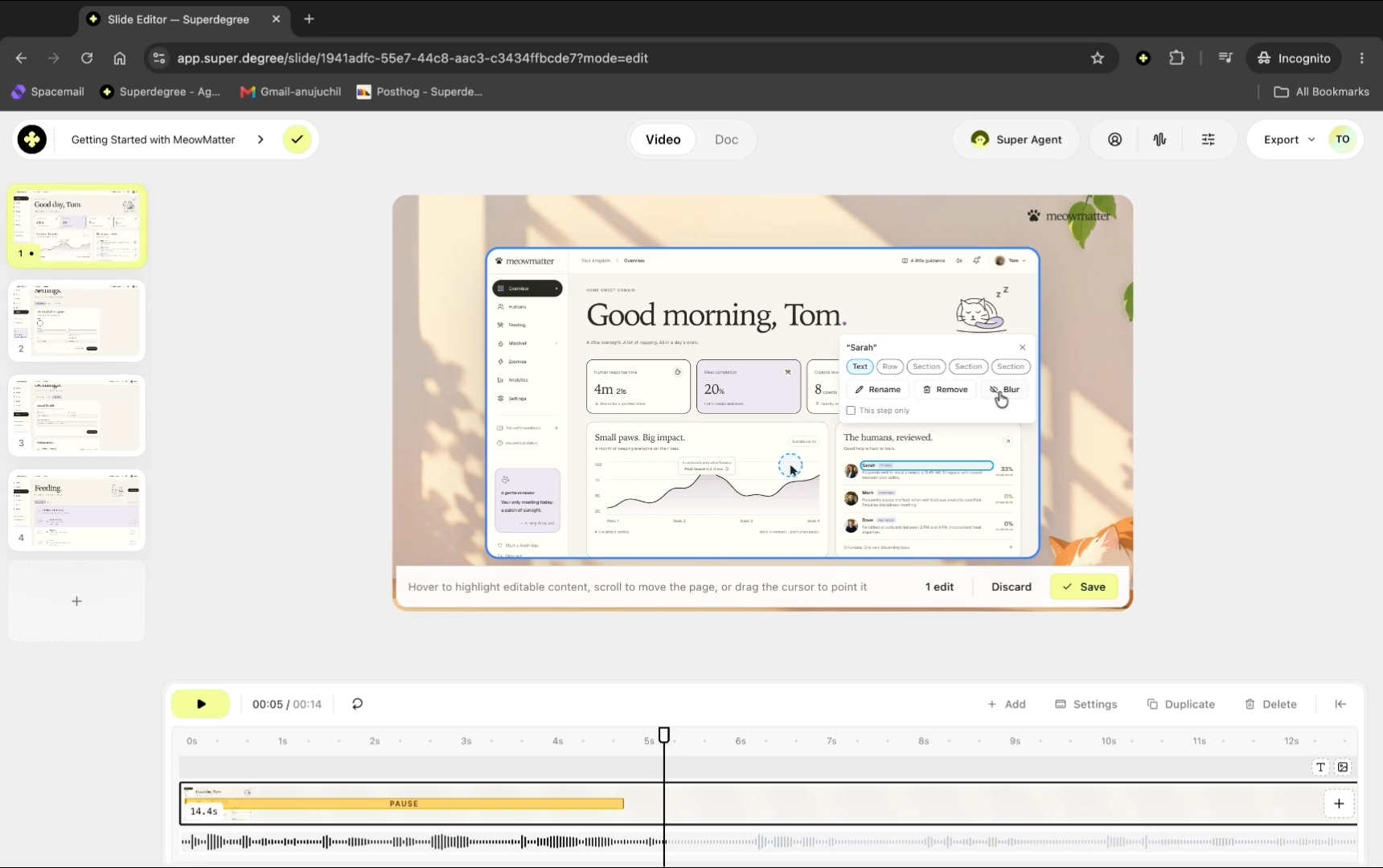
Click an element you want to conceal and click Blur to obscure sensitive text, or select another element and click Remove to eliminate it from the frame.
Step 4 — Reposition the cursor
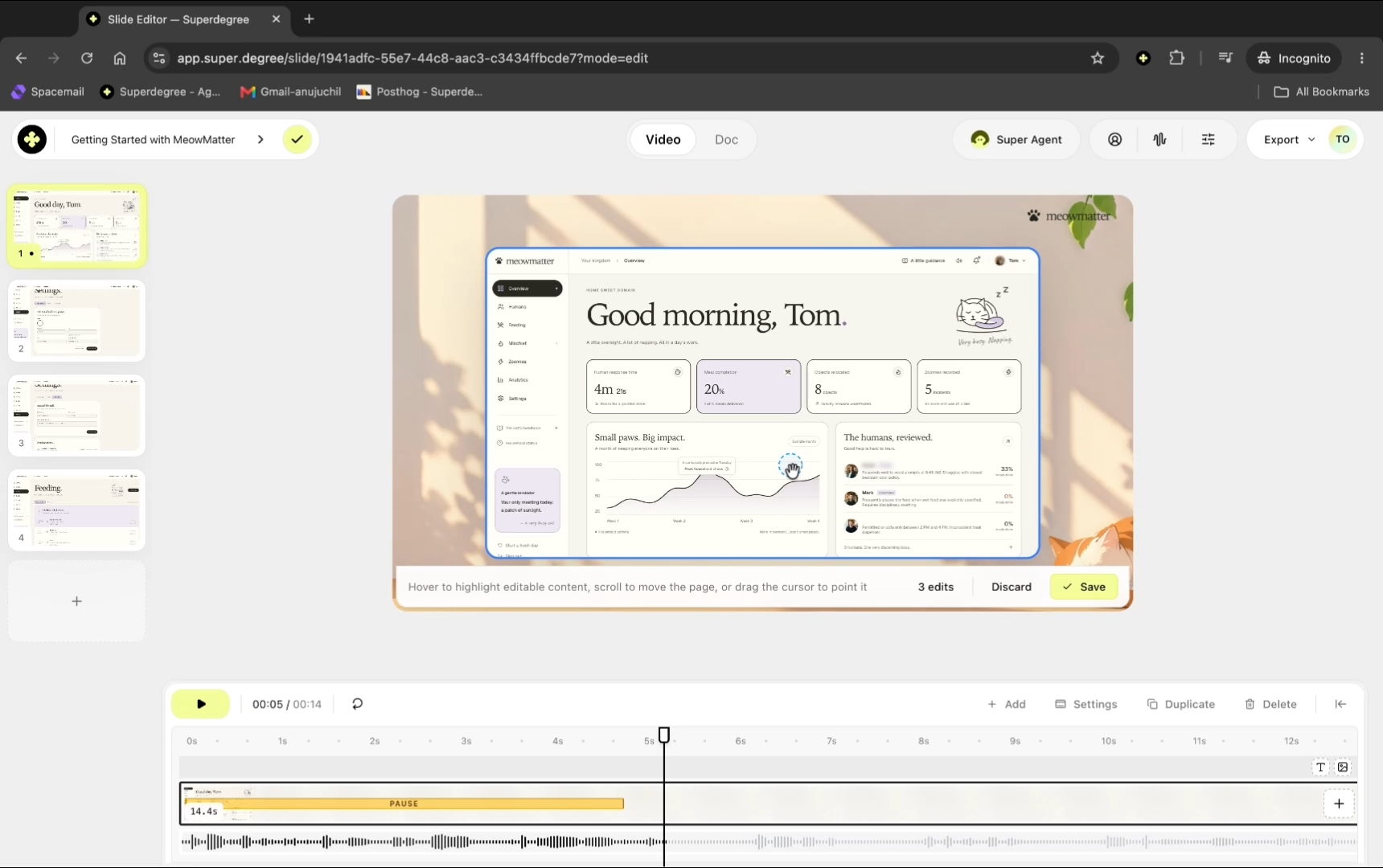
Select the cursor overlay on screen and drag it to the desired position to refocus viewer attention on a different section of the interface during playback.
Step 5 — Adjust scroll position and timeline points
Select the relevant timeline timestamp and scroll the section on the slide to adjust where the view rests during playback.
Step 6 — Save screen edits
Click Save in the top navigation bar to apply all text modifications, removals, and positioning adjustments to the video slide.
Step 7 — Preview the updated video
Click Play on the playback controls to review the updated cursor movements, scroll adjustments, and text changes.
Result
The Slide Editor displays the updated video slide with the new text, blurred or removed interface sections, repositioned cursor, and modified scroll position reflected in the playback preview.