

Video Editor · Article 15 of 18
Adding Background Music
This walkthrough demonstrates how to configure background music for your video project in Superdegree. Starting from the Slide Editor, you can access the music settings, preview available audio tracks, apply a track to your video, and adjust playback settings such as looping and volume.
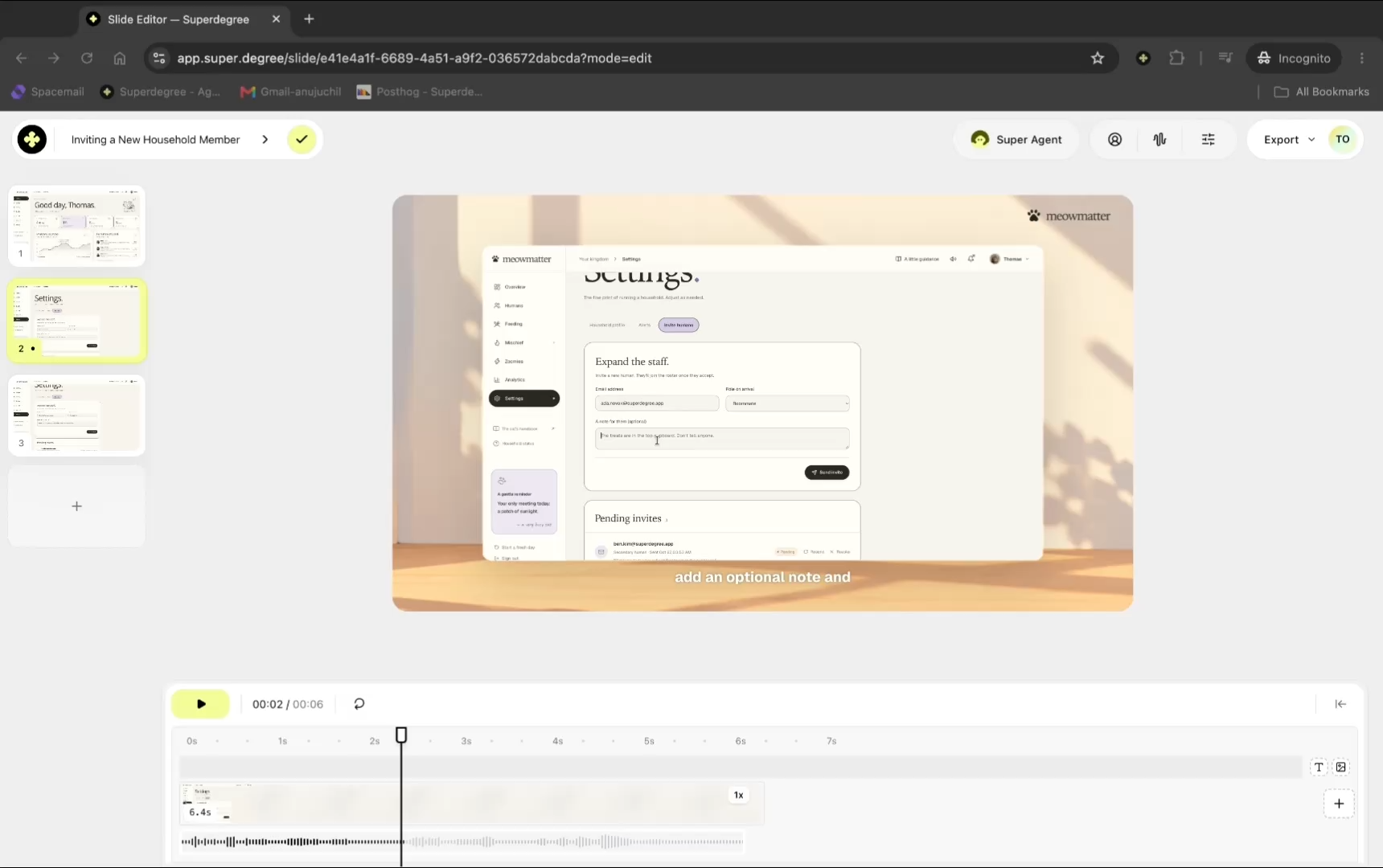
Step 1 — Open the Settings menu
In the top navigation bar of the Slide Editor, click Settings to open the project settings sidebar.
Step 2 — Navigate to the Music tab
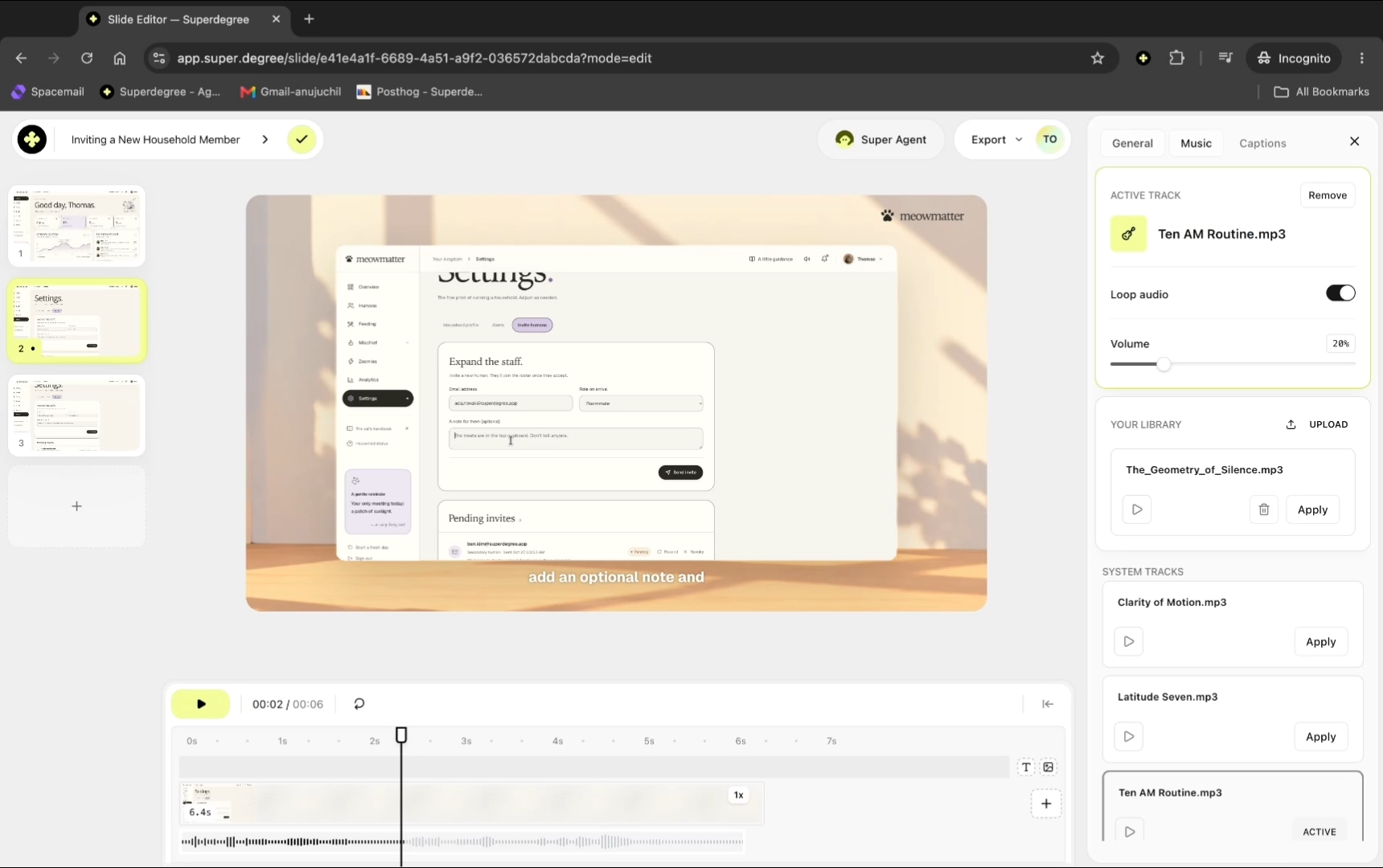
Inside the Settings sidebar, select the Music tab located at the top to access background audio options.
Step 4 — Preview a track
Browse the list of available audio tracks and click the play icon next to a track—such as Latitude Seven.mp3—to preview it before applying.
Step 5 — Apply the track to your video
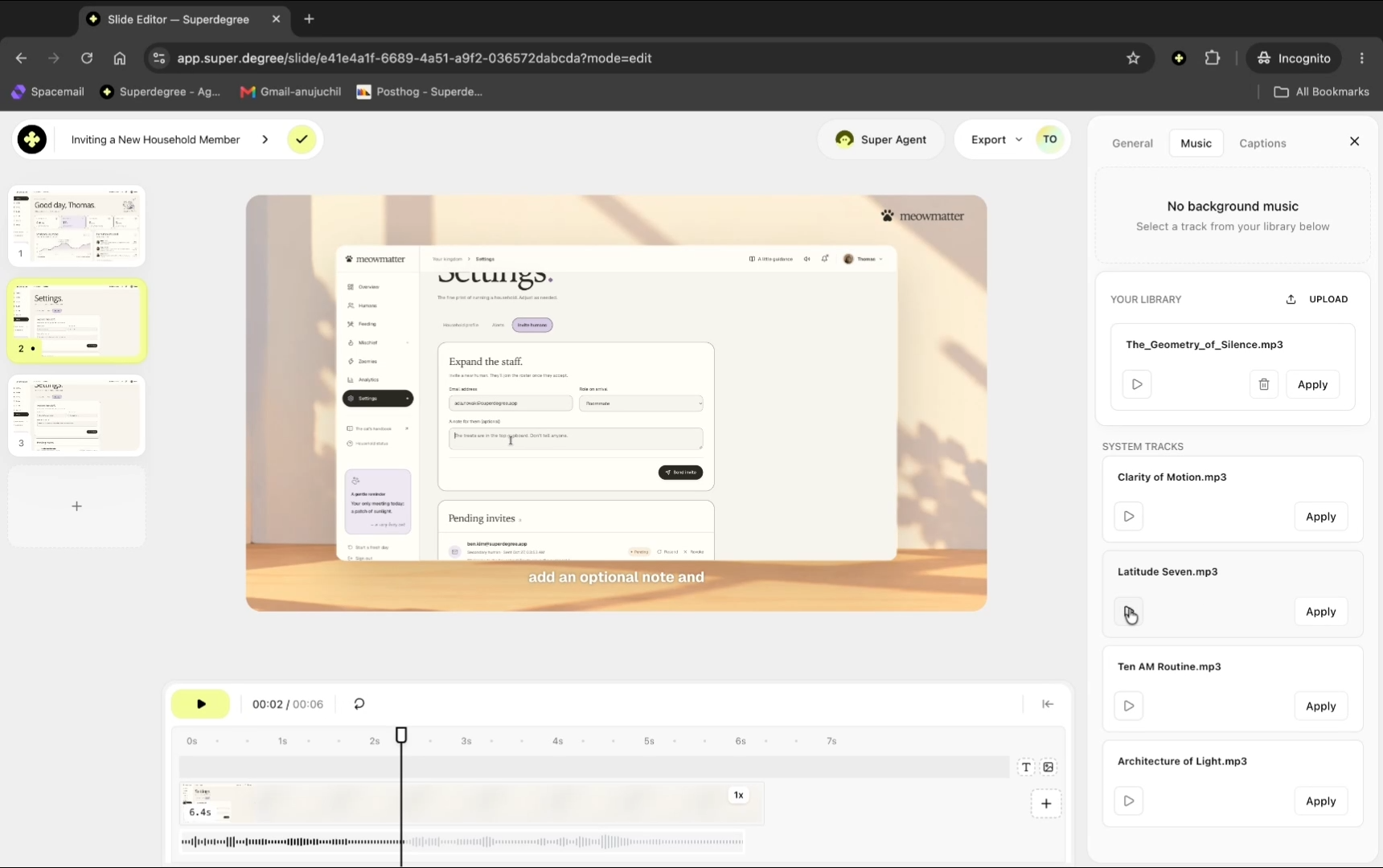
After selecting or previewing your chosen track, click Apply to assign it as the video's active background music.
Step 6 — Adjust playback volume and settings
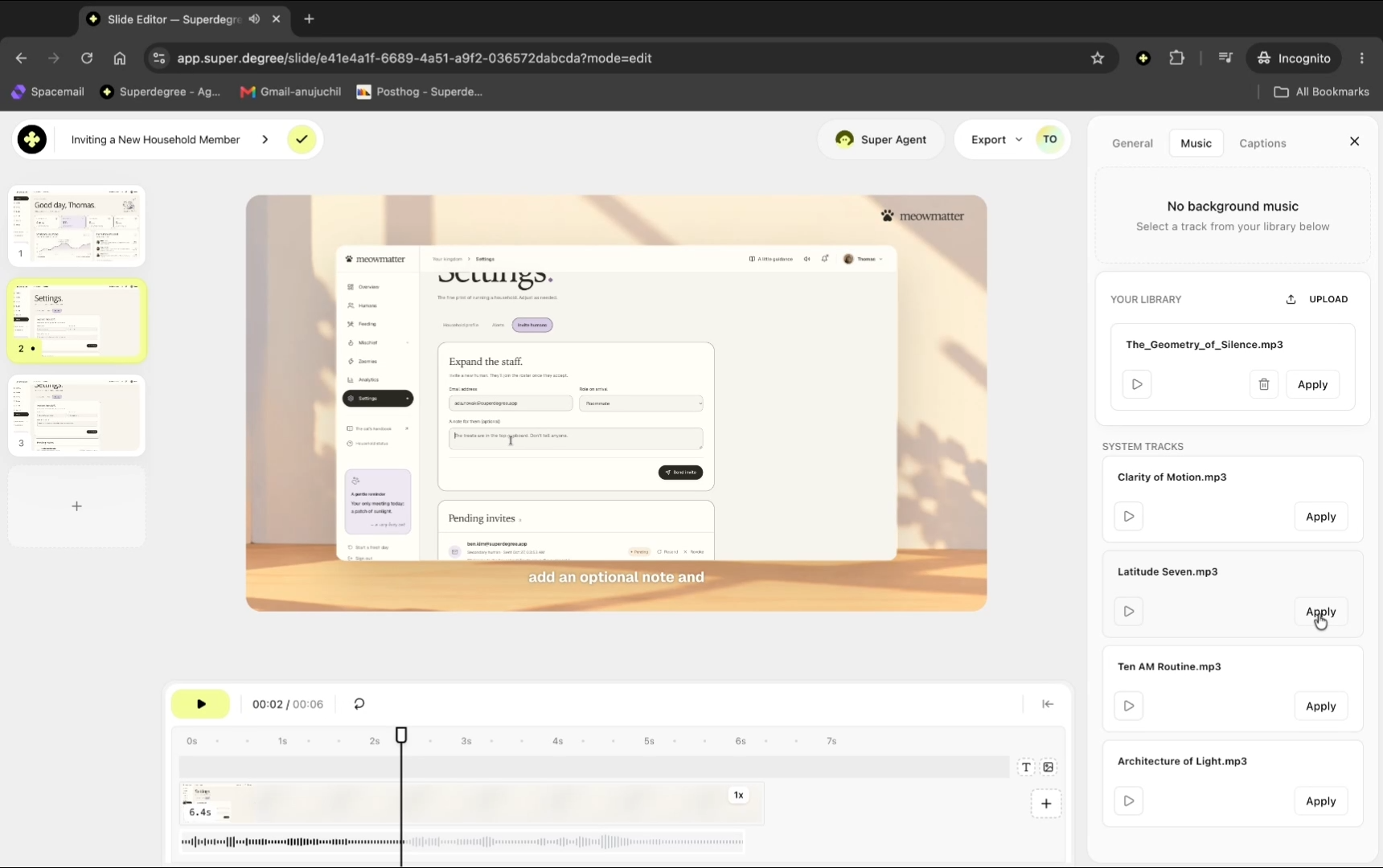
Under the active track options, ensure Loop audio is enabled if your video length exceeds the track duration, and adjust the Volume slider (for example, lower it from 50 to around 20 so it does not overpower spoken audio).
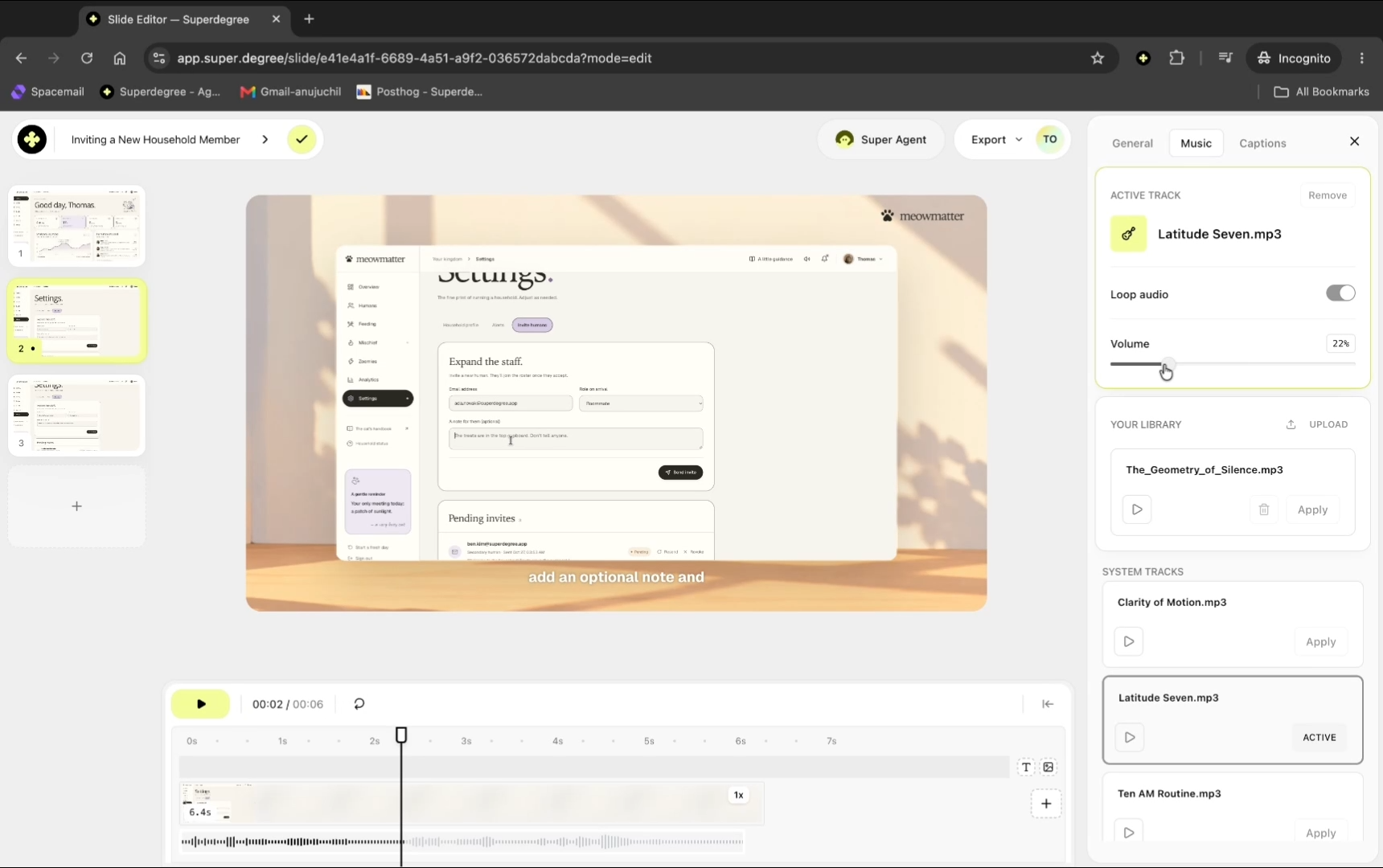
Step 7 — Preview the video with background music
Close the settings panel and click the Play button on the video canvas or timeline to review your video with the new background music applied.
Result
The selected background music track is attached to your project, configured to your preferred volume and loop settings, and audible during video playback in the Slide Editor.