
Video Editor · Article 4 of 18
Managing Pages
This guide demonstrates how to organize and manage video pages within the SuperDegree Slide Editor. Pages divide your larger project into smaller, manageable timelines to make editing individual sections straightforward. You will learn how to navigate between pages, manage individual page settings, perform multi-page actions, and insert new pages.
Page navigation
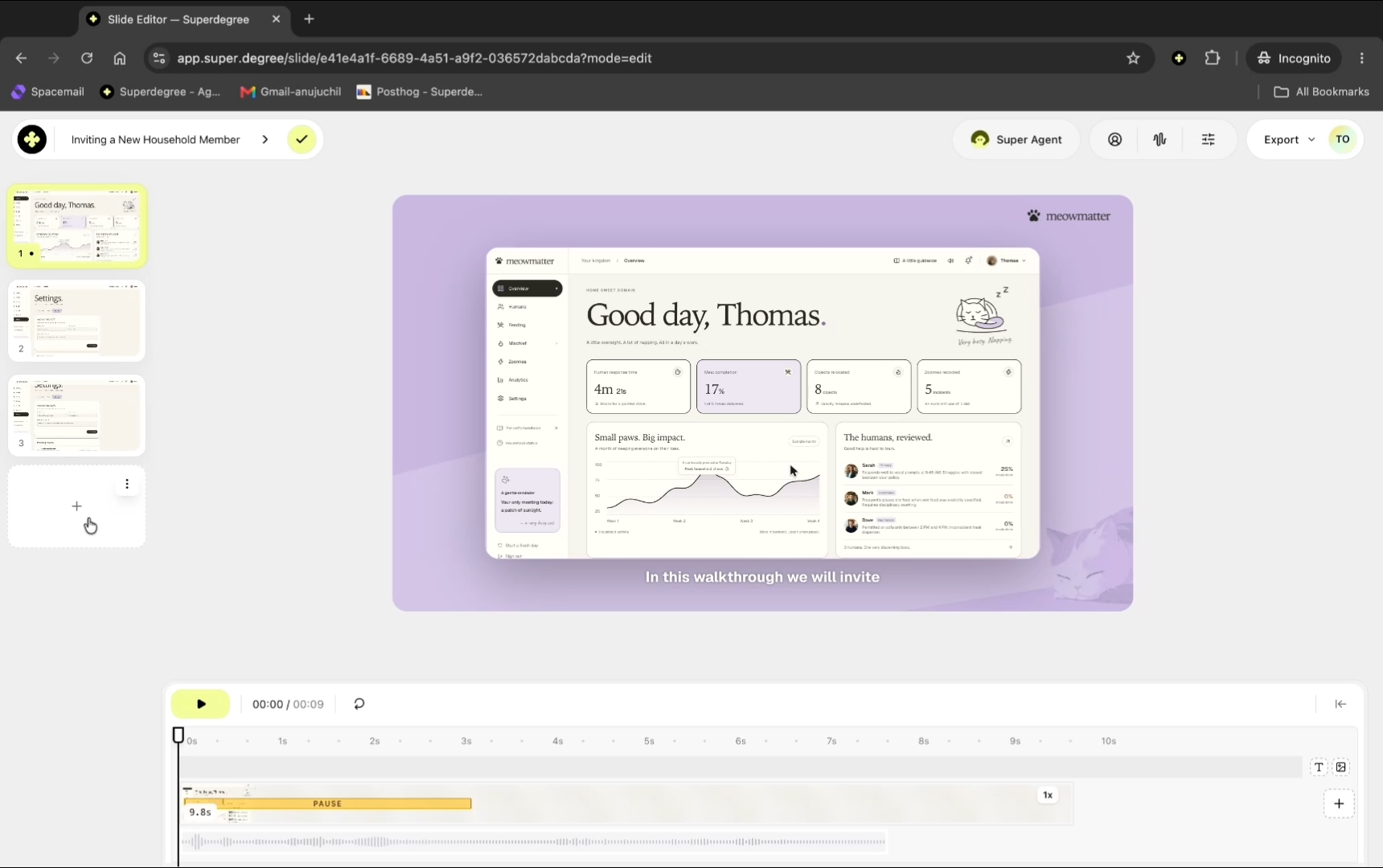
In the left-hand sidebar, click on any page thumbnail to load that specific section into the editor timeline.
Page options
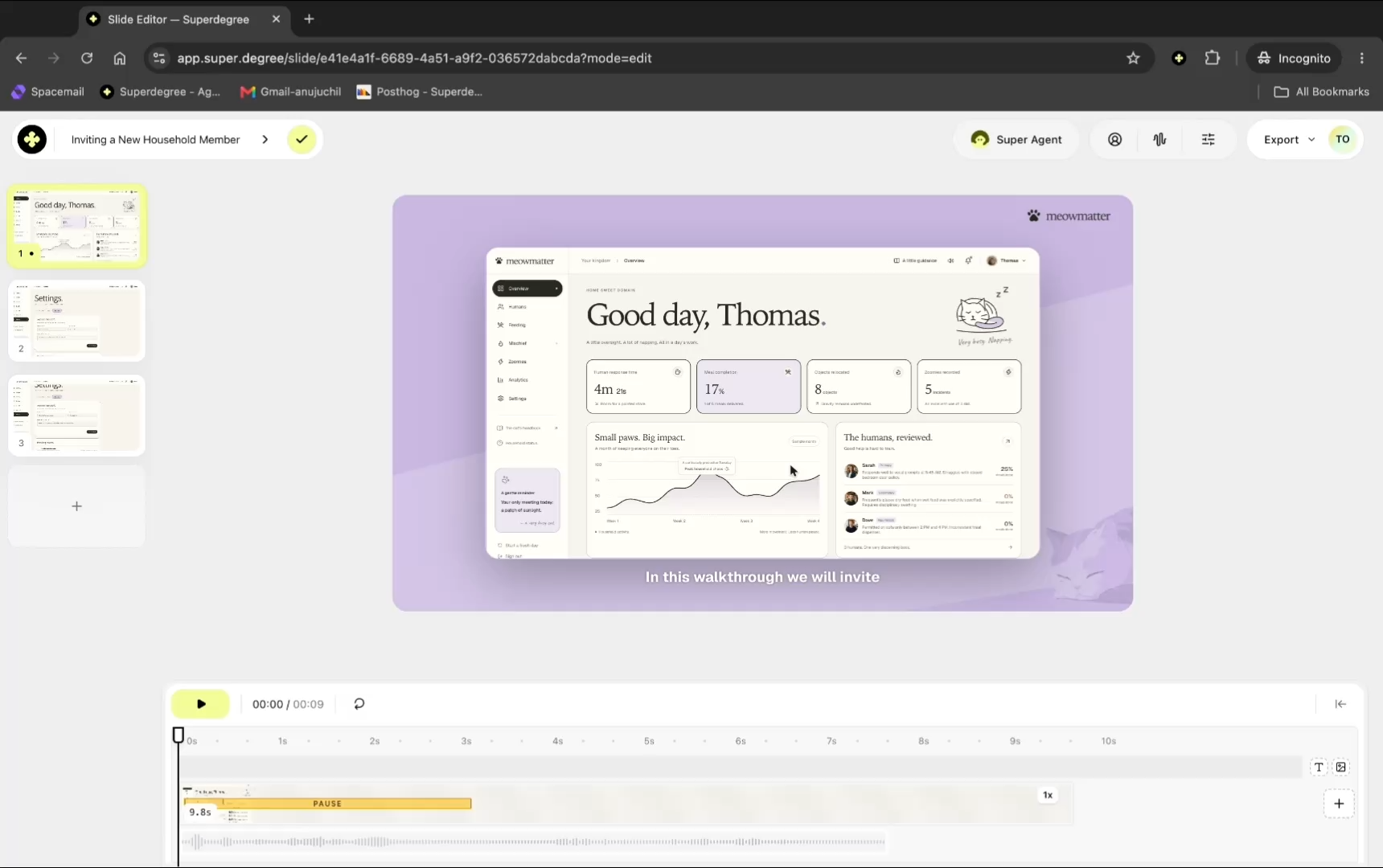
Click the three dots icon (Page options) on any page thumbnail to access contextual actions such as updating thumbnails, duplicating, saving as a template, exporting as MP4, or deleting the page.
Bulk page actions
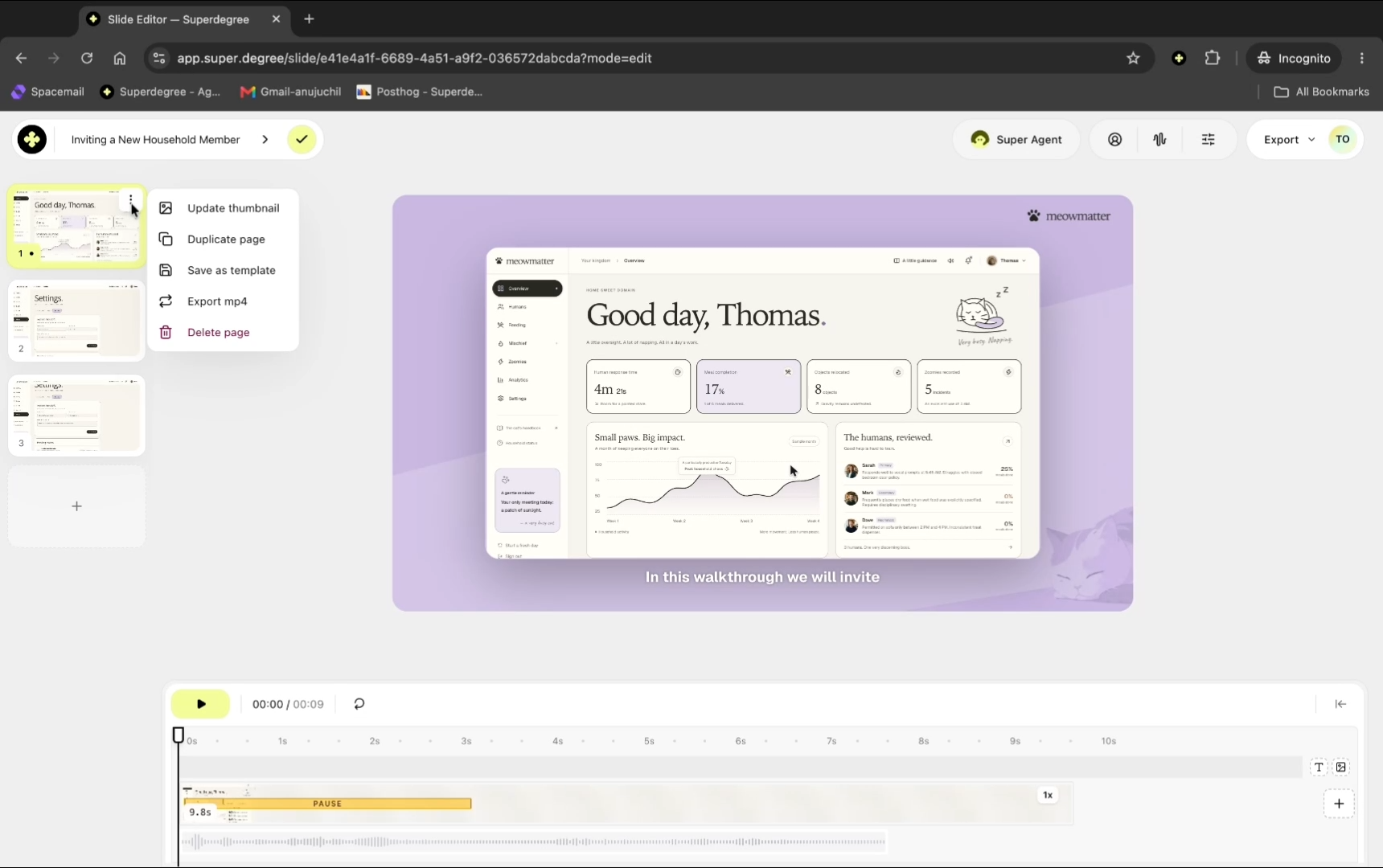
Click the selection checkboxes on multiple page thumbnails to manage them collectively, such as deleting multiple selected pages at once.
Adding pages
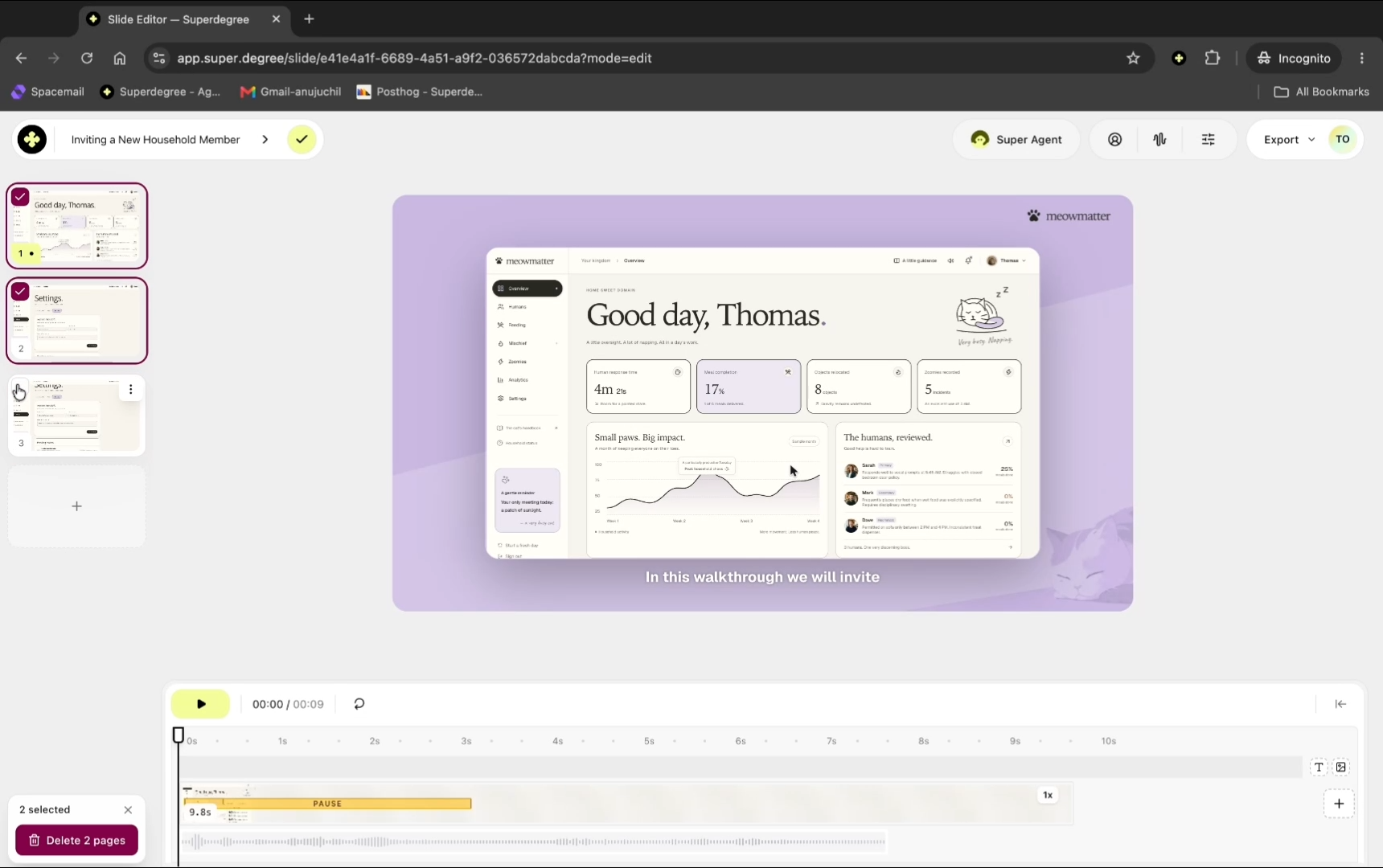
Insert a new page by hovering and clicking between two existing pages, or click the + (plus) button at the bottom of the page list to append a new page to the end of the project.